AI Chat
AI Chat is the chat assistant of Profinity AI, built into Profinity, available from the side menu once an administrator has configured it (refer to Profinity AI settings). It can answer questions about the live state of this Profinity instance, look up how-to and reference material from docs.prohelion.com, and, if the administrator has enabled it, search the web.
AI Chat requires the AI licensed feature, included in the Server and Enterprise editions. Without it the feature is unavailable. Refer to Licensing for what each edition includes.
Your messages may leave this instance
Profinity AI is answered by an external AI provider unless your administrator has configured a local, self-hosted model. Ask your administrator which provider is configured before discussing sensitive data with the assistant.
Open Profinity AI
Users with the Profinity AI permission see a Profinity AI entry in the side menu, above ADMIN, and selecting it opens the chat window. The built-in Administrators role has the permission by default. If the entry is missing, the signed-in user lacks the permission, the instance has no AI licence, or the administrator has not enabled and configured Profinity AI under ADMIN > System Configuration.
Ask a question
The chat window opens with a short greeting and three example prompts to get started, covering a system-health question, a documentation search, and a how-to question. Type a question of your own and press Enter to send it, or Shift+Enter to add a new line without sending.
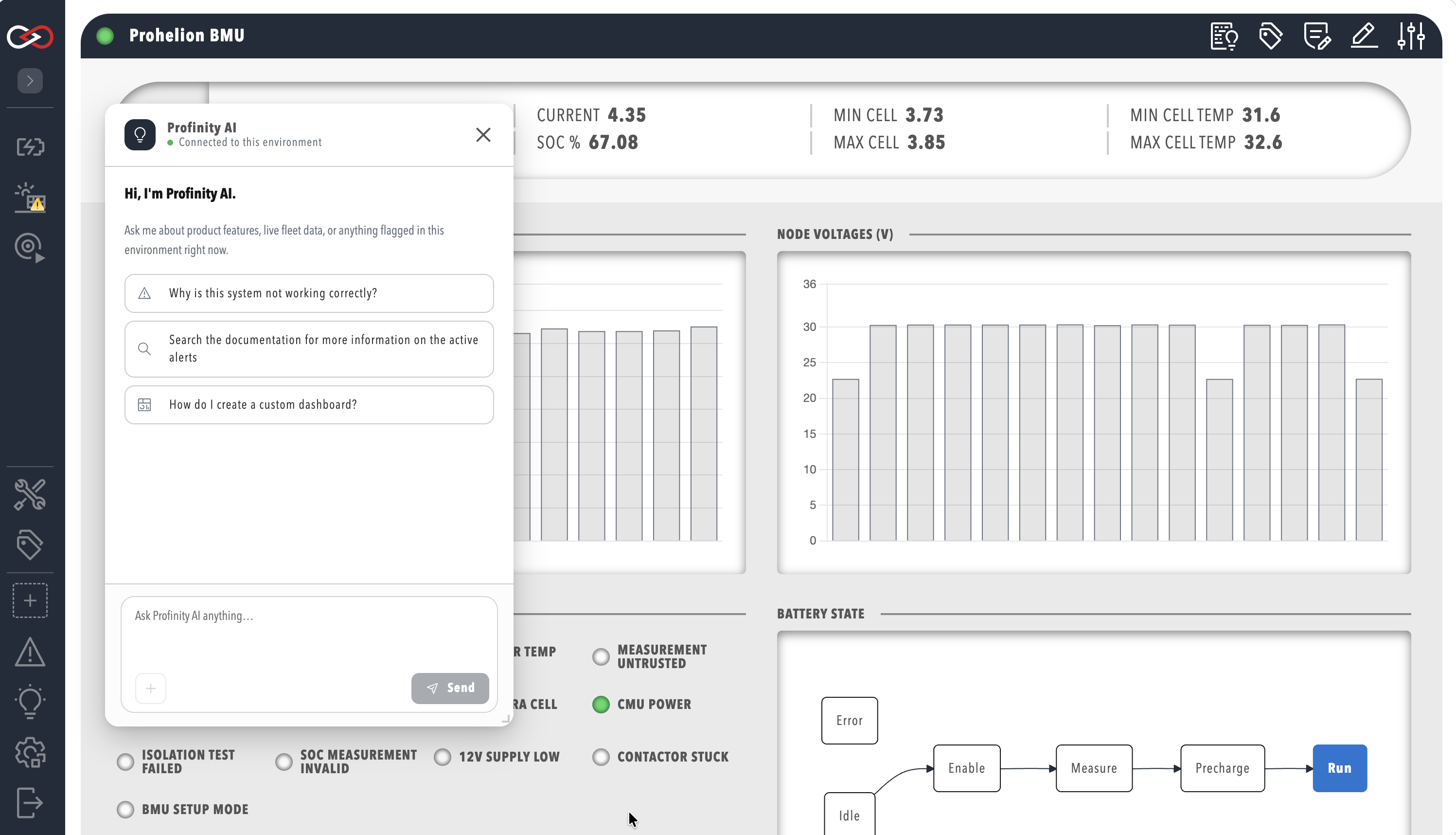
While Profinity AI is answering, the status indicator at the top of the window reads Thinking…, and once a question has been answered it reads Connected to this environment. The response streams in as it is generated, rather than appearing all at once. Web search, when the administrator has enabled it, is available only with the Claude, OpenAI, and OpenRouter providers (refer to Profinity AI settings).
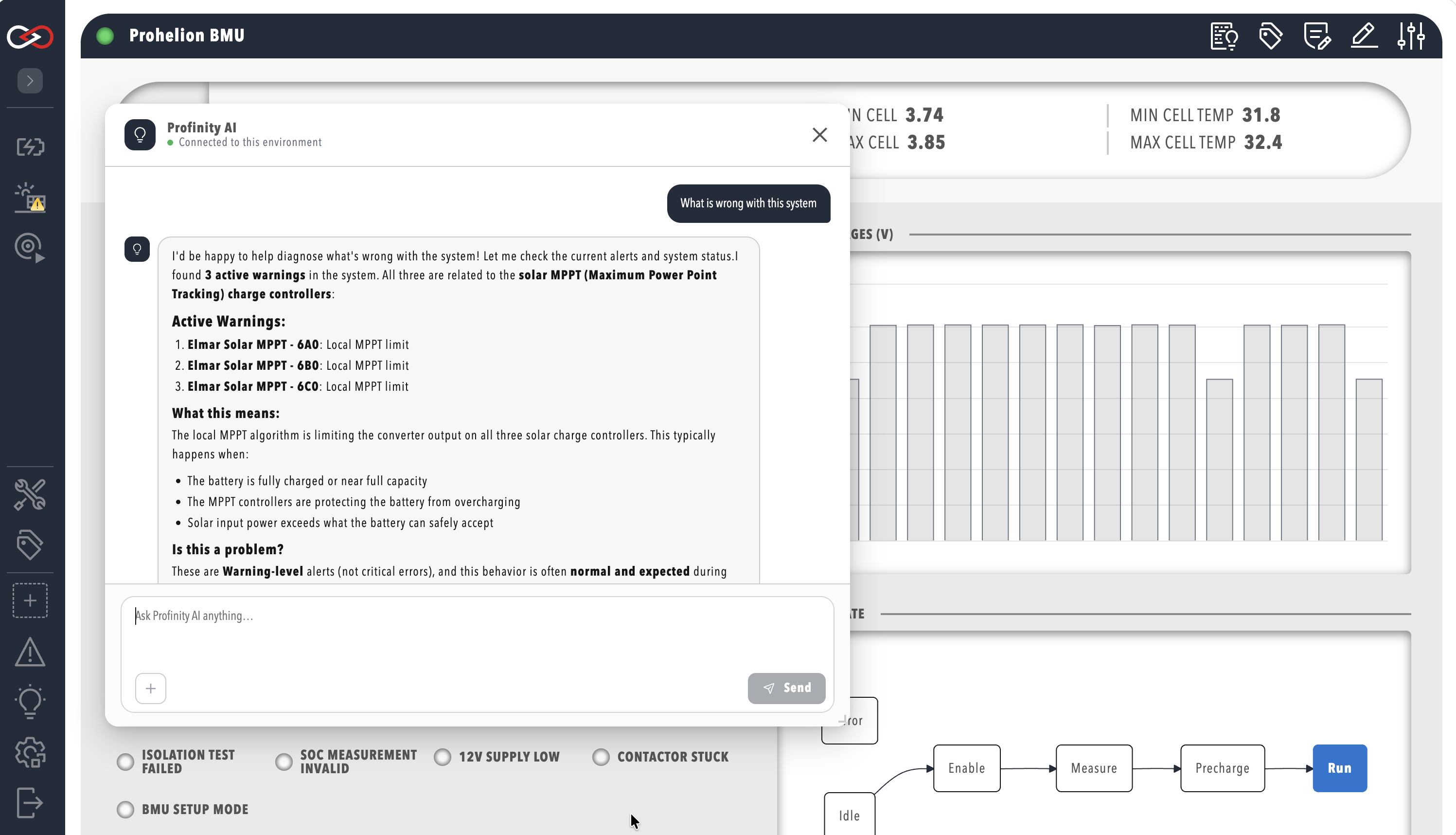
Profinity AI answers questions about this instance by querying live data through the same permissions you have, so it cannot see tags, alerts, or configuration that you could not otherwise see in Profinity.
You can send another question while Profinity AI is still answering the previous one, and it is queued and answered in turn. Use Stop to cancel a response in progress, and New chat to clear the conversation and start again.
When AI Chat reports an error
If the provider does not answer within the Response timeout (seconds) that the administrator set, the chat window shows a timeout message, and you can send the question again or ask the administrator to increase the timeout. Any other failure, for example an API key that the provider rejects or a provider that cannot be reached, shows Something went wrong. with a link to the logs, where the cause is recorded. The administrator corrects the provider settings under ADMIN > System Configuration.
Limitations for 2.3
- Conversation history is kept only for the current browser tab and is cleared when the tab is closed. Profinity AI does not keep a record of past conversations across sessions or devices.
- Profinity AI uses one configuration for the whole instance; there is no per-user choice of provider or model.
- The example prompts shown in the empty state are suggestions only, and Profinity AI is not limited to those topics.
To build dashboards and other configuration with your own AI coding assistant instead, refer to AI Skills. For the live-data connection Profinity AI uses, refer to the MCP Server.