Install Profinity with Docker
Run Profinity in a Docker container on most devices that can run Docker, including macOS and Linux machines and single-board computers such as the Raspberry Pi and BeagleBone Black.
Prohelion publishes the Profinity image for linux/amd64, linux/arm64, and linux/arm/v7, and Docker pulls the variant that matches the host processor.
A container binds all network interfaces, so other machines can reach it. Opening the web interface from another machine, and creating user accounts and roles, need the Profinity Server licensed feature, which the Server and Enterprise editions include.
A new installation in docker starts a one-time 14-day local trial with the Server features and then drops to the unlicensed feature set, so apply a licence file under ADMIN > License before the trial ends, as described in Apply a licence. To upgrade a 2.2 container, read Upgrade from Profinity 2.2 first.
You need Docker on the target device, on an x86-64, 64-bit ARM, or 32-bit ARM (ARMv7) processor, and Docker Compose, which Docker Desktop includes and which is available as a plugin on Linux. You also need a suitable CAN adapter for the target device.
To install with a single script instead of a compose file, refer to Install Profinity with the Docker one-line installer. To move an existing installation to a newer image, refer to Update the Profinity Docker image.
Install with Docker Compose
- On the target device, create a new empty directory.
-
In the new directory, create a file named
docker-compose.ymlwith these contents:services: profinity: image: prohelion/profinity:latest restart: always #On linux hosts you can run in host mode to enable autodiscovery #network_mode: host ports: - 18080:18080 - 18443:18443 - 4876:4876 # PROFINITY_HOME must match the container-side mount path below, otherwise the # security keys and profiles are written to the container's writable layer and are # lost when the image is updated environment: - PROFINITY_HOME=/app/Prohelion volumes: - $HOME/Prohelion:/app/Prohelion:rw -
Make sure the host directory mounted at
PROFINITY_HOMEis writable by theappuser, because the container runs as that non-root user. - In the directory that holds the compose file, run
docker compose up -d. - Open
http://localhost:18080on the local machine, orhttp://[your IP address]:18080from another machine.
The sign-in page opens, as described under Sign in.
The compose file publishes three ports:
| Port | Purpose |
|---|---|
18080 |
HTTP web interface |
18443 |
HTTPS web interface |
4876 |
Tritium CAN to Ethernet bridge, an IANA-assigned port that the bridge protocol uses for both UDP and TCP and that is not configurable |
Docker publishes a port as TCP unless the mapping ends in /udp, so add - 4876:4876/udp when a Tritium adapter is reached through the published ports.
On Linux hosts, use host networking (network_mode: host) where multicast adapter discovery or Profinity Mobile server discovery is required, because UDP broadcasts do not leave a Docker bridge network.
The artefacts directory inside the container is whatever PROFINITY_HOME names.
With the mount above, the configuration is in /app/Prohelion/config, the profiles in /app/Prohelion/profiles, and the logs in /app/Prohelion/logs, which appear on the host under $HOME/Prohelion.
The one-line installer uses PROFINITY_HOME=/var/lib/prohelion/profinity mounted from a local data directory, which is also the default artefacts path on Linux.
Either path is valid, provided that the environment variable and the mount destination match.
Set PROFINITY_HOME to your mount path
If PROFINITY_HOME does not name the container path of your mounted volume, Profinity writes its configuration and profiles inside the container, and they are lost when the image is replaced.
Compose files written for 2.2 that mount /root/Prohelion/Profinity/... need their mounts moved to the new PROFINITY_HOME path, because the automatic migration from legacy operating system locations is skipped whenever PROFINITY_HOME is set.
The sub-folders beneath the artefacts directory use lowercase names (config, profiles, logs), and Linux file systems are case-sensitive, so mounts must target those names.
Refer to Artefacts directory.
To check where Profinity stores its files, open a shell in the running container with docker compose exec profinity bash, and run ls -la /app/Prohelion/.
Start and stop Profinity
Run these commands from the directory that holds the docker-compose.yml file.
Docker Compose, not Profinity, starts the container on boot, and the restart: always line in the compose file restarts the container whenever Docker starts, so configure Docker to start on boot.
| Command | Effect |
|---|---|
docker compose up |
Starts Profinity in the foreground |
docker compose up -d |
Starts Profinity in the background (detached mode) |
docker compose stop |
Stops the containers and keeps them, so docker compose start can restart them |
docker compose down |
Stops the containers and removes them, so you run docker compose up again to recreate them |
docker compose logs -f |
Follows the log output |
Refer to the Docker Compose reference for more commands.
Sign in
The container serves HTTP with the default credentials below, so follow the Security guide to enable HTTPS before you expose it beyond a trusted network. The browser opens the Profinity sign-in page.
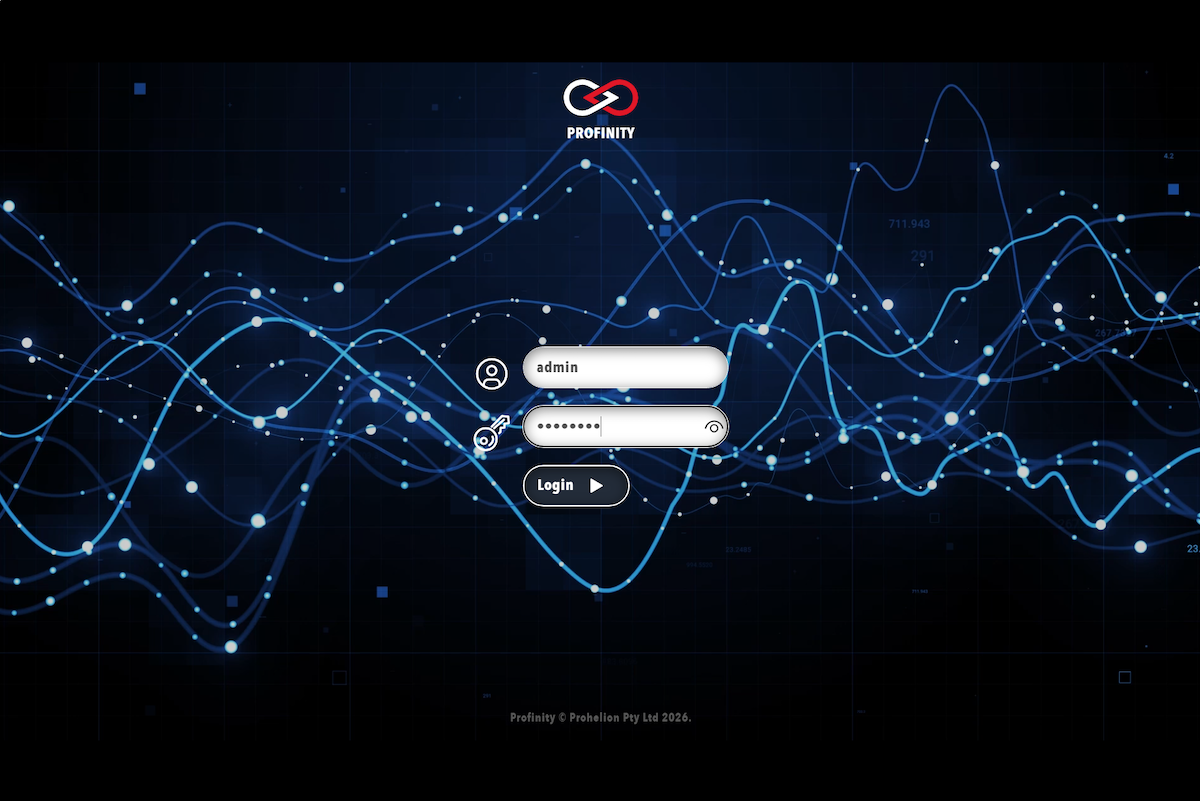
A fresh installation has only the administrator user active.
Sign in with the username admin and the password password, and Profinity asks for a new password at the first sign-in.
Choose one as described in the Security guide.
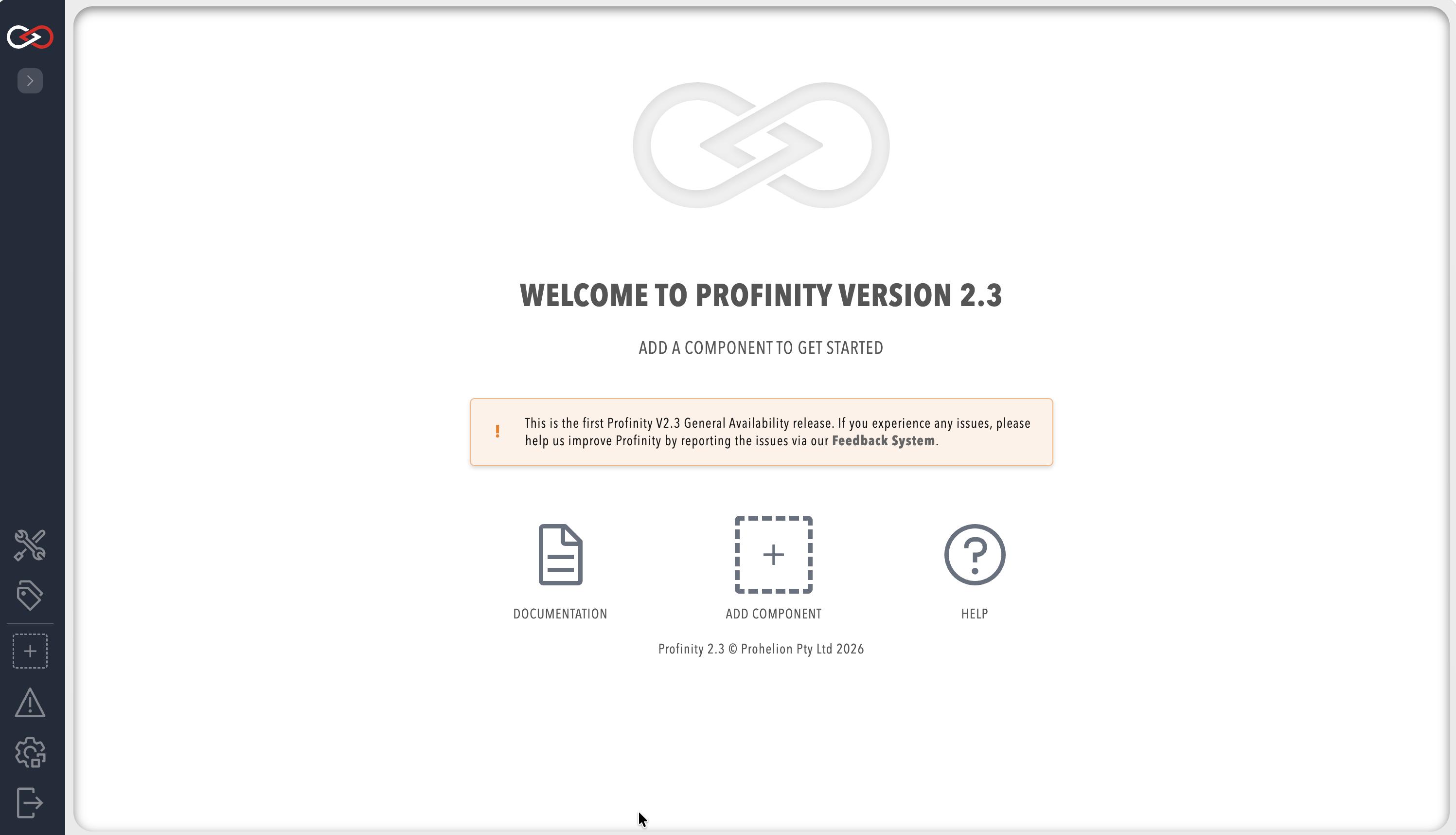
After you sign in, the Profinity homepage appears.
Expose devices to the container
Docker does not expose all devices to containers.
Expose additional devices to Docker so that SocketCAN can be accessed natively, and use network_mode: host on Linux so that components that use UDP broadcasting can be discovered.
Refer to the Docker Compose documentation for how to expose these devices.
Troubleshooting
- The profile and configuration are back to their defaults after an image update:
PROFINITY_HOMEdid not match the container-side mount path, so the data was written to the container and lost when it was replaced. Set the variable to the mount path and restore the files from your backup. - Profinity fails to start with a permission error on the mounted directory: the
appuser cannot write to it, so change the ownership or permissions of the host directory. - A Tritium adapter is not found: publish port
4876for UDP as well as TCP, or use host networking. - The host's SocketCAN interfaces are not visible inside the container: expose them to Docker, as described under Expose devices to the container.
Run Profinity in production
For production environments, and deployments that run many Profinity instances, configure Profinity with environment variables so that one compose file can serve every instance.
The compose files, .env files, and environment-specific deployment examples are in Environment variables.