Create a user
Create a user account for each person who signs in to Profinity, and give it the roles that match their job. You need the Security administration permission and the Profinity Server licensed feature, which the Server and Enterprise editions include. Without the feature there are no user accounts or roles: a Desktop installation runs as a single built-in admin user, and Users & Groups shows that user and group administration requires a Server licence. Licensing lists what each edition includes.
- In the side menu, select ADMIN, then Users & Groups.
- Select + Add user.
- Enter a username and an initial password for local sign-in.
- Under Assigned roles, choose one or more roles, then save.
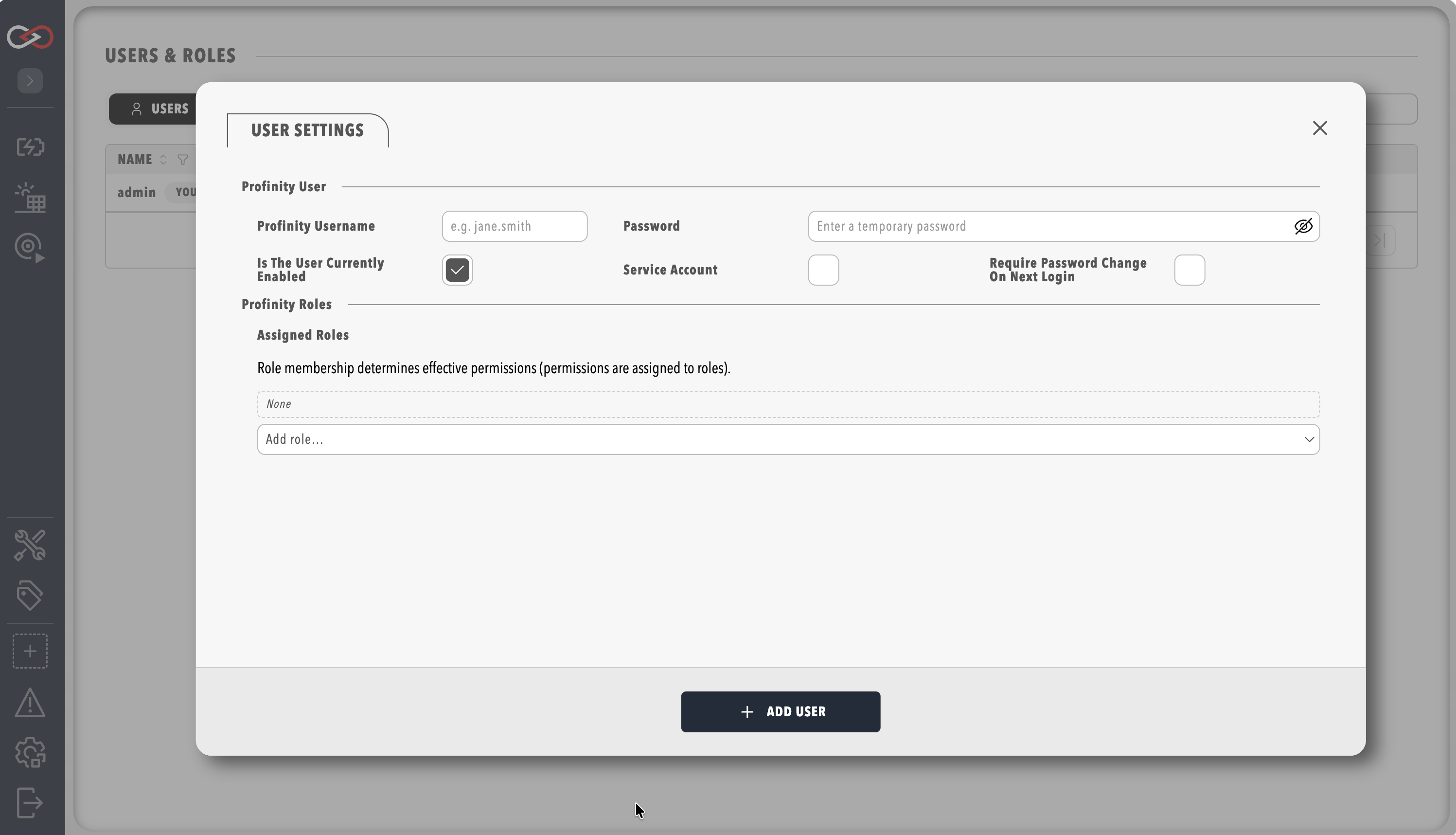
Profinity creates the account and its login details, and the new user can sign in with the username and initial password. If you are not sure which roles to assign, read the next section first.
Choose roles
A role is a named set of permissions, and a person can hold more than one. A user can only do what their roles allow, so give each person the smallest set that lets them do their job. A good starting point is three roles:
| Role | For people who | Typical access |
|---|---|---|
| Viewer | Watch the system but never change it | View data, tags, alerts, and dashboards |
| Operator | Run a vehicle, bench, or pack each day | Everything a Viewer can do, plus running component actions and controlling charging |
| Engineer | Set up and tune a system | Everything an Operator can do, plus changing profiles, components, dashboards, and firmware |
The default Administrators role includes every permission, so assigning it gives that person the access of every other role. Keep it for the few people who manage the installation. Roles and permissions explains how to create these roles and lists every permission, and Manage users covers password resets and service accounts.