Manage profiles
Use the Profile pill on the ADMIN page to activate, rename, import, and download profiles. You need the Modify profiles permission, as described in Roles and permissions. To create a profile, refer to How to create a new profile, which covers the steps from + ADD PROFILE to adding components.
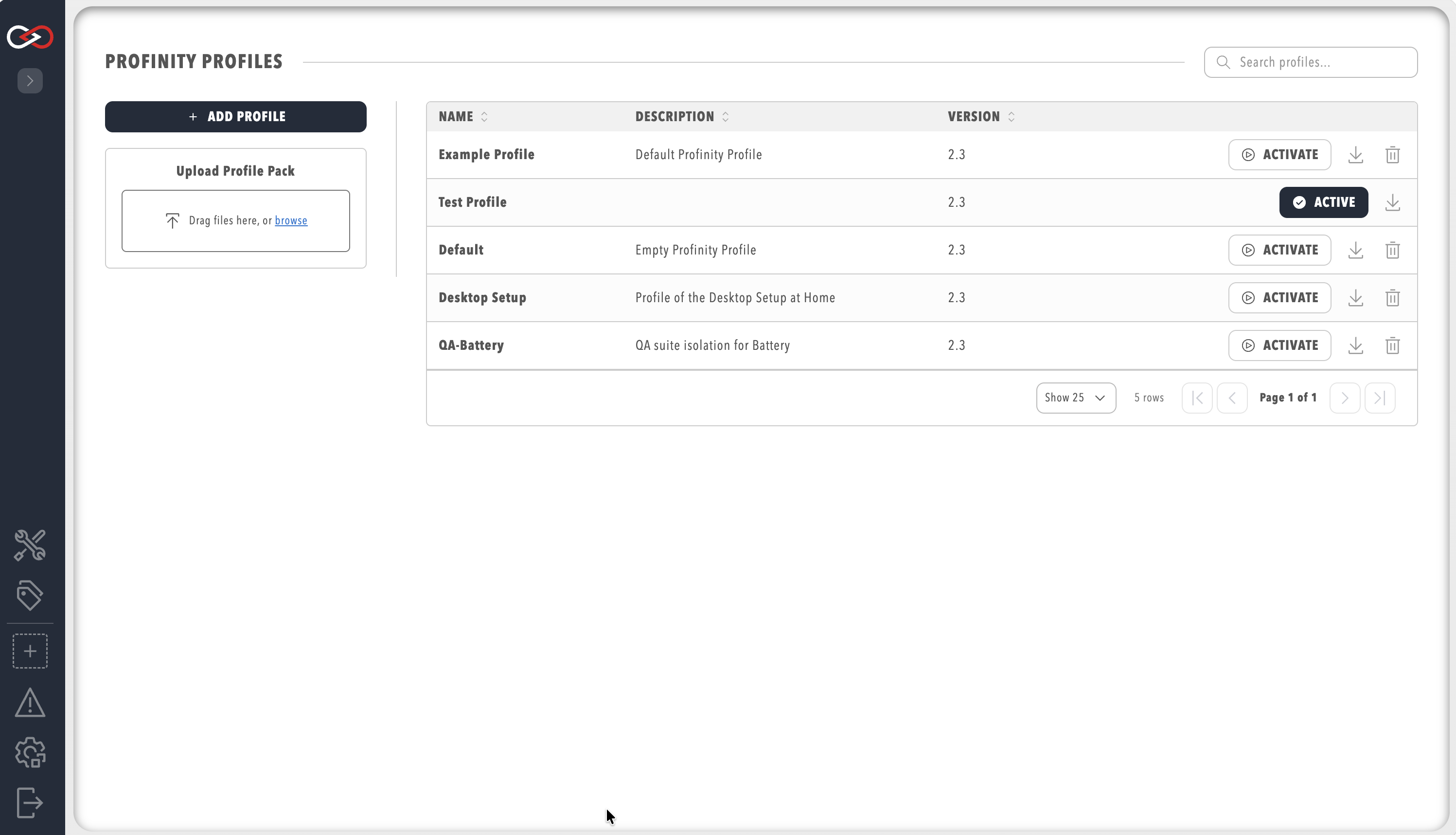
Change the active profile
Only one profile can be active at a time. To change the active profile:
- Select ADMIN in the side menu and open the Profile pill.
- On the row of the profile you want, select ACTIVATE.
The profile becomes active immediately and Profinity loads the configuration associated with it. The active profile carries the ACTIVE marker on its row.
Edit profile settings
To edit a profile's name and description:
- Select ADMIN in the side menu and open the Profile pill.
- Select the name of the profile, which opens a dialog with Profile Name and Description.
- Edit the fields and select Save.
Profile Name must be unique across all profiles. Description is optional text that describes the profile's purpose.
The active profile cannot be renamed. To rename it:
- Select ACTIVATE on a different profile.
- Select the name of the profile to rename, edit the name, and save.
- Optional: select ACTIVATE on the renamed profile again.
You can delete a temporary profile created for this purpose afterwards.
Import a profile pack
To import a profile pack prepared on another instance of Profinity:
- Open the Profile pill.
- Select UPLOAD PROFILE PACK.
- Choose the ZIP file.
Profinity imports the profile with all of its associated configuration, and it appears in the table of profiles.
Profinity rejects an uploaded profile pack that contains script content when the licence does not include the Scripting feature, and shows the message "Profile pack contains script content, which requires Scripting on the license." Refer to Licensing.
Download a profile pack
To download a profile pack, open the Profile pill and select the download icon beside the profile. Profinity saves a ZIP file containing the profile and its related files.
Refer to Profiles for what a profile pack contains and the roles it can carry from another site. For the files a profile holds on disk, refer to Profile folders.