Themes and branding
Profinity 2.3 applies theme and branding settings from a theme.yaml file in the themes folder of the artefacts directory, and the web client shows the colours, logos, and application title from that file in place of the defaults.
Unzip the file into the themes folder of the artefacts directory.
Themes need a licence, and distributing a themed Profinity needs an agreement
Themes and branding are included in the Desktop licence and above, and an unlicensed instance keeps its theme.yaml file but shows the default Profinity appearance.
You can change the theme for your own use with a licensed instance.
To distribute a themed Profinity, for example as an original equipment manufacturer (OEM), you need a licence agreement with Prohelion, so contact Prohelion to arrange it before you ship.
Where the theme is defined
The theme is a file-based setting, so there is no administration screen for it.
Edit themes/theme.yaml on the Profinity host, and put logos and icons in the assets sub-folder.
Profinity applies the file when it starts and again whenever the file changes.
A missing file leaves the built-in defaults in place, and a file with errors is reported in the Profinity log and also falls back to the defaults.
The file holds a version plus three optional groups.
| Group | Keys | What they set |
|---|---|---|
app |
title |
The application title shown by the web client. |
colors |
navBackground, navForeground, primary, secondary, success, warning, error |
Navigation fill and foreground, the accent, the secondary colour, and the success, warning, and error colours used by status and charts. |
assets |
logo, loginLogo, favicon |
The main logo, the logo on the sign-in page, and the browser tab icon. |
Each asset is a single file name that must exist in themes/assets with one of the extensions .svg, .png, .jpg, .jpeg, .gif, .webp, or .ico.
Colours are hex values in the six-digit form such as "#E07A3F", and the three-digit form such as "#abc" is expanded to "#AABBCC".
The eight-digit form with transparency, such as "#E07A3F80", is also accepted, but the lighter and darker shades Profinity calculates from it are solid.
A value that is not a valid colour is reported in the log and the theme falls back to the defaults.
A key you leave out keeps that built-in colour.
navForeground colours the text and the icons on navigation surfaces, including the title bar and dialog bars that use the navigation colour.
primary colours accent controls such as focus rings, links, and selection.
success, warning, and error colour the status lamps, badges, and chart series that already use those colours.
Information banners stay the built-in blue.
The lighter wash, the brighter fill, the darker text colour, and the text drawn on a solid status fill are calculated from the colour you set, so they are not keys in theme.yaml.
Profinity checks that the theme stays readable, and logs a warning in the Profinity log when text would fall below a contrast ratio of 4.5:1, the usual minimum for readable text.
This happens when navForeground is too close to navBackground, or when a primary, success, warning, or error colour is too pale to read against white.
The theme is still applied, and choosing a darker or higher-contrast colour clears the warning.
Example theme.yaml
This example rebrands Profinity for a fictional OEM.
Place it at themes/theme.yaml, and put acme-logo.svg, acme-login.svg, and acme-favicon.svg in themes/assets.
Every group and key is optional, so include only what you want to override.
version: "2.3"

app:
  title: Acme Monitor

colors:
  navBackground: "#0F5257"
  navForeground: "#FFFFFF"
  primary: "#E07A3F"
  secondary: "#4F6D7A"
  success: "#4CAF7A"
  warning: "#E9B44C"
  error: "#D1495B"

assets:
  logo: acme-logo.svg
  loginLogo: acme-login.svg
  favicon: acme-favicon.svg
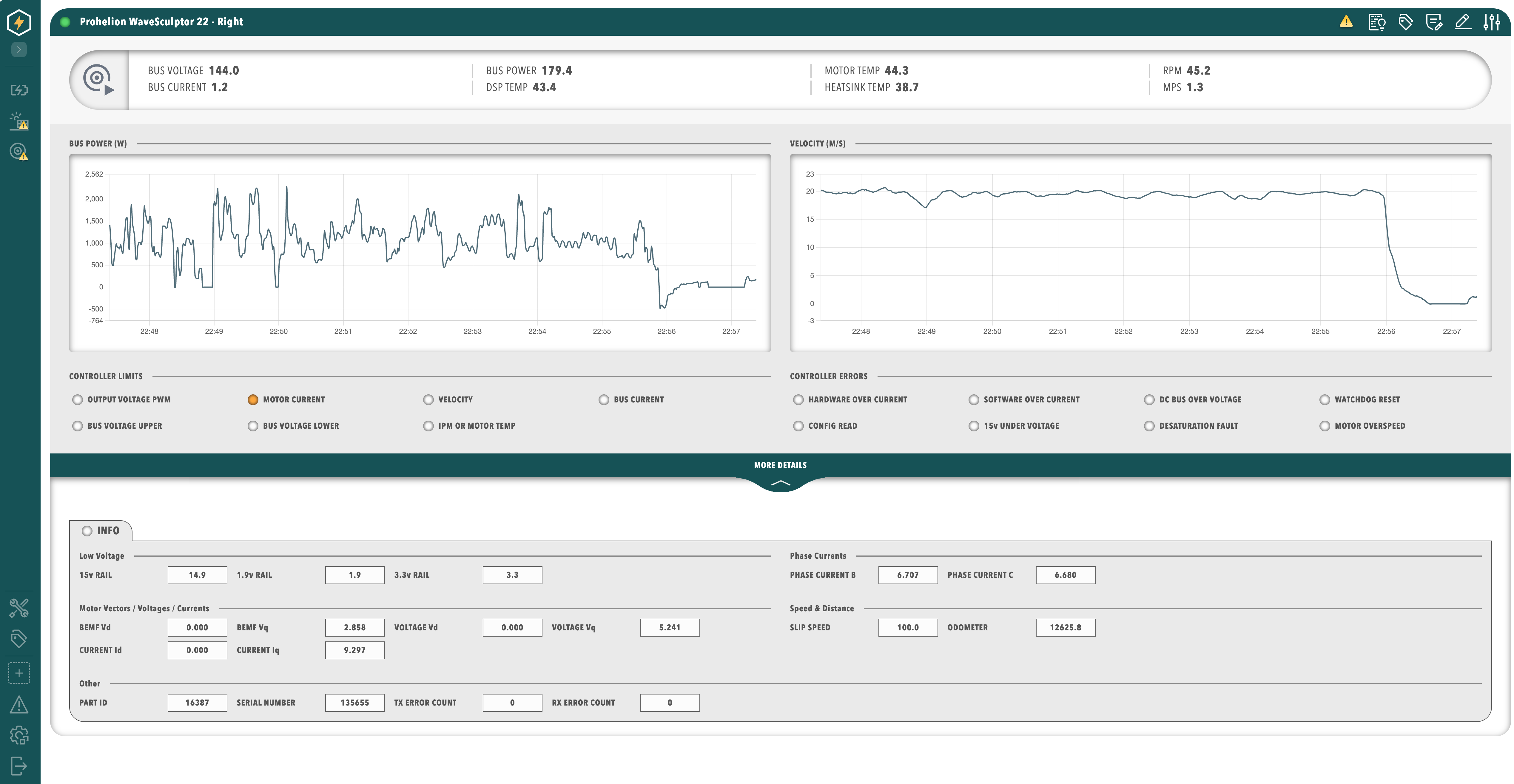
An OEM build can combine custom themes with hidden catalogue entries, as described in Components and Plugins, and the settings that control the rest of the system are in System Configuration. Integrators can read the theme through the API.