Charger components
Profinity charges a pack by controlling a charger and a Prohelion Battery Management Unit (BMU) together. A charger that can be controlled remotely is needed because a BMS that can only switch a charger on and off gives slow or poor balancing of the cells, which is described in the D1000 Gen1 Charger Control documentation. The D1000 Gen1 BMU raises the charge current setpoint until the highest cell voltage reaches the Balance Threshold and then reduces it to hold that voltage. On a D1000 Gen2 the BMS hardware handles charging, so refer to the D1000 Gen2 documentation for how charging is managed there.
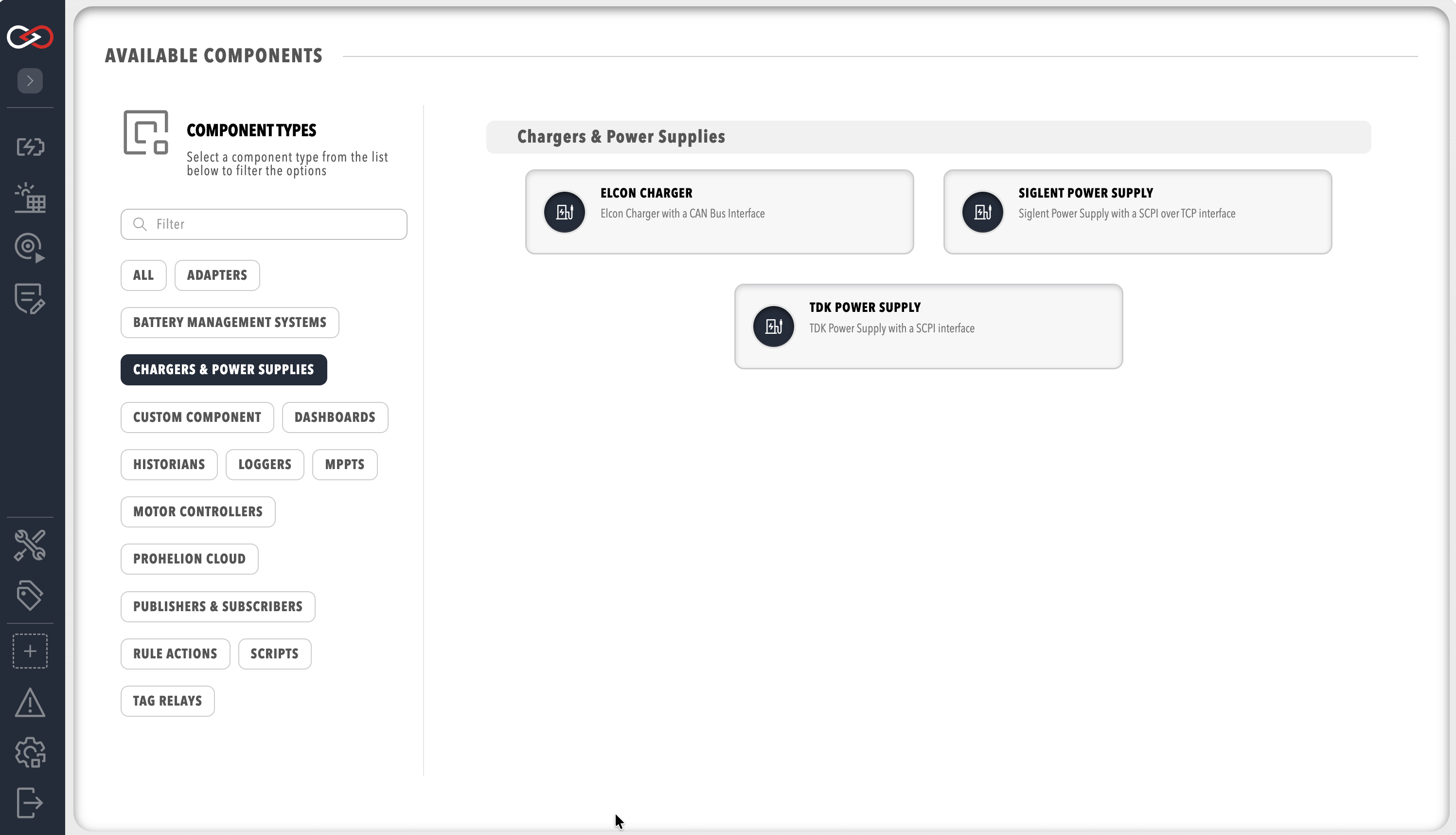
Profinity supports three charger types, a Prohelion BMS in the same Profile supplies the pack data, and a user needs the Control charging permission to see the charging controls (refer to Roles and Permissions).
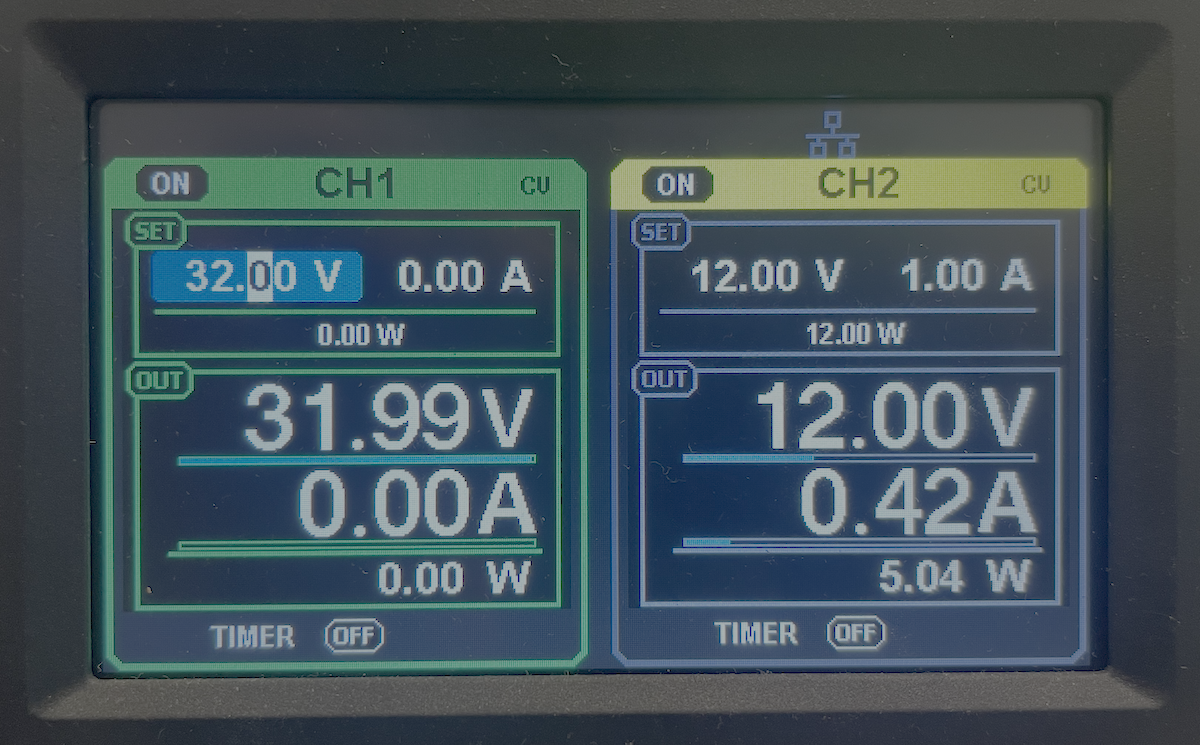
Supported chargers
- TDK Power Supply controls TDK programmable power supplies such as the Genesys family using Standard Commands for Programmable Instruments (SCPI) over TCP. A TDK supply that only has a serial interface needs a TCP to serial converter between it and the network so that Profinity can reach it over TCP.
- Elcon Charger controls an Elcon charger over CAN, so the charger must be connected to a CAN adapter that is already configured in the Profile.
- Siglent Power Supply controls Siglent programmable power supplies that accept SCPI commands over TCP, such as the SPD3303X-E, which suits desktop testing.
Add a charger to the Profile
A charger is a component, so it is added from ADD COMPONENT in the same way as any other device (refer to Add a Component to a Profile). The Profile must also contain a Prohelion BMS, and that BMS must have Control Pack switched on, because Control Pack is off by default and Profinity can only engage and disengage the pack, which a charge needs, when it is on. Once the charger is added it appears under Chargers & Power Supplies in the main menu with its own dashboard.
Every charger asks for its own limits and the limits of the supply that feeds it, which Charger settings lists. To run a charge from the dashboard, refer to Start a charge, and for the messages and faults that stop one, refer to Charging troubleshooting.