Where dashboards are used
A Profinity dashboard is a user interface whose values come from Profinity tags. A dashboard can be the page of a Custom Component, the home page of a profile, or the content of a standalone Dashboard Component. The Visual Editor, data binding and component reference in this guide apply to all three.
View data on a dashboard
Each configured component has a dashboard, opened by selecting the component in the side menu, that shows the data for that component type.
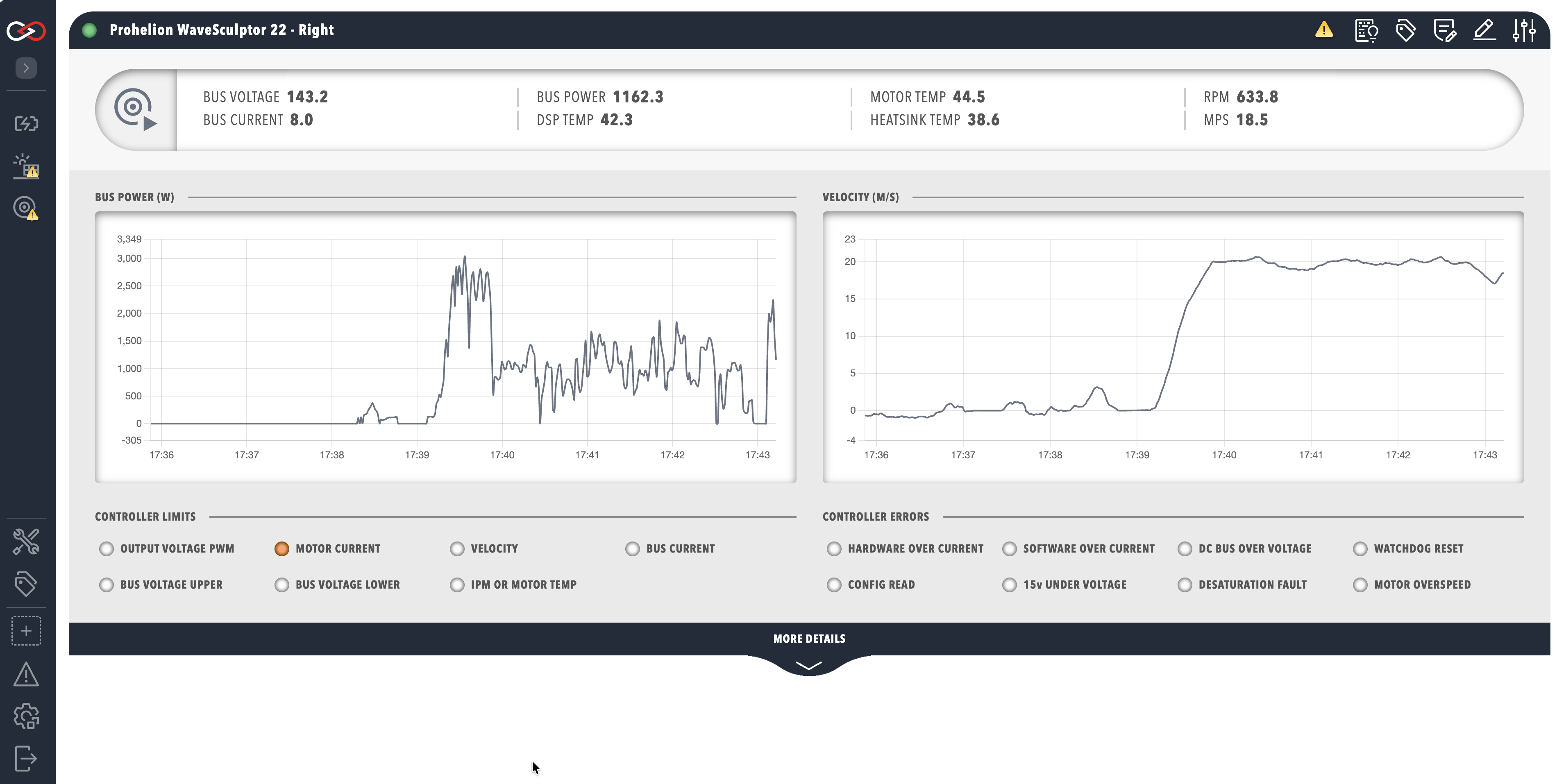
A dashboard stays empty until data arrives. How to connect to CAN bus brings in live data from a CAN bus adapter, and How to replay CAN bus logs supplies recorded data when no hardware is connected. The Tag Explorer, opened from TAG UTILITIES in the side menu, shows the tags and their current values.
Custom Components
A Custom Component dashboard is that component's page in the profile. Profinity writes a starter dashboard named after the component when none is uploaded, and the Visual Editor replaces it. A DBC file is optional, and is only required when the component needs to publish CAN signals as tags. A Custom Component that publishes CAN tags also needs the CAN database (DBC) messages and signals of the device it reads. To add the component, refer to Using a Custom Component. For the files around the dashboard, such as scripts, actions, and maps, refer to Custom Components.
Profile dashboards
A home dashboard replaces the standard home page while its profile is active. To create, change, or remove one, refer to Profile dashboard.
Dashboard Component
The Dashboard Component is a built-in component that renders a YAML-only dashboard with no DBC file. It binds to existing tags, such as tags published by other components. The Tag Explorer shows the path of each tag to bind, and Binding source paths describes the path forms.
Starter template
A component that has no dashboard of its own starts from the Hello World template, which is a vertical row holding a styled group with one pill.
The pill has an icon and two values, one labelled CUSTOM DASHBOARD and one that points to the Profinity documentation.
In the Visual Editor, NEW FROM TEMPLATE replaces the dashboard with this template after a confirmation prompt.
A component can supply its own template, which loads instead.
The YAML of the template is:
version: "2.3"
dashboard:
    items:
        - row:
            direction: vertical
            items:
            - group:
                class: statscontainer
                items:
                    - pill:
                        icon:
                            image: IbmWatsonKnowledgeStudio
                        items:
                        - pillgroup:
                            items:
                            - value:
                                label: CUSTOM DASHBOARD
                            - value:
                                label: For more information on how to configure dashboard files, see the Profinity documentation at https://docs.prohelion.com
In the Visual Editor the template appears as a tree of rows, groups, pills, and values.
To add a binding, select a value and use the Binding section of the inspector.
The YAML tab shows the same dashboard as text, which is the format the rest of this guide describes.
A source such as DBC/<message>/<signal> in a binding is the tag of a CAN signal of the component that owns the dashboard, as described in Binding source paths.
Replace the message and signal names with those from the DBC file, or copy the path of the tag from the Tag Explorer.