How to replay CAN bus logs
Replay recorded CAN bus messages to test dashboards, rules, and custom components without live CAN bus data, or to debug a component configuration against a recording. The CAN Data Log Replayer replays log files that were recorded earlier in Profinity. For how to record a log, refer to Log / replay CAN bus messages.
Before you start, you need:
- Profinity V2 installed and running.
- A recorded CAN bus log file from a File Logger or an SSH File Transfer Protocol (SFTP) logger, or the
example_log.csvsupplied with Profinity. Logs from InfluxDB or Prometheus cannot be replayed, so use a File or SFTP logger to record logs for later replay. - The Replay CAN logs permission (refer to Roles and Permissions), which provides the CAN LOG REPLAY side-menu entry and also turns on View CAN data.
- A profile whose components match the recording.
example_log.csvcarries the CAN traffic of the Example Profile's components, so load the Example Profile first (refer to the Quick Start Guide), because only components whose CAN addresses match the logged messages receive data. - Optional for testing: a CAN bus adapter connected.
Replay a log
Replay mixes with live traffic
Replayed messages are processed by Profinity as if they had been received from the bus, so tags, dashboards, rules, and alerts react to them alongside any live traffic from a connected adapter. Disconnect the adapter, or isolate the live hardware from the bus, before replaying a log, or the live and replayed values compete.
The replayer lists only the can_bus_logs/replay/ folder in the artefacts directory, which sits in a different place on each platform.
To replay a log:
- Select CAN UTILITIES in the side menu, then CAN LOG REPLAY. This opens the CAN Data Log Replayer and lists the available log files.
- If the log file is not listed, for example a file recorded earlier or on another Profinity instance, copy it into the
can_bus_logs/replay/folder, or use the Upload CAN Log files control and select the file. The file then appears in the list. - Select the log file in the list and select Play to start the replay. Replayed messages appear in the CAN Activity panel, components receive them, dashboards update, and the slider shows the position in the log.
An uploaded file must have a .csv or .txt extension, otherwise the upload is refused with "Your file must have an extension of .txt or .csv".
The upload is also refused if a log with the same name already exists, so delete the existing log first or rename the new one.
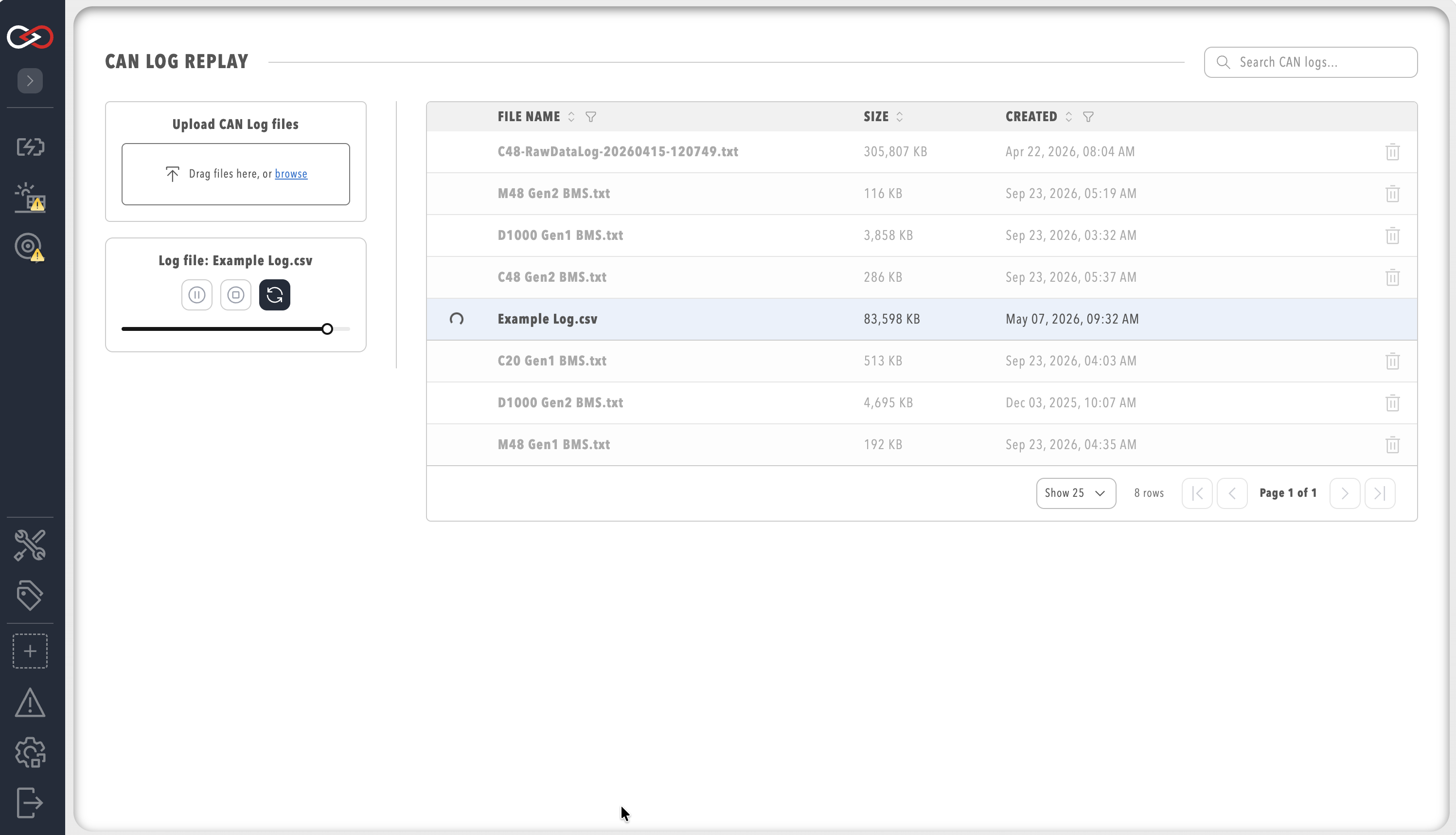
Control the replay
While a replay plays, the position slider moves to a different point in the log. You can drag the slider at any time, including during playback. Releasing the handle during playback jumps to that point and continues playing, and while the replay is paused or stopped it sets the position that Play resumes from. Pause suspends the replay so that it can be resumed later, and Play resumes it. Stop ends the replay, and Loop replays the log continuously. The trashcan icon deletes a log file from the list, which is separate from controlling a replay.
If nothing happens
Only a CAN message log recorded by a File or SFTP logger can be replayed, so an uploaded file of another kind does not play. If the CAN LOG REPLAY entry is missing from the side menu, the signed-in user lacks the Replay CAN logs permission. If the replay runs but the dashboards stay empty, no component in the active profile listens to the replayed CAN IDs, so load the profile that the log was recorded against. Recorded tag values are replayed separately with TAG LOG REPLAY, described in Replay a tag log.
To check a Custom Component against its DBC file with recorded messages, refer to How to Create a Custom Component.