Install Profinity on Windows
The Profinity Setup Wizard installs Profinity as a desktop application on Windows. For Linux and macOS, refer to Linux and macOS installation, and for containers, refer to Docker installation.
The installer places Profinity in C:\Program Files (x86)\Prohelion\Profinity, and keeps configuration, profiles, and logs in the artefacts directory, which is %LOCALAPPDATA%\Prohelion\Profinity by default.
To upgrade a 2.2 installation, read Upgrade from Profinity 2.2 first.
Install Profinity
- Obtain the installer,
Profinity.Install.msi, from Prohelion. - Open
Profinity.Install.msiand follow the prompts in the Setup Wizard. - Start Profinity from the Start menu.
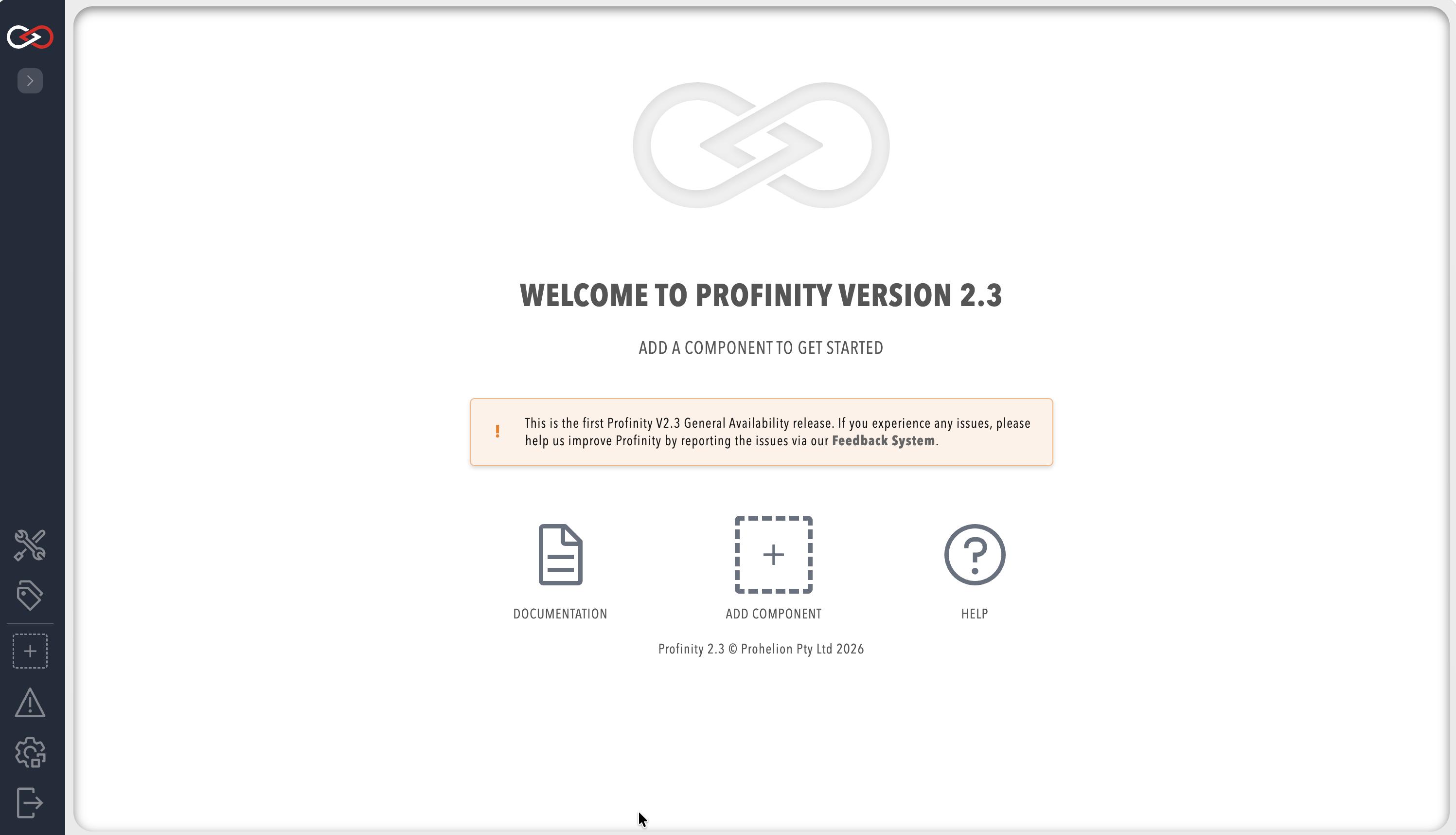
Profinity opens its homepage in the desktop window. To stop Profinity, shut down the application.
Open Profinity in a web browser
Web access needs a Server licence
The sign-in page opens on an unlicensed or Desktop installation, and signing in from the web needs a username and password. User accounts need a Server licence, so the page opens and sign-in fails until that licence is applied.
With Profinity running, open the URL set in the Profinity Web panel of System configuration, which you reach from ADMIN in the side menu.
The default URL is http://localhost:18080, and the browser opens the Profinity sign-in page.
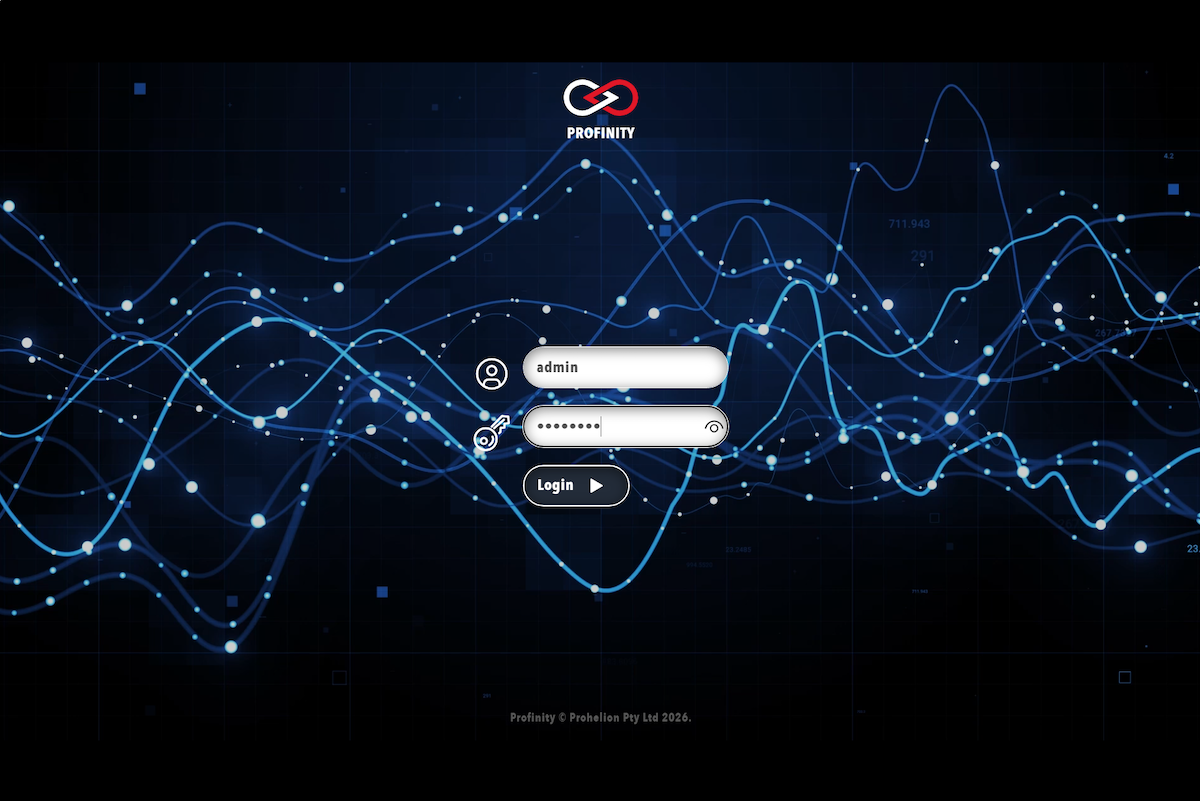
The desktop application signs in without a password. A fresh installation without a Server licence has no account for the sign-in page, so use the desktop application window. If the browser cannot reach the address, check that Profinity is running and that no other program is using port 18080.
Remote access and user accounts
Without a Profinity Server licence, the desktop application binds its web interface to the local machine (127.0.0.1) on TCP port 18080 by default, whatever address is set in System configuration. Other machines cannot open the web interface, and the installer adds Windows Firewall exceptions for ports 4876 (TCP and UDP) and 42000 (UDP).
A Server licence changes this. Profinity then uses the address set in System configuration, so other machines can open the web interface and sign in with their own accounts. A Desktop licence does not provide this, because signing in from a browser on another machine always needs a Server licence.
User accounts and roles need the Server licensed feature, which the Server and Enterprise editions include.
Without it, Users & Groups is unavailable and Profinity runs as a single built-in administrator.
A Desktop host does not start the 14-day local trial, so apply a Server licence file under ADMIN > License, as described in Apply a licence, and restart Profinity so the new address takes effect.
With a Server licence active, Profinity creates the default admin account, which must change its password at first sign-in.
Refer to Licensing for what each edition includes.
Next steps
With a Server licence applied, sign in as admin, change the password, and create your own accounts with Create a user.
Then work through the Quick start guide, review the Security guide, and run Profinity in the background with Run Profinity as a Windows service.