Update BMU configuration and firmware
Change the firmware configuration of a Prohelion BMU, unlock its Admin parameters, or flash its firmware from the Change Settings button at the top-right of the BMU dashboard.
Updating the BMU configuration
Wrong firmware settings can damage the pack
Settings that do not match the pack can allow unsafe voltages or currents. Change a value only when the configuration parameters page for the firmware describes its purpose.
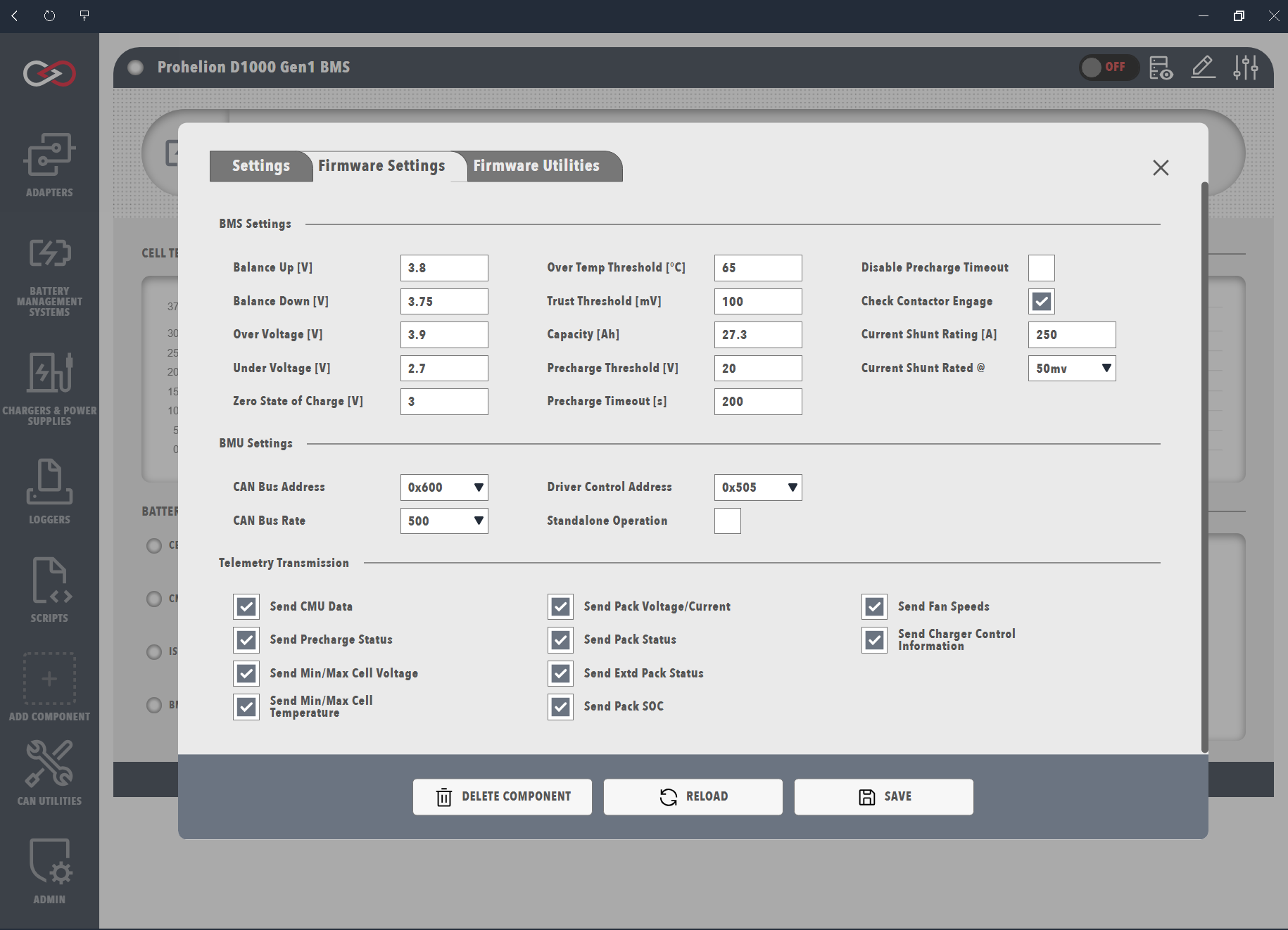
To update the configuration, open Change Settings at the top-right of the BMU dashboard and select the Firmware Settings tab. The tab appears only when Profinity can reach the BMU on the CAN network, and the settings are saved to the device as they are changed. Each D1000 Gen2 parameter has a User or Admin permission level, listed in the Configuration Parameters pages linked in the model reference table on the BMU dashboard page, and the M48 Gen1 parameters are in its Software Specifications page.
The Firmware Settings and Firmware Utilities tabs appear only when Profinity can see the BMU and the BMU is in a state that accepts firmware changes. If the tabs are missing, check that the CAN adapter status is green, the Base Address matches the BMU and the BMU is powered.
Unlock administration firmware parameters
The D1000 Gen2, M48 Gen2 and C48 Gen2 make their Admin parameters available only while a session unlock is active. The unlock is a Firmware Configuration Key entered in the Firmware Configuration Key row of the component settings. Profinity holds the key for the sign-in session only and never saves it to the Profile. Without an active session, Profinity works at the User permission level. The Admin key is not published. Contact Prohelion if you believe you need it.
To unlock the Admin parameters, a user with the Modify components permission follows these steps:
- Open Change Settings at the top-right of the BMU dashboard.
- On the Prohelion BMU Settings tab, in the Firmware Configuration Key row, select Enter.
- Type the key, which can be decimal or hexadecimal and ranges from 0 to 65535, and set the session duration in minutes. The duration defaults to 30 and accepts 1 to 1440 minutes.
- Select Apply. The dialog reloads, the row shows Session active with the expiry time and the permission level that the key gives, and the Admin parameters appear.
The row offers Change to enter a different key and Clear to end the session straight away. The session also ends when the duration expires, when the user signs out and when Profinity restarts, and each signed-in user holds a separate session. After it ends, the dialog reloads and the Admin parameters disappear again.
Flashing the BMU firmware
To flash the BMU firmware, open Change Settings at the top-right of the BMU dashboard, select the Firmware Utilities tab and run the Update Firmware action. Gen1 BMU units need a CAN to Ethernet bridge or a Virtual CAN Adapter for this operation, whereas Gen2 units can be flashed with any supported CAN adapter.
The step-by-step procedure for Gen1 units, including the CAN bus requirements, is in the M48 Gen1 Firmware Update Procedure.