Connect Profinity Mobile to a server
To connect Profinity Mobile to a server, check the discovery settings on the Profinity engine, then select the server from the app's discovery list. You need the app installed on the phone (refer to Profinity Mobile). Phones reach the server only when remote web access is available, which needs the Profinity Server licensed feature (refer to Licensing).
Enable server discovery on the engine
Phones find a server only while it broadcasts a heartbeat, so check these settings on the Profinity server first. Heartbeats are sent only while the web server is running and the machine has at least one network address other than loopback.
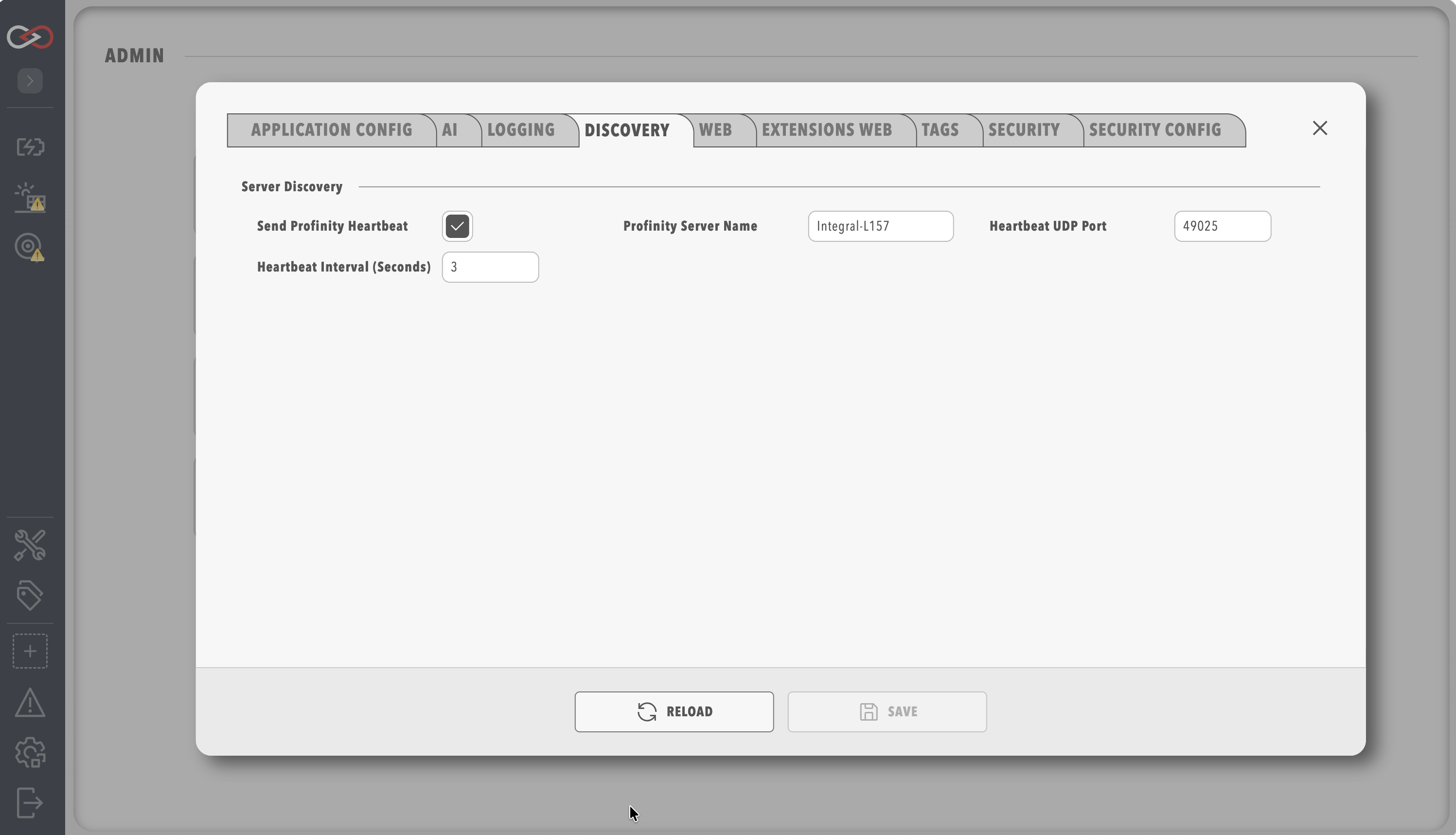
- On the Profinity server, select ADMIN in the side menu, then System Configuration, then the Discovery tab.
- Check the four settings described in Discovery.
| Setting | Description |
|---|---|
| Profinity Server Name | The friendly name shown in the mobile list, which defaults to the host name of the machine (for example Workshop-Profinity) |
| Send Profinity Heartbeat | Turns the broadcast on or off, and is on by default |
| Heartbeat UDP port | The UDP port of the broadcast, 49025 by default |
| Heartbeat interval (seconds) | The time between broadcasts, from 1 to 60 seconds, 3 by default |
Saving System Configuration restarts Profinity. The mobile app listens for the broadcast on UDP port 49025 by default, so if you change the Heartbeat UDP port, the app build must use the same port (refer to OEM White-Label Mobile Builds). Each entry in the app's discovery list shows the server name, the active profile and the server's network addresses.
Connect from the app
- Connect the phone to the same Wi-Fi network as the Profinity server.
- Open Profinity Mobile. The discovery list shows the servers that are broadcasting a heartbeat.
- Select your server and connect. The app uses HTTPS when the server has it configured. The app opens the server's web sign-in page inside the app, where you sign in with your Profinity user name and password, or with your single sign-on and two-factor prompt. If the active profile has Kiosk Mode enabled, the page signs in automatically as the kiosk user.
To return to the server list, swipe from the left edge of the screen on iOS, or use the system back action on Android, which first steps back through the pages you opened in the app. A certificate warning that you accepted for a server stays accepted when you go back.
If the discovery list is empty or sign-in does not complete, refer to Troubleshoot Profinity Mobile.