Build a dashboard in the Visual Editor
Use these steps to build or change a dashboard in the Visual Editor, bind its elements to tags and save it. You need the Modify dashboards permission, which an administrator grants in a role as described in Roles and permissions. Without it, the Edit Dashboard icon is not shown. Every dashboard value is bound to a tag, so familiarity with the Tag Explorer helps. A basic understanding of YAML syntax is needed only when you use the YAML tab or read the examples in this guide. Dashboards created before Profinity 2.3 keep working unchanged, and one opens in the Visual Editor ready to change. For the parts of the editor, refer to the Visual Editor reference.
Open the Visual Editor
- Open a component that uses a custom dashboard, or open the home page if the profile uses a home dashboard, as described in Profile dashboard.
- Select the pencil (Edit Dashboard) icon in the menu at the right of the dashboard title bar.
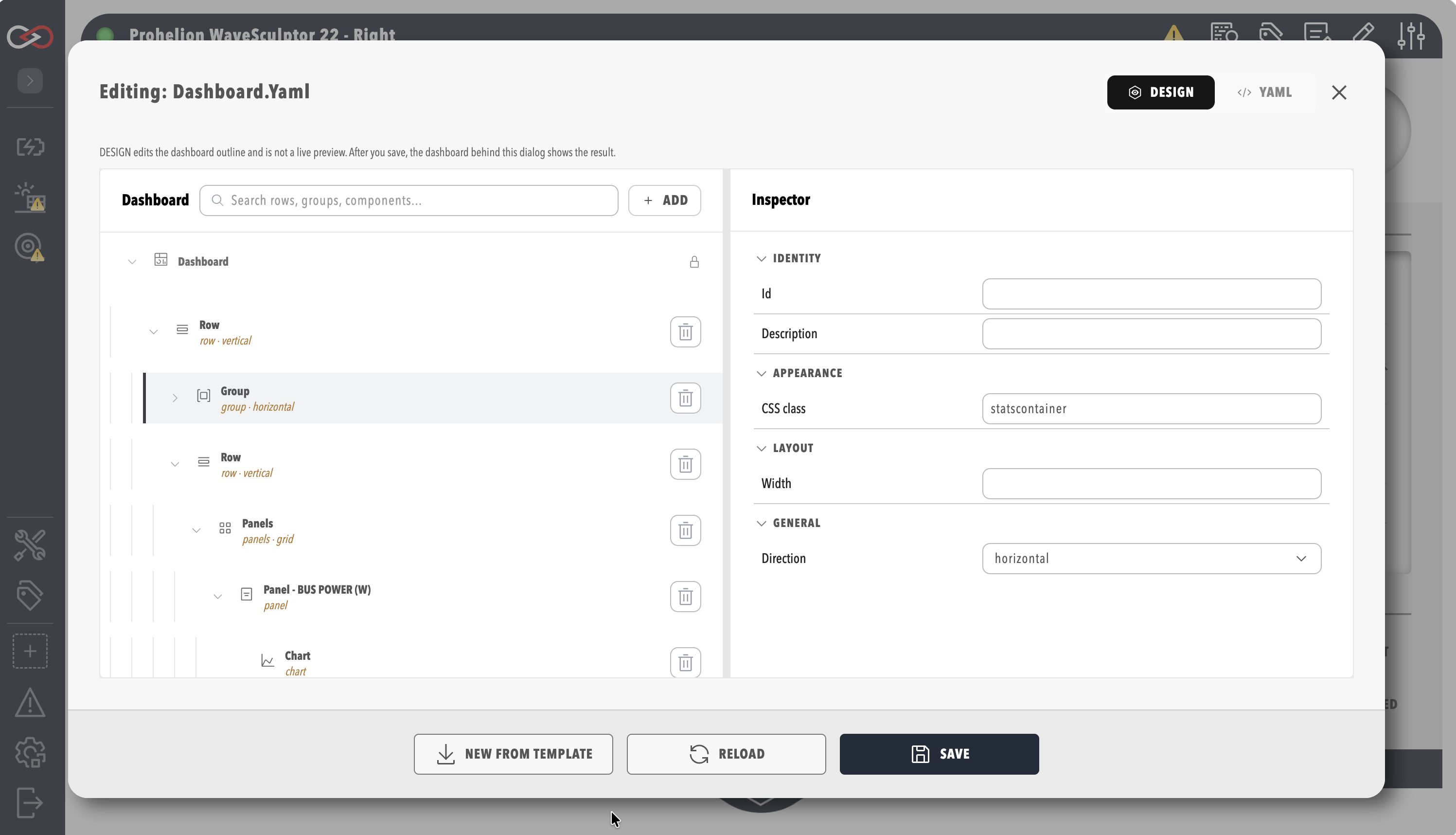
The editor opens in DESIGN mode, which is the Visual Editor.
Add and arrange elements
- In the dashboard tree, select the container to add into, such as a row, group, or pill. Leave the dashboard root selected to add at the top level.
- Select Add. The Add component window lists the element types that fit the selection, such as Row, Group, Pill, Readout, Lamp, Chart, and Action.
- Choose a type. The new element appears in the tree as the first child of the selected container, and it is selected. With the dashboard root selected, it appears at the top of the dashboard.
- Drag the new element in the tree to its final position. The tree shows a drop position only where the dashboard schema permits one.
- In the Inspector, set the properties of the element.
If Add is unavailable, the selected element cannot hold other elements. Each property in the inspector uses the control that suits it, as listed in the Visual Editor reference.
To delete an element:
- In the dashboard tree, select the trash (Delete) icon on the row of the element. The root row has no Delete icon.
- Confirm the deletion in the Delete element dialog by selecting Delete. The dialog states how many nested elements are removed with it.
The element and its nested elements no longer appear in the tree.
Bind an element to a tag
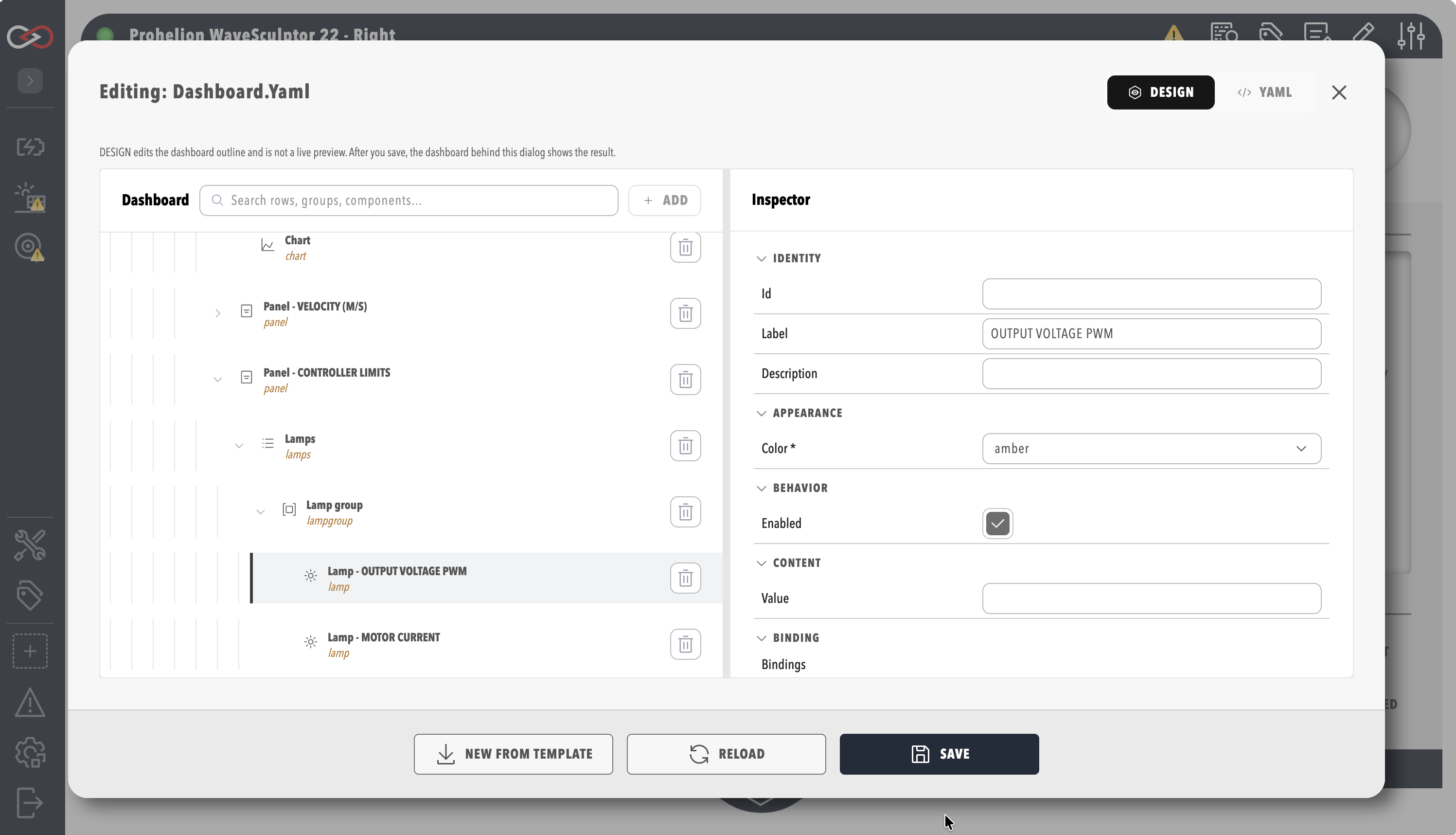
An element that can show live data has a Binding section in the inspector. A single-value element such as a readout or lamp binds one tag, and a chart binds one or more tags.
- Select the element in the tree, such as a readout, a lamp or a chart.
- In the Binding section of the inspector, add a binding for each property that the data drives.
- Choose the tag from the tag tree, which is the same tree as the Tag Explorer.
- Optional: set the transform and the default value.
The binding appears in the Binding section, naming the tag you chose. For how a binding names a tag and the modes it supports, refer to Data binding.
You can also start from tags. Choosing tags to link to a dashboard opens the Add component for selected tag(s) window, which offers only the element types that suit the chosen tags. Refer to Create collections, rules, and dashboard bindings from tags. Dashboard widgets show live alert indicators when their bound tags have active rule alerts, as described in Alerts Log.
Validate and save
- Check the Schema validation issues list. It shows each part of the dashboard that does not match the dashboard schema.
- Fix each issue in the inspector or in the YAML tab.
- Select SAVE. SAVE shows a message and does not save while any issue remains.
When no issues remain, SAVE stores the dashboard, so a saved dashboard always conforms to the schema. The server also rejects an invalid dashboard submitted through the API. Closing the editor with unsaved changes asks for confirmation before the changes are discarded.
Copy a dashboard as a template
Every dashboard in Profinity uses this dashboard system, so the YAML of an existing dashboard is a useful starting point alongside the examples in the Component reference and the Motor controller dashboard example.
- Open the dashboard in the editor and select the YAML tab.
- Select all of the YAML and copy it.
- Open the editor on the new dashboard, a component, or a profile, and select its YAML tab.
- Paste the YAML.
- Change the pasted YAML to suit the new dashboard.
- Select SAVE.
The new dashboard appears with the copied content. Copy a simple dashboard first and add complexity in small, tested changes, so that a faulty change is easy to find. For when the YAML tab is the better tool, refer to YAML tab.