Send / receive CAN bus messages
Profinity can monitor Controller Area Network (CAN) bus traffic on your network and also transmit messages back on to the CAN network from within the Profinity toolset, using the SEND & RECEIVED CAN window documented below. The CAN Data Log Replayer is a separate tool that plays recorded messages into Profinity, and it never transmits them on to the bus.
Before you send or receive any CAN packets, check that the current user holds the associated permission: View CAN data to receive and Send CAN messages to send, which includes View CAN data. The replayer requires Replay CAN logs. A user with only View CAN data sees the menu item as RECEIVED CAN instead of SEND & RECEIVED CAN. Refer to Roles and permissions.
A sent packet can command connected hardware
A packet sent from Profinity goes on to the live CAN bus and is acted on by every connected device, so a packet can start a motor controller, open a contactor or change a device setting. Check what is connected to the bus and what the packet's CAN ID and data mean before sending it, and be especially careful with a scheduled packet, which keeps sending until it is deleted. Refer to How to send and receive CAN bus messages.
Receive CAN packets
Select CAN UTILITIES in the side menu, then the SEND & RECEIVED CAN menu item to see a view of all the CAN bus messages currently travelling across your network.
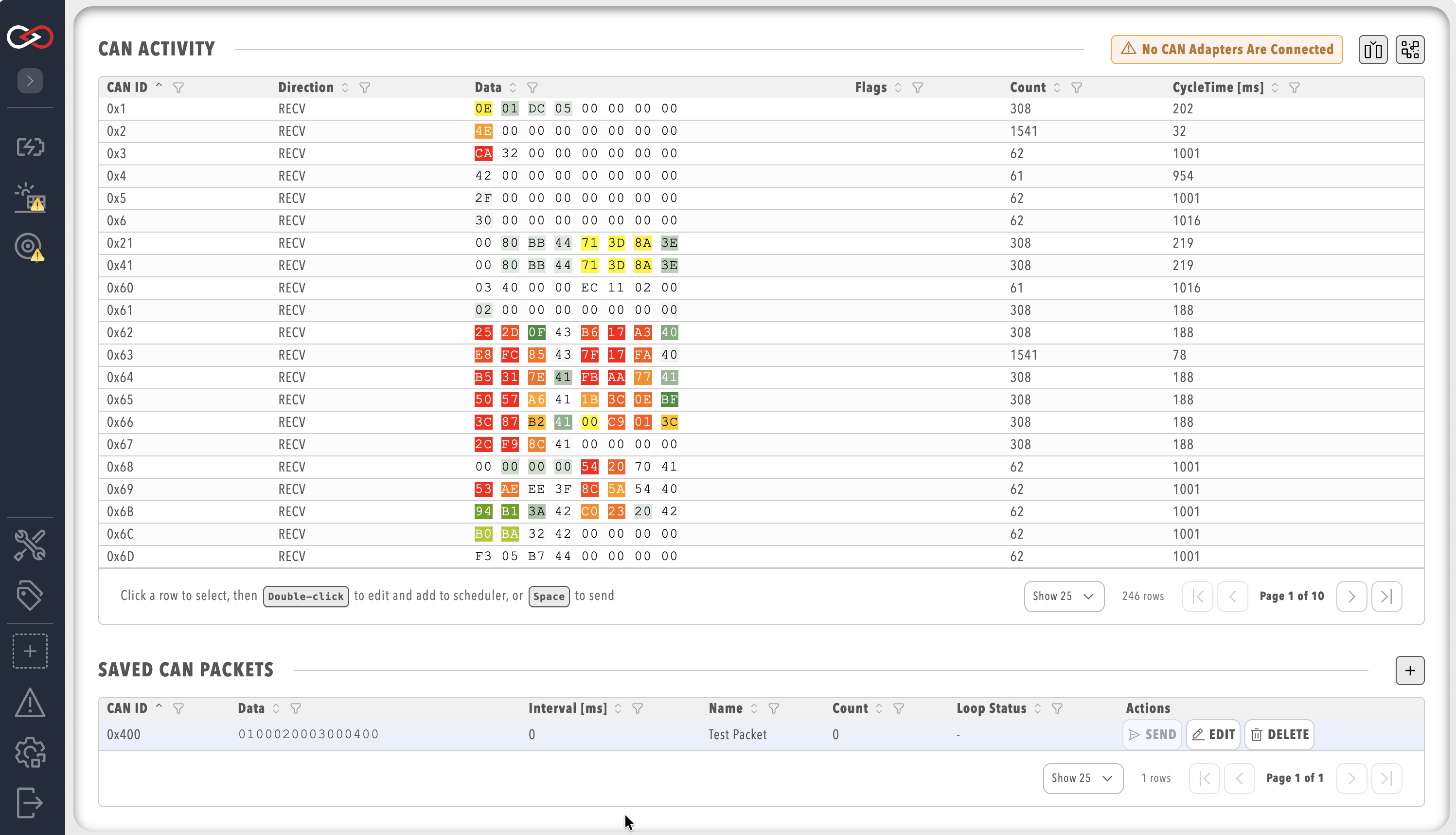
Clicking on the CAN Activity table headers filters or sorts the messages by CAN ID, direction, flags, and so on. Adapters that support them also show endian representation and local traffic filtering in the same header, as described in CAN Bus Adapters.
Two toggle buttons sit at the top of the window. The Spaced data button, which has a column-insert icon, breaks the CAN traffic data into individual hex bytes to make it easier to read. The Heatmap button, which has a heat map icon, colours each byte by how often it changes, so bytes that change value frequently are shown in warmer colours and bytes that remain relatively constant are shown in cooler colours. Both options are on by default and can be switched off.
Schedule editor
The Scheduled CAN Packets list at the bottom of the screen shows every scheduled packet, and the + icon opens the schedule editor to define a packet.
To send, schedule, stop, and restore packets, refer to How to send and receive CAN bus messages.
The default byte order is little endian, which is used by most Prohelion devices, including the WaveSculptor, whose data fields are sent least significant byte first (refer to the WaveSculptor22 CAN protocol appendix).
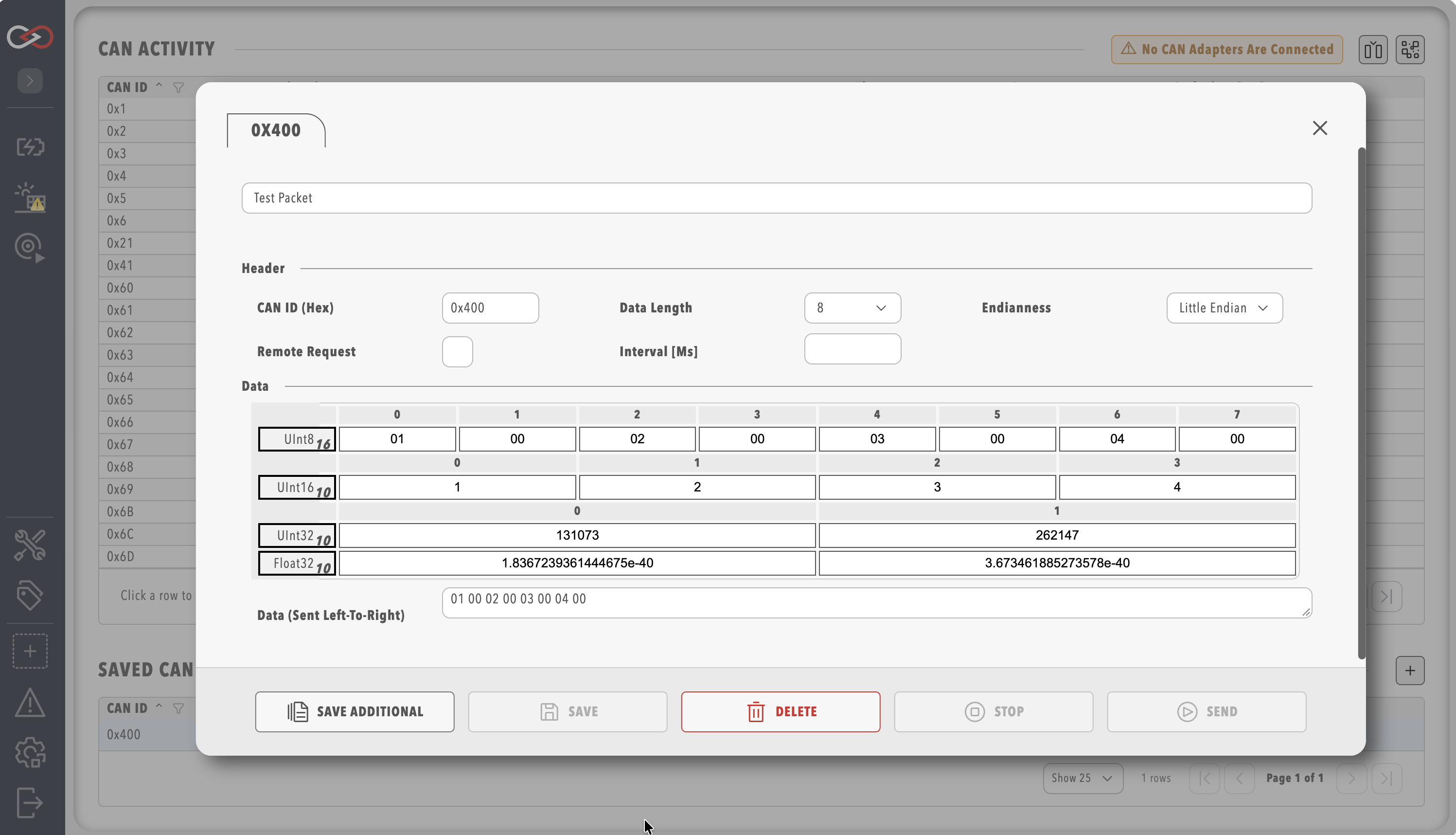
The schedule editor transmits messages back on to the CAN bus network from Profinity. From this tool you can set the CAN ID and endian, as well as the values for either Bytes, Int16, Int32, Floats or the raw packet data. When you change one of these values the raw data updates to reflect that, and when you change the raw data the values update to reflect that change.
Setting an interval causes Profinity to send your CAN packet at your chosen loop rate, so setting Interval [ms] to 100 sends the packet every 100 ms. The interval must be a whole number from 1 to 4,294,967,295 milliseconds, or blank (or 0, which is the same) to send the packet once only. When Interval [ms] is blank or 0, the primary button reads SEND and sends the packet once. When it is above 0, the button reads START, and the schedule must be saved first. The editor shows "Value must be an integer greater or equal to zero" or "Value must not exceed 4,294,967,295 milliseconds (maximum for uint)" beside the field when the value is not valid.
For step-by-step guidance, refer to How to send and receive CAN bus messages and How to Connect to CAN Bus. To play back recorded messages, refer to Log / replay CAN bus messages.