Profinity Web
Saving changes on any System Configuration tab restarts Profinity. Refer to System Configuration for what to expect.
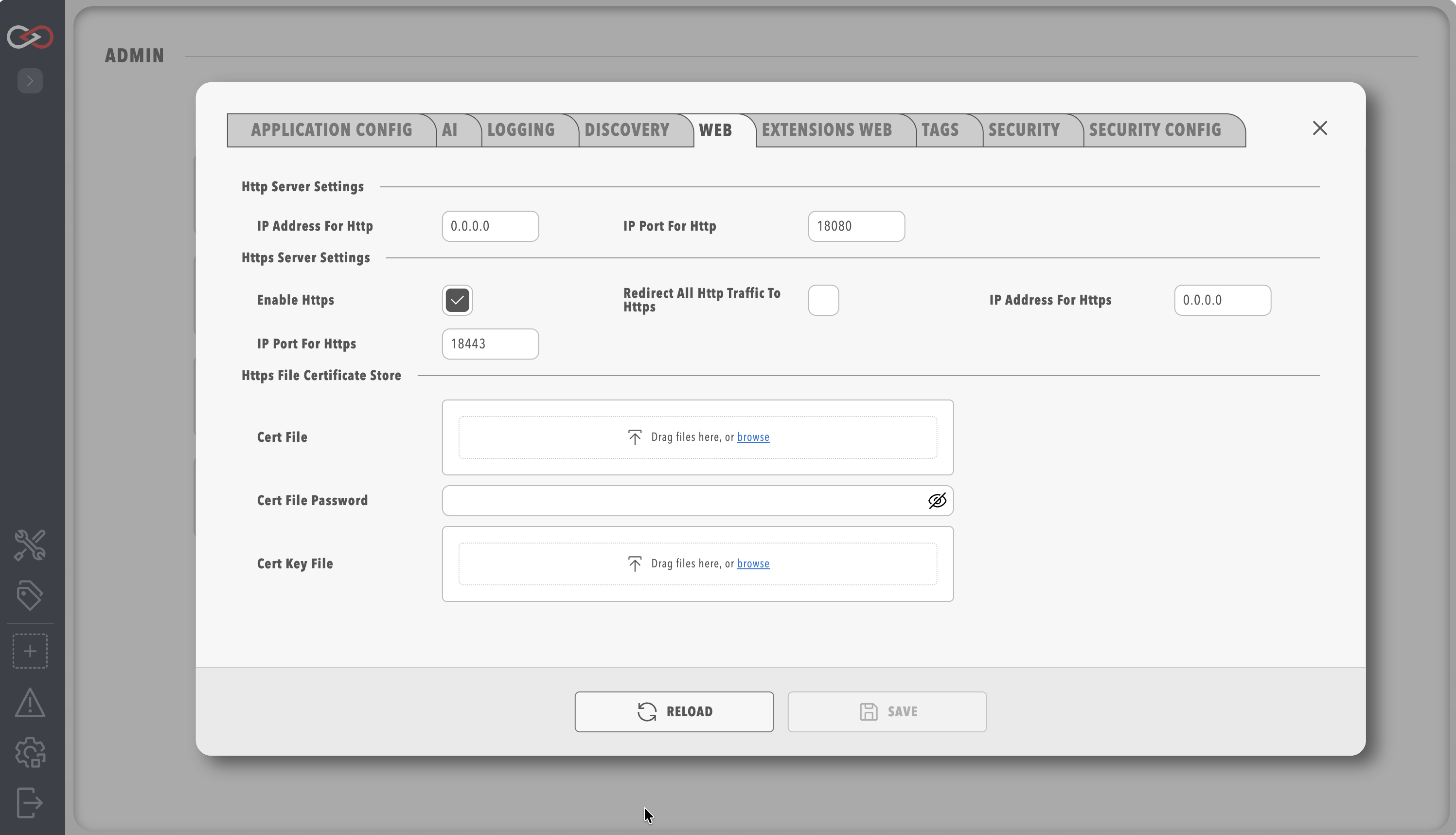
The Web tab holds the parameters that control how Profinity offers its web server connections to users, and Profinity supports HTTP and HTTPS connections as well as custom HTTPS certificates.
| Parameter | Description |
|---|---|
| IP Address for Http | The IP address Profinity runs on for HTTP. The default is all IP addresses (0.0.0.0), however localhost (127.0.0.1) or a specific IP address can be set if required. Without a Profinity Server licence this setting is not shown and the address is always 127.0.0.1, as the note on remote access explains. |
| IP Port for Http | The port used for HTTP (default is 18080). Setting this below 1024 requires admin permissions. |
| Enable Https | Enable or disable the HTTPS server, which is enabled by default. |
| IP Address for Https | Same as the HTTP address but for HTTPS, with the same default, and hidden under the same licence restriction. |
| IP Port for Https | Same as the HTTP port but for HTTPS (default is 18443). |
| Redirect all Http traffic to Https | Forces the system to use HTTPS for all traffic. It can only be enabled when HTTPS is enabled. |
The certificate options are shared with the Extensions Web tab and are described under HTTPS certificates.
Without a Profinity Server licence, including on a Desktop host, the IP address settings are not shown on this tab, and Profinity forces both the HTTP and the HTTPS address to 127.0.0.1 even if Config.yaml holds another value, so the web interface can be reached only from the same computer.
Entering 0.0.0.0 does not change this, and the log records "Remote web access requires a Server license."
The full rule is in the remote web access warning on Licensing.
Troubleshooting
If Profinity cannot be reached from another computer, check the licence on the License page first, because without Profinity Server only 127.0.0.1 is used.
With a Profinity Server licence, confirm that the address is 0.0.0.0 or the host's own address, that the host firewall allows the HTTP and HTTPS ports, and that no other program already uses the port, in which case a different port is entered here.
HTTPS certificates
These options apply to both the Web and Extensions Web tabs, and each server has its own copy of them.
| Parameter | Description |
|---|---|
| Windows Cert Store | When using HTTPS on Windows, a certificate can be selected from the Windows Certificate Store, which is used when the certificate is installed in the system's certificate store. |
| Windows Cert Store Location | The location of the certificate store. The location is CurrentUser for user-specific certificates or LocalMachine for system-wide certificates. |
| Windows Cert Store Subject | The subject name of the certificate as it appears in the Windows Certificate Store. It must match the certificate's subject name exactly. |
| Cert File | An alternative to the Windows Certificate Store: a certificate file, normally in .pfx or .p12 format, for HTTPS. |
| Cert File Password | When a certificate file is used, the password used to protect the certificate file. |
| Cert Key File | The private key file (.pem or .key) when the certificate is in Privacy-Enhanced Mail (PEM) format, which is optional because, when it is not specified, Profinity looks for a file named privkey.pem in the same folder as the certificate. |
To find the certificate store location and subject name on Windows:
- Open Windows Certificate Manager (
certmgr.msc). - Navigate to the appropriate store (Personal, Trusted Root and so on).
- Find your certificate and double-click it.
- Read the subject name in the "Subject" field. The store location is shown in the certificate manager's navigation tree.