Managing users
Every person who signs in to Profinity through the Web or the API has a user account, and what that person can see and do is decided by the roles assigned to the account. A role is a named set of permissions such as viewing tags, sending CAN messages, or editing profiles, so setting up a new person means creating the account and choosing the role that matches their job, and nothing more. The roles themselves, and the permissions inside them, are described in Roles and permissions.
All of this is done from Users & Groups, which requires the Security administration permission and is shown only when the licence includes the Profinity Server feature, as described in Licensing. A Windows Desktop installation without a Server licence does not use user accounts, because it signs in automatically with a built-in administrator account that can do everything. User accounts and roles exist on a Desktop host only when a Server licence is applied, and they are needed only when Profinity is used through the Web or the API.
Creating a new user
- Select ADMIN in the side menu, then Users & Groups.
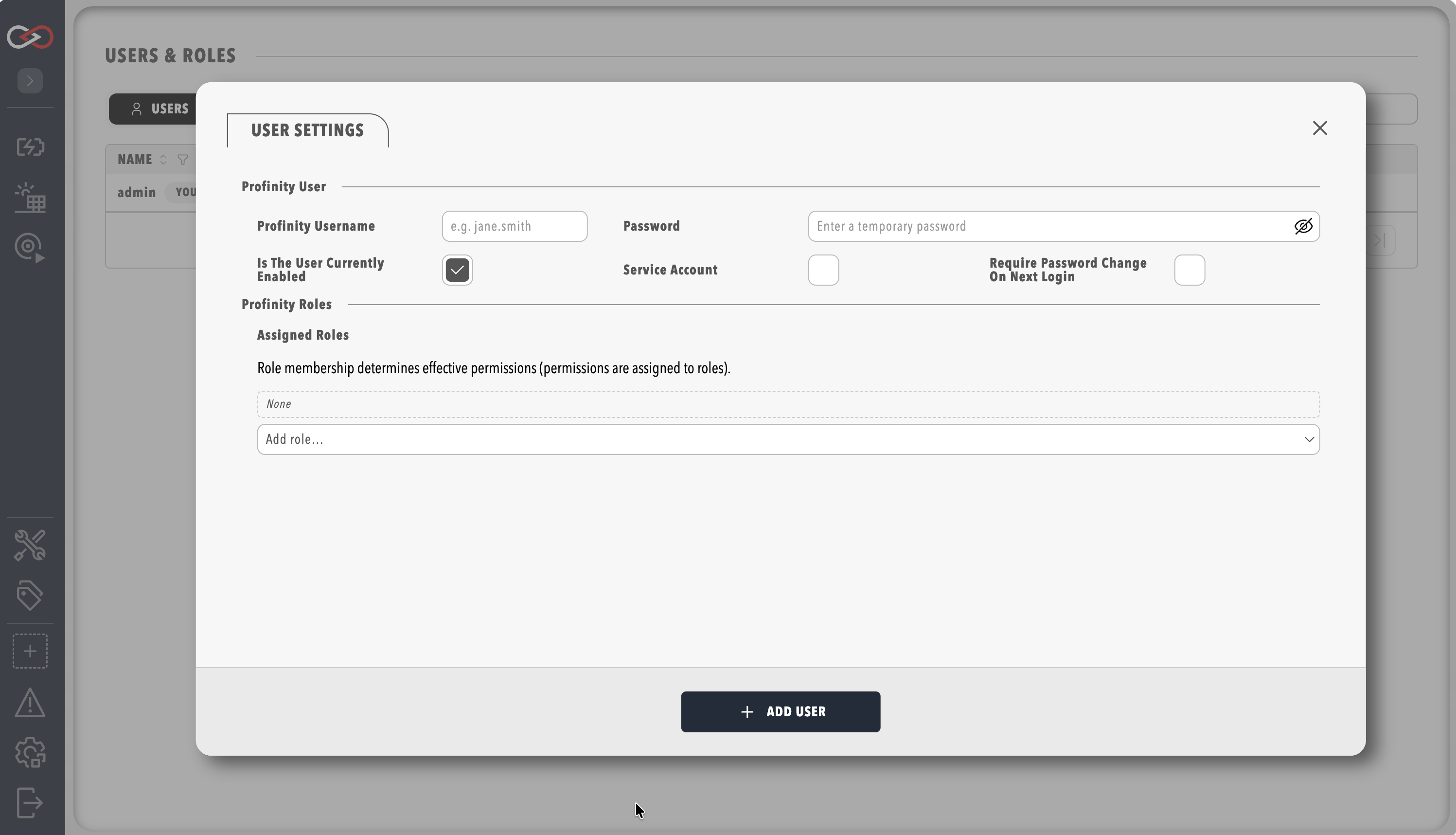
- Select Add user.
- Fill in the fields in the table that follows.
- Choose one or more roles under Assigned roles, and save.
| Field | Description |
|---|---|
| Profinity Username | A unique name for the account, up to 256 characters, using only letters, numbers, periods, hyphens, underscores, and @. A name with any other character is rejected. |
| Password | The initial password for local sign-in, which must meet the password policy. When editing an existing user, leave it blank to keep the current password. |
| Is the user currently enabled | Only enabled users can sign in or use the API. Switching it off blocks a person's access without deleting the account. |
| Service Account | Marks an account that exists for automation and produces a token that never expires, as described in Service accounts. |
| Require password change on next login | Makes the person choose their own password the first time they sign in. |
| Assigned roles | The roles that decide what the user can do. |
Sites that use single sign-on (SSO) create the user in the same way and then add an external identity link, as described in SSO and Sign-In Method.
Giving a user the right access
Each user can hold several roles, and holds the combined permissions of all of them, so the usual approach is to give each person one role that matches their job and add a second role only when they have a second job.
Profinity provides a single built-in role, Administrators, which holds every permission and is assigned to the default admin account, so every other role is created by an administrator from the Roles tab to suit the site.
Roles and permissions explains how to build a role, lists every permission, and suggests starting points such as a viewer role for people who only watch the system and an operator role for people who run it each day.
Because Administrators includes managing users and changing the system configuration, it is best kept for initial setup and emergencies, with named individuals using narrower roles the rest of the time.
To change the access of an existing user, click the user's row in Users & Groups to open their settings dialog and edit Assigned roles.
Changing roles signs people out
Changing a user's Assigned roles ends that user's active sessions, and they must sign in again. Make the change when the person is not part-way through a task.
The same dialog contains a User Actions tab for the administrator tasks in the following table.
| Task | Where to find it |
|---|---|
| Require a user to choose a new password, and sign out their sessions | User Actions tab, then Reset Password. Refer to MFA account management |
| Clear a user's authenticator so they enrol again | User Actions tab, then Reset MFA. Refer to MFA account management |
| Create or view an API token for a service account | User Actions tab, then Generate Token or View Token. Refer to Service accounts |
| Link a user to an identity provider account | User Actions tab, in External identities (SSO). Refer to SSO and Sign-In Method |
Disabling a user
To stop a person signing in without deleting their account:
- Open the user's settings dialog.
- Switch off Is the user currently enabled.
- Save.
To end sessions that are already open, use Reset Password on the User Actions tab for a local user, which signs out the user's active sessions, or change the user's Assigned roles, which has the same effect.
Password and sign-in rules
Password length, age, and complexity are set site-wide in the Password Policy, and Two-Factor Authentication describes how the second sign-in step is enabled and what users see. How long a sign-in lasts and when repeated failures lock a user out are set in Session Policy and Login Lockout.
After creating a user
Share the sign-in details securely when the user signs in locally, and enable Require password change on next login so that the person chooses their own password the first time. Then sign in as, or ask, the new user to confirm that the side menu shows the entries expected for their roles, since a missing entry almost always means a missing permission, and the table in Roles and permissions shows which one to check.
Change the default administrator password
A new installation includes an admin account with the password password, and the first sign-in as admin forces a password change.
Choose a strong password at that point, and follow your organisation's policies when creating and sharing credentials.