CAN file and SFTP loggers
The CAN File Logger and the CAN SFTP Logger record native CAN bus messages to a file, which the CAN File Logger stores on the local file system of the machine running Profinity and the CAN SFTP Logger transmits to a remote SSH File Transfer Protocol (SFTP) server. Each is added to a Profile as its own component under Loggers and is included in every edition. Profinity can also log and replay messages from a CAN bus network.
flowchart LR
    Source["CAN bus messages"] --> File["CAN File Logger"] --> Files["Local log files"]
Source --> Sftp["CAN SFTP Logger"] --> Server["SFTP server"]Both loggers have Auto Connect, which is on by default, so a logger begins logging when the Profile loads and needs no further action.
They record the bus, so they do not use tag collections.
Both loggers also have Update Interval (Seconds), which defaults to 10 and accepts values from 1 to 86400, and sets the seconds between background updates.
Their File Format setting chooses the layout of the text file, which always uses a .txt extension.
Prohelion, the default, writes a line for every packet with a Sent or Received column, and Tritium writes the same fields without that column.
The CAN File Logger has no destination setting.
It creates its files under the Profinity CAN bus log directory (can_bus_logs/), in a folder named after the Profile and the component.
Refer to the artefacts directory for where that directory sits on each platform.
The CAN SFTP Logger needs the remote server settings described in File logger rotation, archive, and SFTP settings, which also covers rotating, archiving, and compressing the log files.
Download the logged files
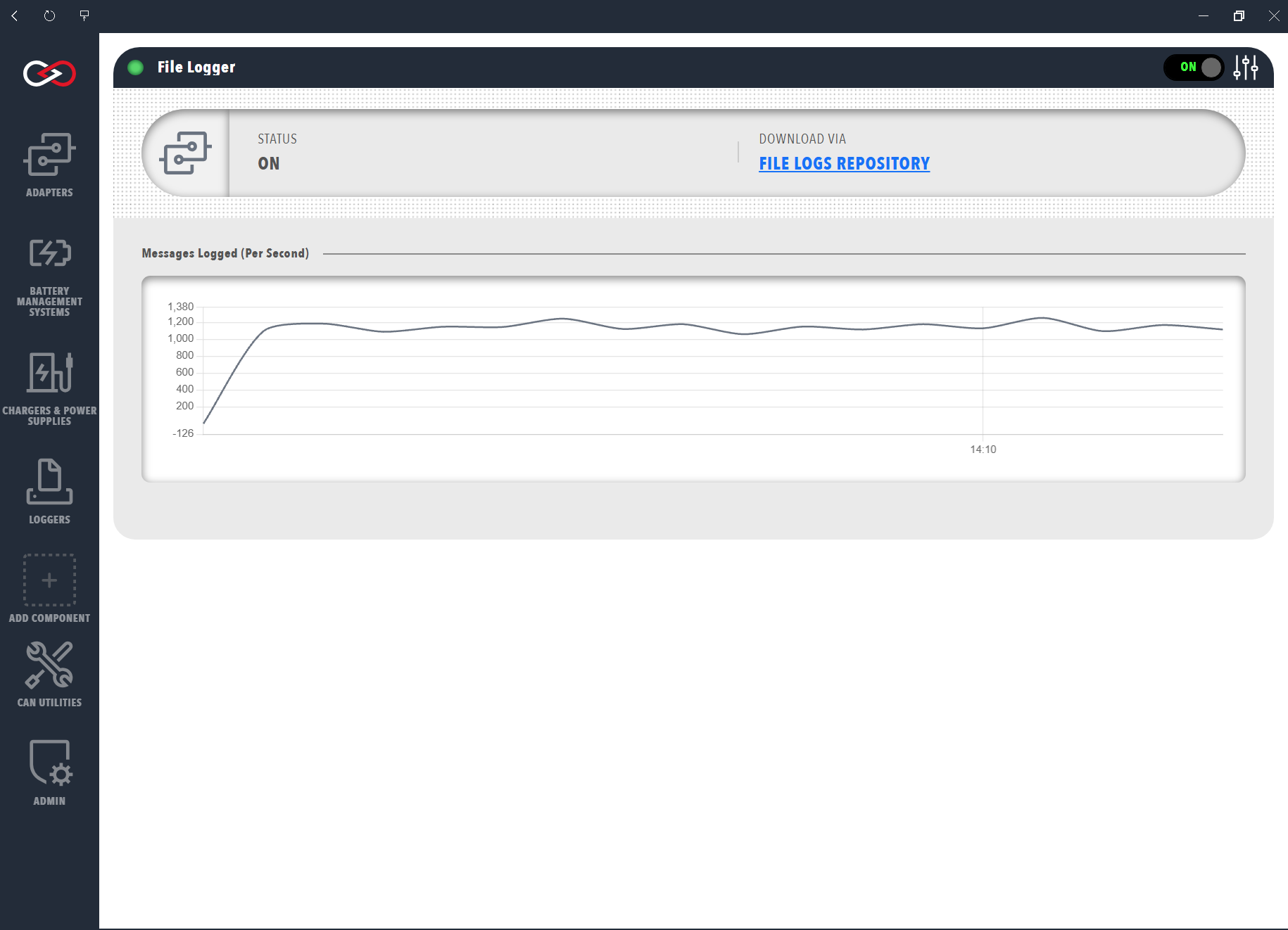
Once a log file has been created, select the link on the Logger Dashboard to download it from Profinity. A CAN File Logger shows this link as FILE LOGS REPOSITORY.
To take the same data further, refer to How to configure data logging.