Profinity REST APIs
Profinity V2 is built around its own Representational State Transfer (REST) APIs, which exchange JSON and are secured with Bearer tokens. Custom applications use the APIs to add capabilities to a solution, to provide custom user interfaces, or to extend the out-of-the-box functionality. A custom user interface can be hosted either externally or within Profinity itself (refer to Hosting).
As of Profinity 2.3, /api/v2 is the published shape of the REST API, errors are returned as application/problem+json documents, and the OpenAPI document that describes every route is checked against a committed snapshot, so an unreviewed change to a route or model is caught before release.
Areas that are still being developed, such as firmware, can change between releases, and a client built on them should be tested against each new release.
The OpenAPI document is served at /swagger/v2/swagger.json, which API tools and AI skills can import to generate a client or to read the available routes and models.
API users can damage equipment
The Profinity APIs support security and can be encrypted, but an API user can change system and equipment state. Grant API access only to the users and applications that need it, and limit what each of them can do, so that nobody can accidentally damage the environment or equipment.
Using Profinity APIs
Profinity V2 is built around its own APIs, so the APIs are running whenever Profinity is running. The Enable Profinity API and Enable Swagger on API settings apply to the Profinity Web server for extensions only (refer to Extensions Web), and the main Profinity host always publishes the API and Swagger.
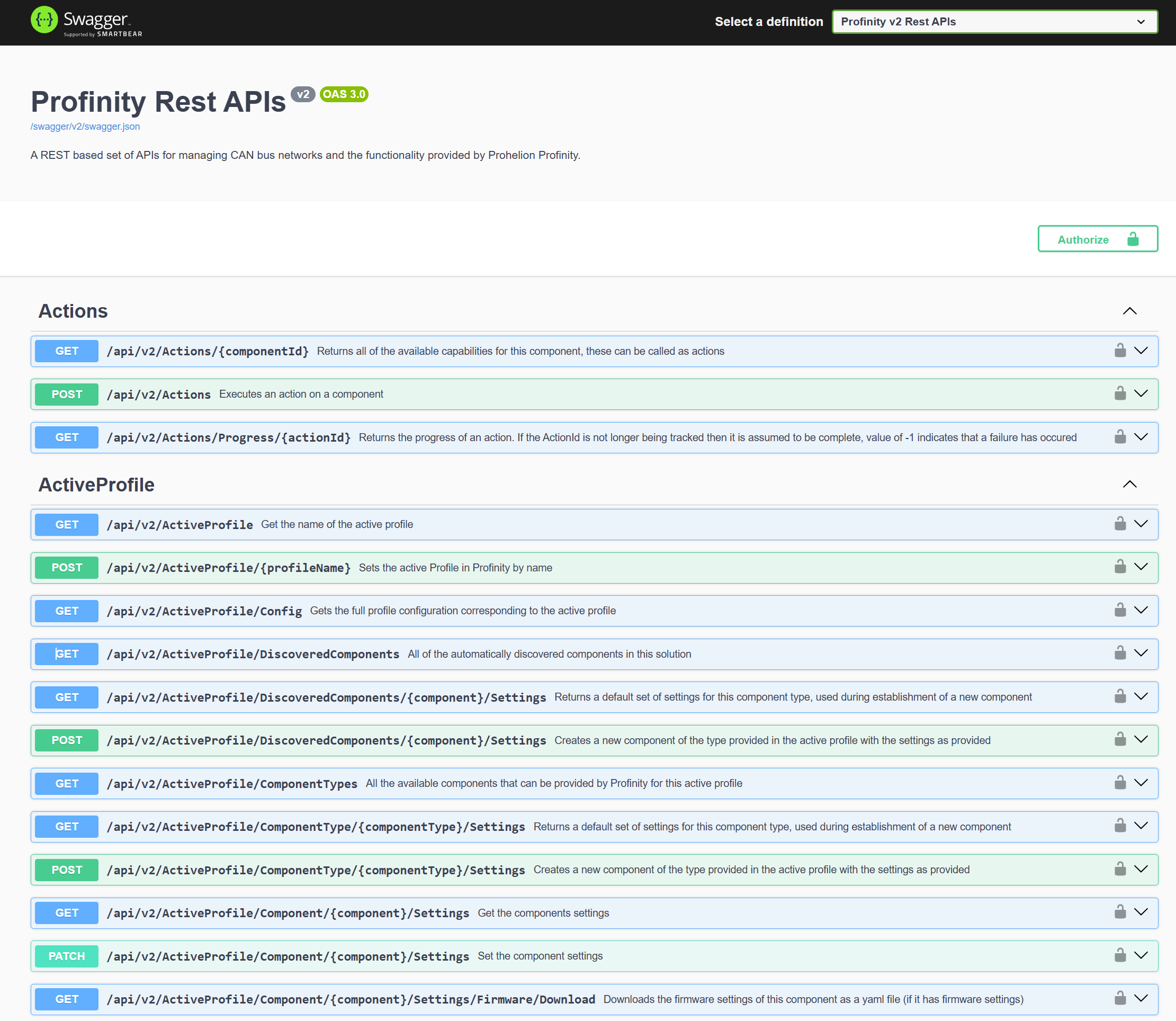
The Swagger interface for Profinity is available by adding /swagger to the URL that Profinity is running on.
For example, if Profinity is running on localhost:18080, the Swagger UI is at http://localhost:18080/swagger.
The Endpoint Reference lists the routes for alerts, collections, derived tags, Profinity AI chat, security, account resets, tag relay and themes.
Profinity API security
Profinity APIs require a Bearer token, which is either a service account token or a token returned by signing in with a username and password. Either way, the account should be dedicated to the client and hold only the permissions the client needs.
Using a service account token
A service account token is generated on the account's User Actions tab in Users & Groups, and it is already a Bearer token.
A client that has one skips the /api/v2/Users/Authenticate call and passes the token directly in each request, and in Swagger the token is pasted straight into the Authorize dialog.
The token never expires and has no refresh token, so it suits a client that runs for a long time or unattended.
It stays valid until an administrator generates a new one, changes the account's roles, or disables the account.
Signing in with a username and password
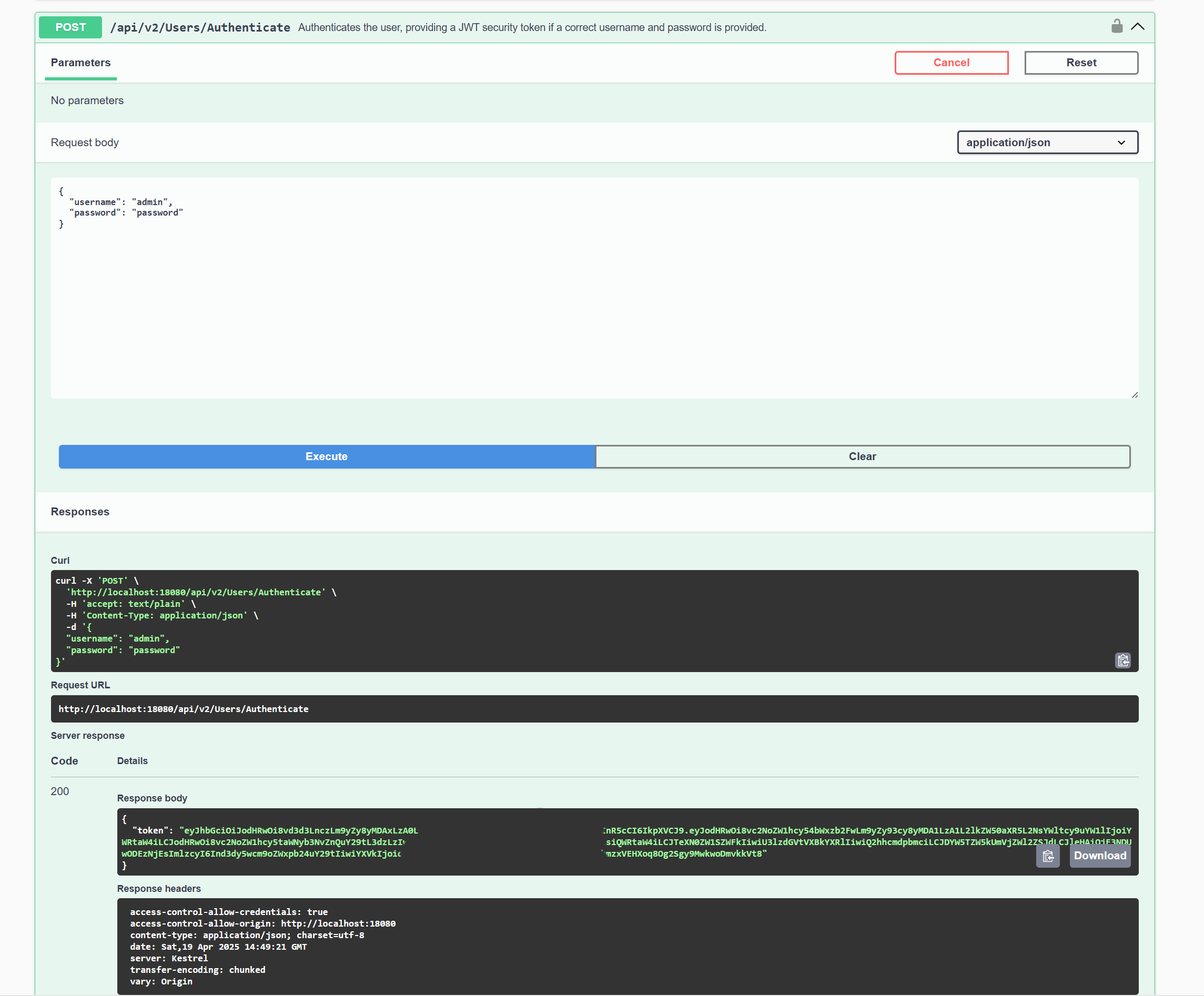
To test the APIs from the Swagger GUI without a service account token, execute a call against the /api/v2/Users/Authenticate API in the Swagger GUI and apply the returned token with the Authorize button in the top right of the Swagger page.
To get a token from any other client, send a POST request to http://localhost:18080/api/v2/Users/Authenticate, with the username and password of the Profinity user that the API calls run as in the JSON body.
For example:
Use HTTPS to protect passwords
Calling this API over an HTTP connection can expose the password to network scanning.
Custom applications running on the Profinity server can use the localhost address, which does not carry this risk, while an application that calls Profinity across a network should use HTTPS for all API usage.
If the username and password are valid, Profinity responds to a non-browser client with a JSON body that carries the access token, a refreshToken (omitted for service accounts, whose tokens do not expire), the username, an id and the user's permissions, like this (the permissions list is abbreviated):
{
    "token": "eyJhbGciOi...",
    "refreshToken": "...",
    "username": "admin",
    "id": "admin",
    "permissions": ["TagView", "..."]
}
A browser client receives the same session as cookies and a body without the token.
A user who must complete two-factor authentication or change a password first receives a preAuthToken with requiresTwoFactor or requiresPasswordChange set instead of a token, which is completed through /api/v2/Users/Authenticate/TwoFactor or /api/v2/Users/Current/ChangePassword.
A token that is still valid can be renewed with GET /api/v2/Users/Refresh.
Passing the token
The service account token, or the contents of the token field, must be passed in each request as a Bearer token, and the documentation of the client-side tool calling Profinity describes how to do this for that tool.
From a command line, curl -H "Authorization: Bearer <token>" http://localhost:18080/api/v2/Tags/Sample/{fullTagPath} returns the latest sample of a tag.
A call with a missing or expired token is answered with 401, and a call from a user that lacks the permission the route needs is answered with 403.
A client that signed in with a username and password and starts receiving 401 should sign in again or renew the token with GET /api/v2/Users/Refresh.
A client that uses a service account token and starts receiving 401 needs the current token from an administrator, because the old token stops working when a new one is generated or the account's roles change.
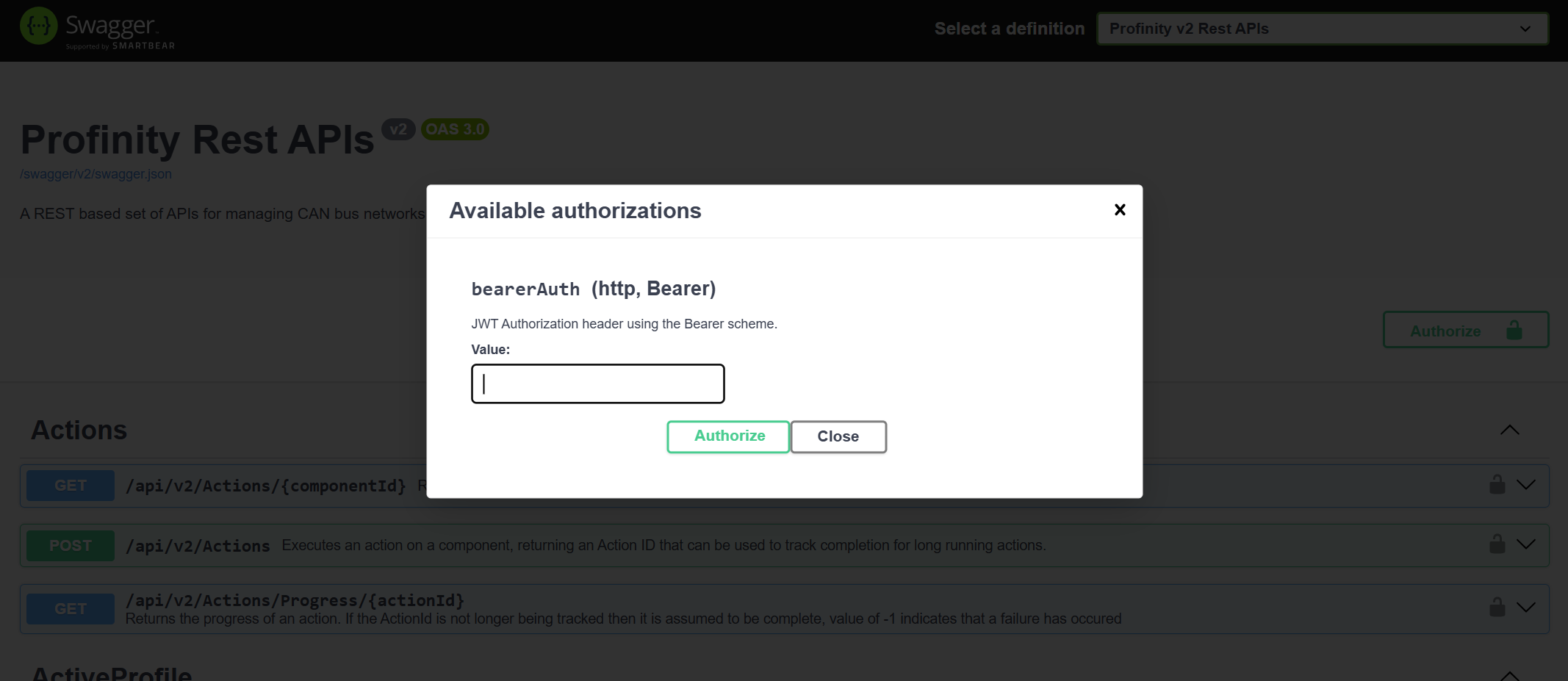
In Swagger the token is applied by clicking the Authorize button in the top right of the screen and pasting in the generated token:
Accessing historical data via APIs
APIs can provide both realtime and historical data when an InfluxDB database is configured in the profile. If no InfluxDB database is set up, only realtime data is available.
Historical data is retrieved in three steps, and the first two use POST /api/v2/TagQuerySet, which requires the TagView permission (View tags).
- Configure an InfluxDB database in the profile.
- Send
POST /api/v2/TagQuerySetwith a body that holds an optionalsrcSetIdand a list ofbindings. Each binding names a tagsourceand astoreofLocalorLogged. For theLoggedstore a binding also carries thetimeRangeStartandtimeRangeStopof the InfluxDB range, with optionalseriesMode,aggregationWindowandaggregationFunctionvalues. The response carries the matching values and asrcSetId. - Send
GET /api/v2/TagQuerySet/Delta/{sourceSet}to poll that set, which returns only the values that have changed since the previous poll.
Two further routes return the latest value of one item.
GET /api/v2/DBC/{component}/{message}/{signal} returns the latest local value of a single DBC signal and needs the DBCView permission (View DBC definitions), and GET /api/v2/Tags/Sample/{fullTagPath} returns the latest sample of a tag.
For more information on configuring InfluxDB, refer to InfluxDB and Prometheus Logging.