Password policy
The password policy applies to local sign-in, which is when the site Sign-in method is Local, and it sets the length, complexity, and age rules for every local user's password. Users who sign in through single sign-on (SSO) authenticate with the identity provider, so these rules do not apply to them, as described in SSO and sign-in method.
Configuring the password policy
To set the policy, sign in as a user with the System administration permission, select ADMIN in the side menu, then System Configuration, and open the Password Policy group on the Security tab. Saving the tab restarts Profinity and interrupts active sessions.
| Setting | Default | Range | Description |
|---|---|---|---|
| Minimum password length | 8 | 1 to 256 | The minimum number of characters in a local user's password. |
| Require uppercase letter | Off | On or off | The password must contain at least one uppercase letter. |
| Require lowercase letter | Off | On or off | The password must contain at least one lowercase letter. |
| Require digit | Off | On or off | The password must contain at least one digit. |
| Require special character | Off | On or off | The password must contain at least one special character. |
| Maximum password age (days) | Empty (no expiry) | 1 to 3650 | When set, local users must change their password after this many days. |
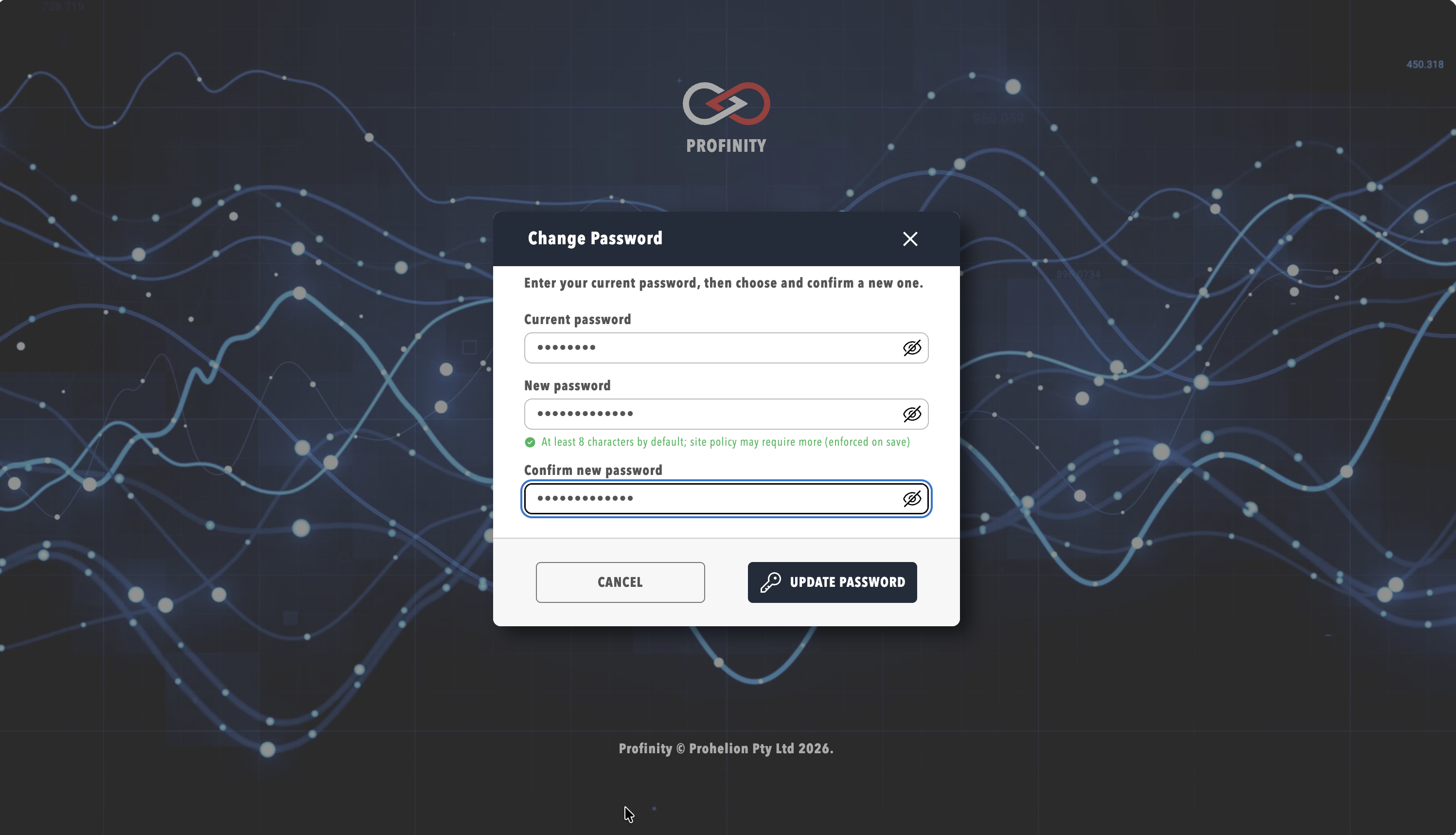
The shipped policy accepts any password of eight characters or more, with no complexity rules and no expiry, so a site that handles safety-critical equipment raises the minimum length and switches on the complexity rules, and sets Maximum password age (days) to match its organisation's identity policy. The dialog for changing a password shows the minimum length as the user types.
Forced password change
A user with the Security administration permission can require another user to change their password at the next sign-in, either by enabling Require password change on next login in the user's settings in Users & Groups, or by selecting Reset Password on the user's User Actions tab. Reset Password sets the same requirement and signs out the user's active sessions, and it is the preferred way to recover a compromised account because no temporary password has to be shared. Reset Password is not shown on an administrator's own account.
A user with this requirement sees a change password dialog after signing in and cannot use Profinity until a new password that meets the policy is saved.
A new installation creates the admin account with this requirement already set, so the first sign-in as admin always forces a password change.
The default admin credentials are listed in the Security guide.
Changing your own password
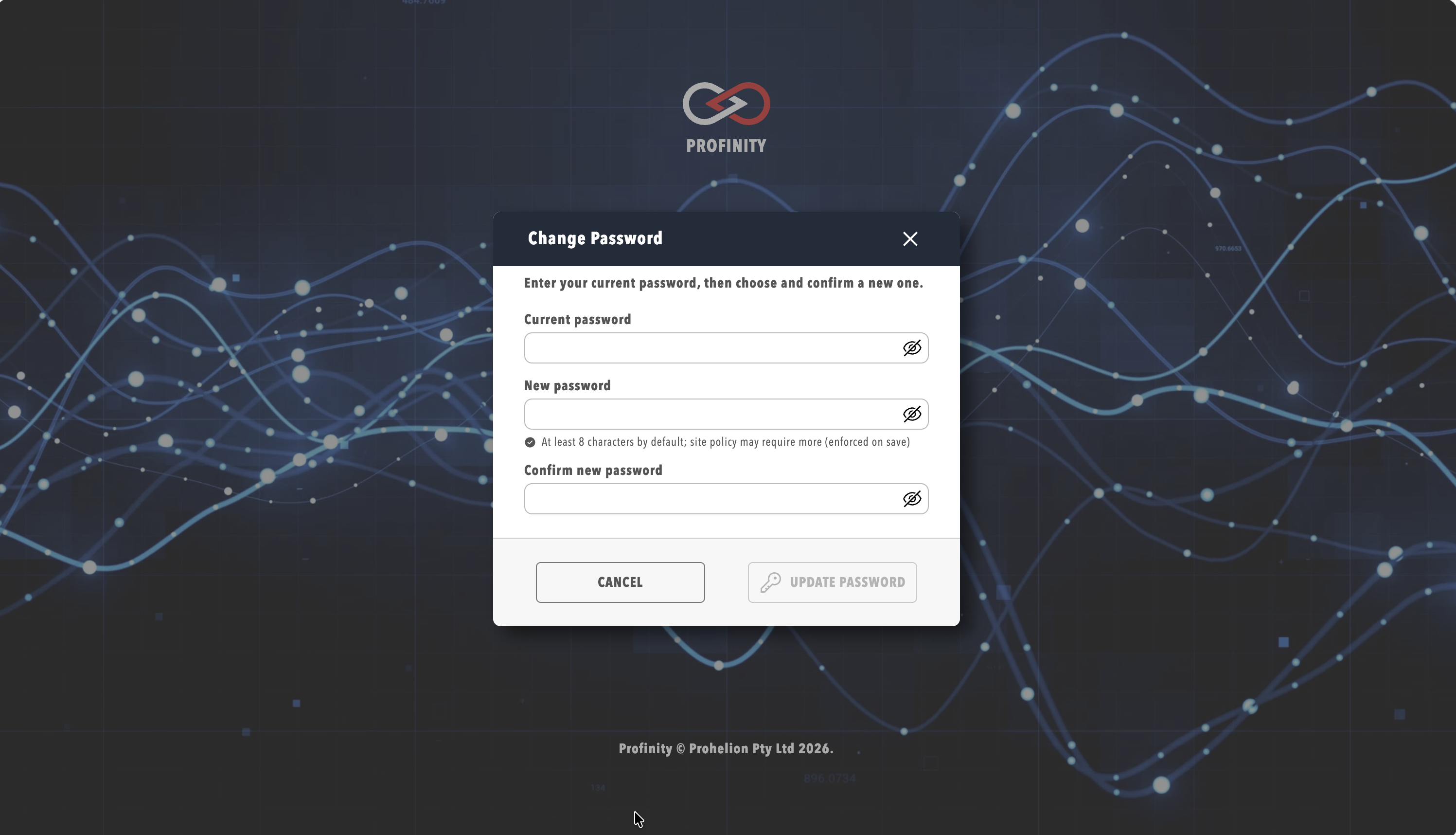
A local user changes their own password by selecting ADMIN in the side menu, then the Change My Password pill, which is shown only when the site sign-in method is Local and the session is not a kiosk session. The user enters the current password, chooses and confirms a new one, and selects Update Password, and the site policy is enforced when the new password is saved.