Logs
Profinity has a built-in logging mechanism that captures information about the operation of the system and is designed to assist in diagnosing system issues. To view the system logs, select ADMIN in the side menu, then the Logs pill. If a log line goes off the right-hand side of the page because it is too big, select the line to expand that log message.
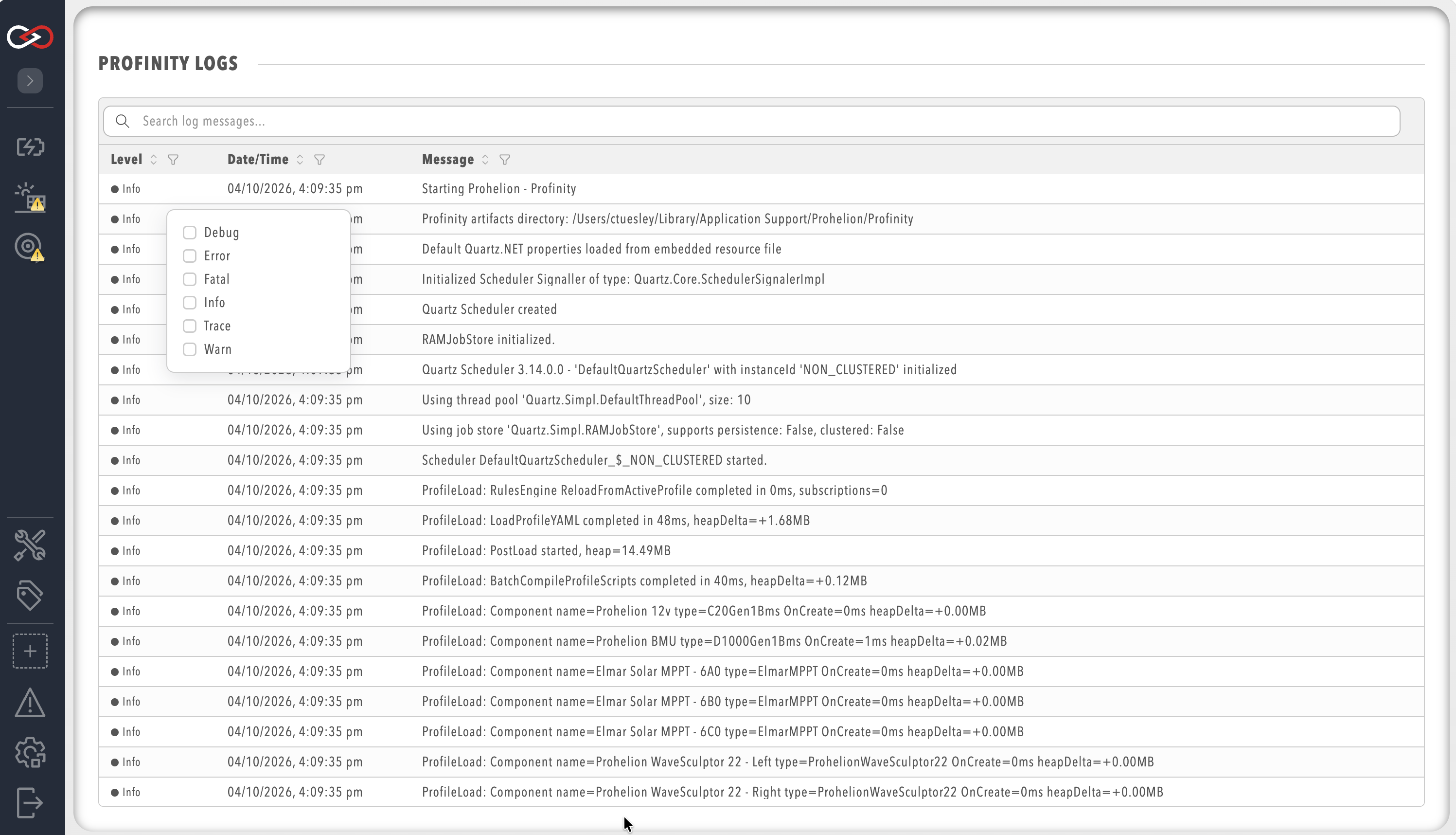
Each log entry contains a timestamp, a message level (for example Info, Warn, or Error), and a message description.
The levels that are recorded are set by Log Level on the Logging tab of System Configuration, which helps diagnose particular issues by limiting the system logs to particular message levels.
A higher level records fewer messages, and the viewer shows what has been recorded at the persisted level.
Log Rollover Size (MB) and Retained Logs are set on the same tab, and Logging describes the log levels and these settings.