Image component
An interactive image is a base image from the /Profile/Images directory with overlay elements positioned on it, such as clickable regions, icons, buttons, live data values, points, and annotation lines.
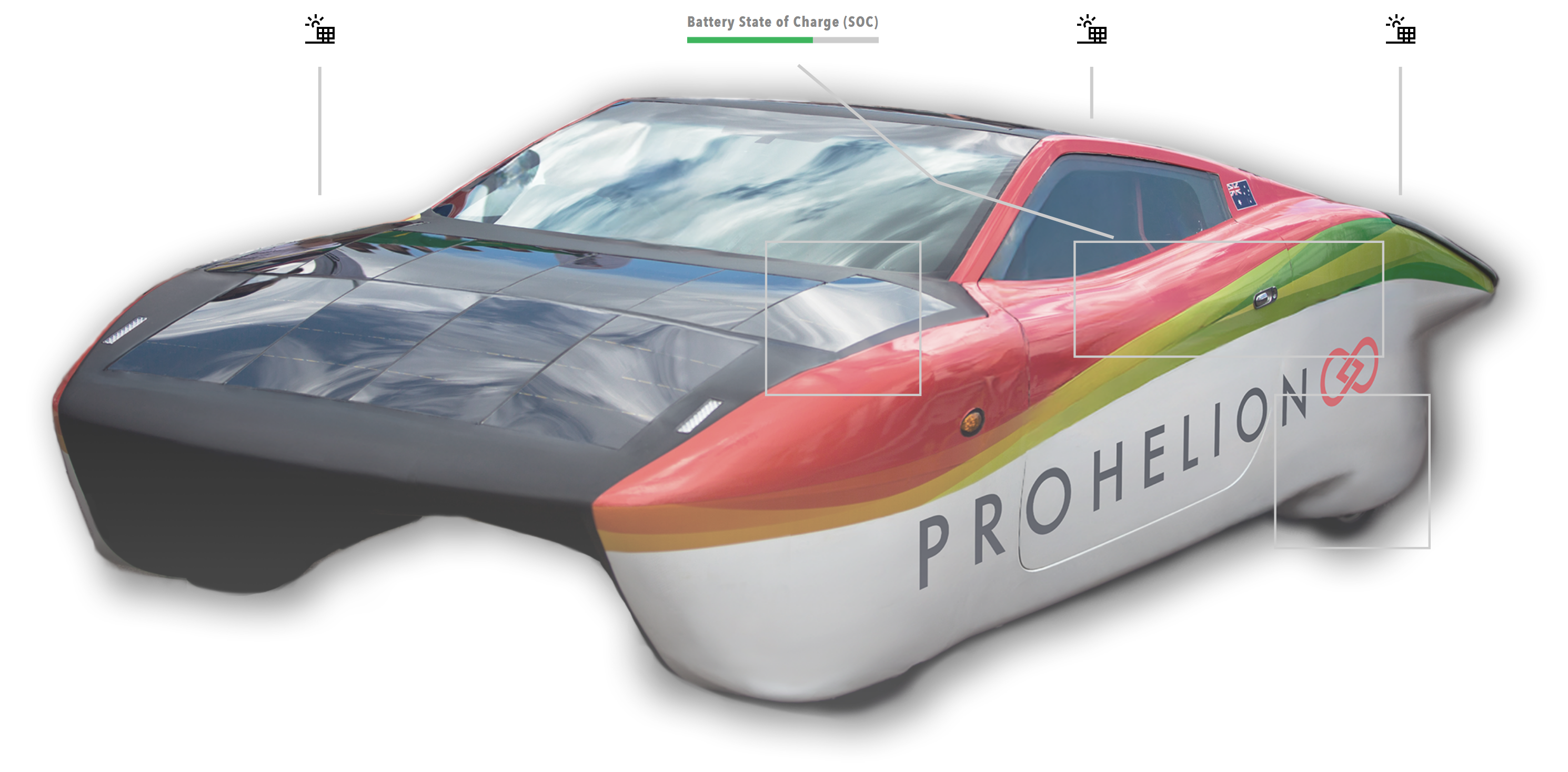
Use an interactive image for device diagrams, system layouts, interactive schematics and visual data overlays.
Use the HTML component with an img element for a simple static image, the Charts component for charts, and the 3D model component for a three-dimensional view.
The base image carries seven kinds of overlay element. Regions are clickable rectangles that navigate to another page or run an action. Icons and buttons are positioned graphics and controls that can run an action. Data values display live system data. Points anchor annotation lines. Annotation lines connect elements and may bend at waypoints called elbows. Layers are named groups of overlay elements that the operator shows and hides. Icons can be an emoji, a Scalable Vector Graphics (SVG) path or an image file, and every overlay element is positioned relative to the base image. The action invocation, layer, icon source, display type and annotation line parameters are shared with the 3D model component and are described on Overlay elements.
Parameters
| Parameter | Type | Required | Default | Description |
|---|---|---|---|---|
id |
string | No | None | Set as the id attribute of the image container |
class |
string | No | None | CSS class added to the image container |
label |
string | No | None | Not used by the web interface |
image |
string | Yes | None | Filename of the base image in /Profile/Images, given directly with no value wrapper |
layers |
array | No | None | Named layers for visibility toggles. Refer to Layers |
regions |
array | No | None | Clickable regions. Refer to Regions |
icons |
array | No | None | Icons on the image. Refer to Icons |
buttons |
array | No | None | Buttons on the image. Refer to Buttons |
dataValues |
array | No | None | Data overlays. Refer to Data values |
points |
array | No | None | Anchor points for annotation lines. Refer to Points |
annotationLines |
array | No | None | Lines connecting elements. Refer to Annotation lines |
bind |
array | No | None | Data binding whose value replaces the overlay data of the image, using the same structure as the parameters above |
enabled |
boolean | No | true |
Not used by the web interface |
unit |
string | No | None | Not used by the web interface. Set unit on each data value instead |
precision |
number | No | None | Not used by the web interface. Set precision on each data value instead |
Base image
The base image is the foundation of an interactive image component. The image file must be stored in the profile's /Profile/Images directory (refer to Image storage) and is referenced by filename only.
Regions, icons, buttons, data values, points and elbows are all positioned relative to this base image.
Regions
Regions are clickable rectangular areas on the image. Regions can navigate to other pages or run actions.
| Parameter | Type | Required | Default | Description |
|---|---|---|---|---|
id |
string | Yes | None | Unique identifier for the region |
x |
number | No | None | Left edge of the region as a percentage of the image width, from 0 to 100 |
y |
number | No | None | Top edge of the region as a percentage of the image height, from 0 to 100 |
width |
number | No | None | Width of the region as a percentage of the image width |
height |
number | No | None | Height of the region as a percentage of the image height |
coordinates |
string | No | None | Older form of the rectangle, written as xywh=x,y,width,height, that Profinity still reads when x, y, width and height are not all set. Use x, y, width and height instead. The four values are percentages written as plain numbers, without a % or px suffix |
action |
object | Yes | None | Action invocation run when the region is clicked. Refer to Action invocation |
label |
string | No | None | Tooltip text displayed on hover |
visibleBorder |
boolean | No | true |
Whether to show the border of the region |
layer |
string | No | None | Identifier of the layer that controls the visibility of the region |
A region that navigates to another page:
regions:
  - id: "battery-region"
    x: 20
    y: 15
    width: 30
    height: 20
    action:
      invoke: Navigate
      target: "/component?componentId=Battery%20Pack"
    label: "View Battery Pack"
    visibleBorder: true
A region that runs an action:
regions:
  - id: "reset-region"
    x: 60
    y: 40
    width: 10
    height: 8
    action:
      invoke: Component
      actionId: "reset-system"
    label: "Reset System"
Icons
Icons are positioned elements that can display an emoji, an SVG path or an image file. Icons can run an action when clicked and display a tooltip on hover.
| Parameter | Type | Required | Default | Description |
|---|---|---|---|---|
id |
string | Yes | None | Unique identifier for the icon |
x |
number | Yes | None | Horizontal position as a percentage of the image width, from 0 to 100 |
y |
number | Yes | None | Vertical position as a percentage of the image height, from 0 to 100 |
icon |
string | Yes | None | Icon source. Refer to Icon source forms |
size |
number | No | 24 |
Icon size in pixels |
color |
string | No | None | Icon colour, applied to SVG paths and text icons |
label |
string | No | None | Tooltip text displayed on hover |
action |
object | No | None | Action invocation run when the icon is clicked. Refer to Action invocation |
layer |
string | No | None | Identifier of the layer that controls the visibility of the icon |
An emoji icon:
An image file icon:
icons:
  - id: "solar-icon"
    x: 25
    y: 25
    icon: "solar-panel.svg"
    size: 64
    label: "Solar Panel"
    action:
      invoke: Navigate
      target: "/component?componentId=Solar%20Panel"
An SVG path icon:
icons:
  - id: "custom-icon"
    x: 75
    y: 75
    icon: "M 10 10 L 90 90 M 90 10 L 10 90"
    size: 40
    color: "#FF0000"
    label: "Custom Icon"
Buttons
Buttons are dashboard-style buttons positioned on the image, which run an action when clicked.
| Parameter | Type | Required | Default | Description |
|---|---|---|---|---|
id |
string | Yes | None | Unique identifier for the button |
x |
number | Yes | None | Horizontal position as a percentage of the image width, from 0 to 100 |
y |
number | Yes | None | Vertical position as a percentage of the image height, from 0 to 100 |
label |
string | No | None | Caption of the button |
action |
object | No | None | Action invocation run when the button is clicked. Refer to Action invocation |
layer |
string | No | None | Identifier of the layer that controls the visibility of the button |
A button that runs an action:
Data values
Data values display real-time data from the Profinity system. They support three display types (text, graph as a bar chart, and status as a lamp) and can bind to any tag.
| Parameter | Type | Required | Default | Description |
|---|---|---|---|---|
id |
string | Yes | None | Unique identifier for the data value |
x |
number | Yes | None | Horizontal position as a percentage of the image width, from 0 to 100 |
y |
number | Yes | None | Vertical position as a percentage of the image height, from 0 to 100 |
label |
string | No | The id |
Label displayed above the value. The label can be bound with the label target |
bind |
array | Yes | None | Data binding that supplies the live value. Refer to Display types for the targets |
displayType |
string | No | text |
How the value is displayed, one of text, graph (bar chart) or status (lamp) |
maxValue |
number | No | None | Maximum of the bar chart scale. A graph data value needs a maxValue greater than 0 to draw the bar |
lampColor |
string | No | grey |
Colour of the lamp before a bound colour arrives, when displayType is status. The values are those of the lamp colour names |
value |
number or string | No | None | Static value shown when the data value is not bound |
unit |
string | No | None | Unit appended to the formatted value |
precision |
number | No | None | Number of decimal places for the displayed value |
enabled |
boolean | No | true |
Whether the status lamp is enabled. The parameter applies only when displayType is status |
layer |
string | No | None | Identifier of the layer that controls the visibility of the data value |
Refer to Display types for an example of each display type.
Points
Points are anchor points for annotation lines. They can be displayed as visual markers or used as connection points for annotation lines.
| Parameter | Type | Required | Default | Description |
|---|---|---|---|---|
id |
string | Yes | None | Unique identifier for the point |
x |
number | Yes | None | Horizontal position as a percentage of the image width, from 0 to 100 |
y |
number | Yes | None | Vertical position as a percentage of the image height, from 0 to 100 |
size |
number | No | 8 |
Diameter of the dot in pixels. A value of 0 hides the dot while the point remains available as an anchor |
color |
string | No | grey |
Colour of the dot |
layer |
string | No | None | Identifier of the layer that controls the visibility of the point |
A visible point:
An invisible anchor point:
Example
The following example combines every overlay type on one image.
Tag paths such as DBC/Voltage/Value are placeholders, so replace them with tags from your own component.
dashboard:
items:
- row:
items:
- image:
image: "battery-system.png"
layers:
- id: "Hotspots"
label: "Hotspots"
regions:
- id: "battery-region"
x: 20
y: 15
width: 10
height: 8
action:
invoke: Navigate
target: "/component?componentId=Battery%20Pack"
label: "Battery Pack"
visibleBorder: true
layer: "Hotspots"
- id: "charger-region"
x: 20
y: 40
width: 10
height: 8
action:
invoke: Navigate
target: "/component?componentId=Charger"
label: "Charger"
icons:
- id: "status-icon"
x: 50
y: 20
icon: "Lock.svg"
size: 24
label: "Battery Status"
action:
invoke: Navigate
target: "/component?componentId=Battery%20Pack"
buttons:
  - id: "unlock"
    x: 70
    y: 40
    label: "Unlock"
    action:
      invoke: Component
      actionId: "unlock"
dataValues:
- id: "voltage"
x: 10
y: 10
label: "Voltage"
bind:
- target: value
source: 'DBC/Voltage/Value'
displayType: "text"
unit: "V"
precision: 2
- id: "soc"
x: 10
y: 30
label: "SOC"
bind:
- target: value
source: 'DBC/PackStateOfCharge/SOCPercent'
displayType: "graph"
maxValue: 100
unit: "%"
precision: 1
- id: "status"
x: 50
y: 30
label: "Status"
bind:
- target: color
source: 'Properties/StatusColourText'
displayType: "status"
lampColor: "grey"
points:
- id: "anchor-1"
x: 25
y: 75
size: 8
color: "#FF0000"
annotationLines:
- id: "status-line"
fromId: "status-icon"
toId: "status"
elbows:
- x: 50
y: 25
- id: "data-line"
fromId: "anchor-1"
toId: "voltage"
Coordinates
Every position on an interactive image is a percentage of the displayed image, where 0 is the left edge or top edge and 100 is the right edge or bottom edge. The rule applies to the x and y of regions, icons, buttons, data values and points, to the width and height of regions, and to the elbows of annotation lines, so the overlays stay aligned when the image is scaled. The size of an icon and of a point is the only measurement in pixels.
Write each position as a plain number such as 50 or 12.5, without a % or px suffix. A string such as "50%" or "120px" is not a number, and a region whose x, y, width and height are not all numbers is not drawn from those properties.
A value above 100 places the element outside the image, so keep every position between 0 and 100.
Image storage
Image files, both base images and icon files, are stored in the profile's /Profile/Images directory and referenced by filename only, never by full path.
/Profile/Images/
  ├── device-diagram.png
  ├── battery-system.png
  ├── solar-panel.svg
  └── custom-icon.png
Images are served from the /Profile/Images/{filename} URL path, and the dashboard YAML refers to them by filename only, as the Base image section shows.
Working with overlays
Regions and icons display their label as a tooltip on hover, a button displays its label as its caption, and a data value displays no tooltip because it shows its data directly.
Give every region, icon, button, data value and point an id that is unique within the image, because annotation lines refer to elements by id. Give regions and icons a label so that the tooltip says what the element does, and give a status data value a label as well, because the colour of a lamp alone does not state the status.