Dashboard Component
A Dashboard Component is a built-in profile component that renders a dashboard defined entirely in YAML and can be edited using the visual dashboard editor.
Use it for human-machine interface (HMI) style screens that bind only to tags that already exist.
It is included in every edition, and it differs from a Custom Component in that it has no DBC, script, or pack files, so there is nothing to upload except the dashboard itself.
Add the component
Add the component from ADD COMPONENT (refer to Add a Component to a Profile), where it is listed under Dashboards.
Its only setting besides the name is Upload Dashboard (Optional), which takes a .yaml dashboard file.
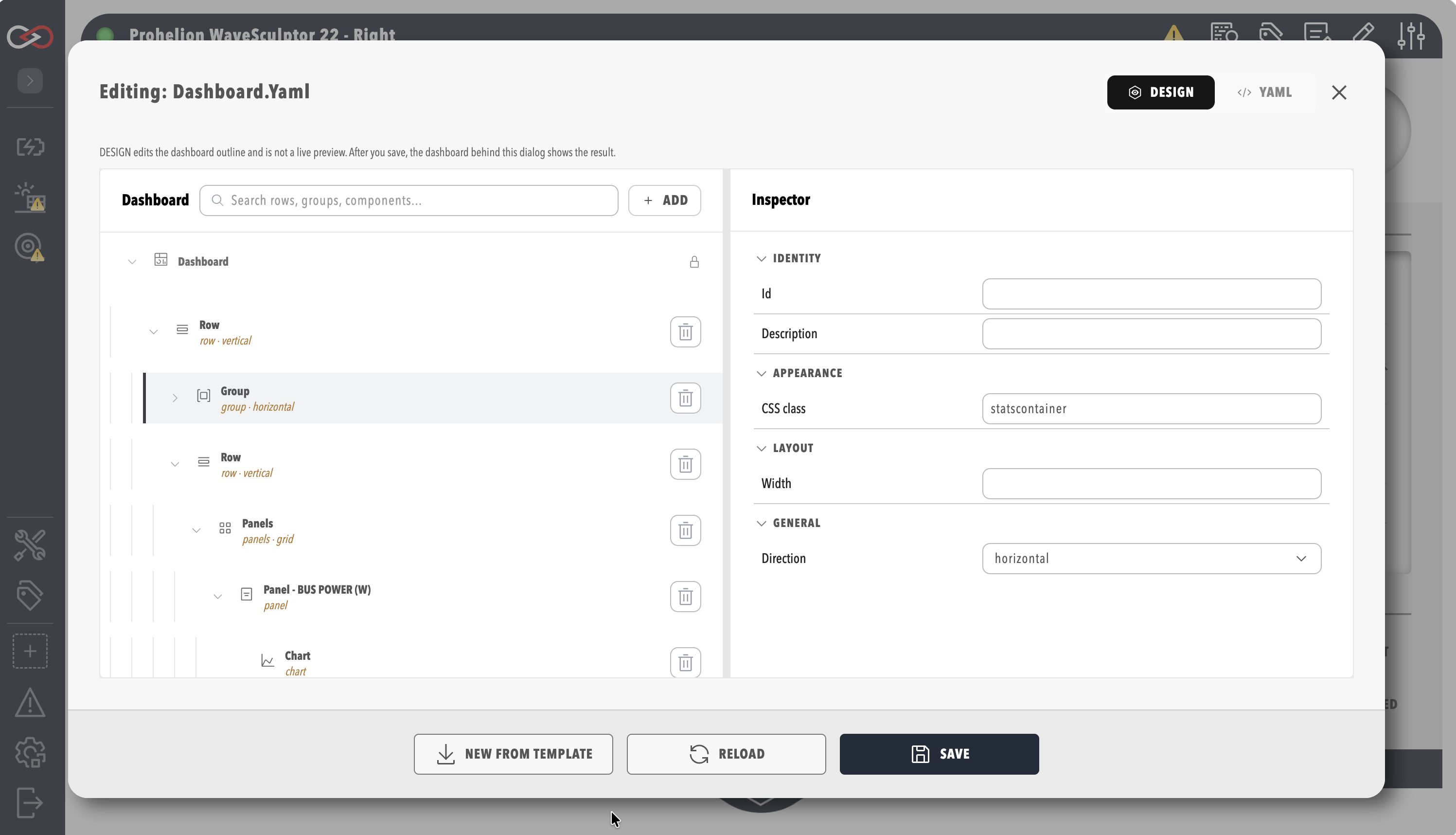
When no file is uploaded, Profinity creates a template dashboard named after the component, and the dashboard editor on the component opens that file so it can be edited into the finished dashboard.
A component name that matches an existing dashboard file in the profile is rejected with the message "There is already a component in this profile with that name".
Building the dashboard
Dashboards are written in YAML and can be edited in the Visual Editor, with the same layout, data, and interactive components available as on any other dashboard.
A relative tag path in a Dashboard Component starts at the Dashboard Component itself, which has no DBC, so a path such as DBC/BusMeasurement/BusVoltage finds no tag there.
Bind to the tags of another component with an absolute path that starts with /, such as /Prohelion BMU/DBC/PackStateOfCharge/SOCPercent.
Refer to Data Binding to connect the dashboard to tags and the Component Reference for each element. Worked guides are How to Create a Custom Dashboard and How to Create a Profile Dashboard.