Update WaveSculptor configuration and firmware
Configure a WaveSculptor with wsConfig, then flash its firmware, from the Firmware Utilities tab in the component settings.
Before you begin
You need a Windows desktop instance of Profinity and a CAN to Ethernet bridge, or a Virtual CAN Bus Adapter, on the CAN bus of the WaveSculptor.
WaveSculptor configuration tools run on Windows only
The WaveSculptor configuration and firmware tools (Setup and Config, wsConfig and Update Firmware) are available only on Windows, and only to the user of the Profinity desktop application. A Docker, Linux, or macOS installation has no Setup and Config button, so the WaveSculptor must be connected to a Windows desktop instance during the update.
A CAN to Ethernet bridge is required
The configuration tools need a Prohelion or Tritium CAN to Ethernet Bridge on the same CAN bus as the WaveSculptor and the same local network as the PC. Where no bridge is available, pair the Prohelion Virtual CAN Bus Adapter with another CAN adapter to create a virtual bridge. A physical bridge accepts only one TCP connection at a time, as covered under Multiple TCP clients on one bridge.
The factory default CAN bus data rate for all Prohelion devices is 500 kbit/s.
Configure the WaveSculptor
- Open the settings of the WaveSculptor component and select the Firmware Utilities tab.
- Select Setup and Config. Profinity runs three steps in order, and stops if one fails: Check Suitable Available Network checks that a suitable network is available, Set Active sets the WaveSculptor as the active device over a TCP connection, and Run WaveSculptor Config launches the Tritium wsConfig program.
- In wsConfig, use the File menu to save the current configuration of the WaveSculptor to the PC, as described in Configuration. The configuration stays on the WaveSculptor, and Profinity keeps no copy, so this file is the way back.
- In wsConfig, set the CAN bus data rate, and set the base address to the same value as Base address in the component settings.
- Set the baud rate of the CAN adapter in the Profile to the same data rate as the WaveSculptor, using its baud rate control, such as PCAN BaudRate or Candapter BaudRate.
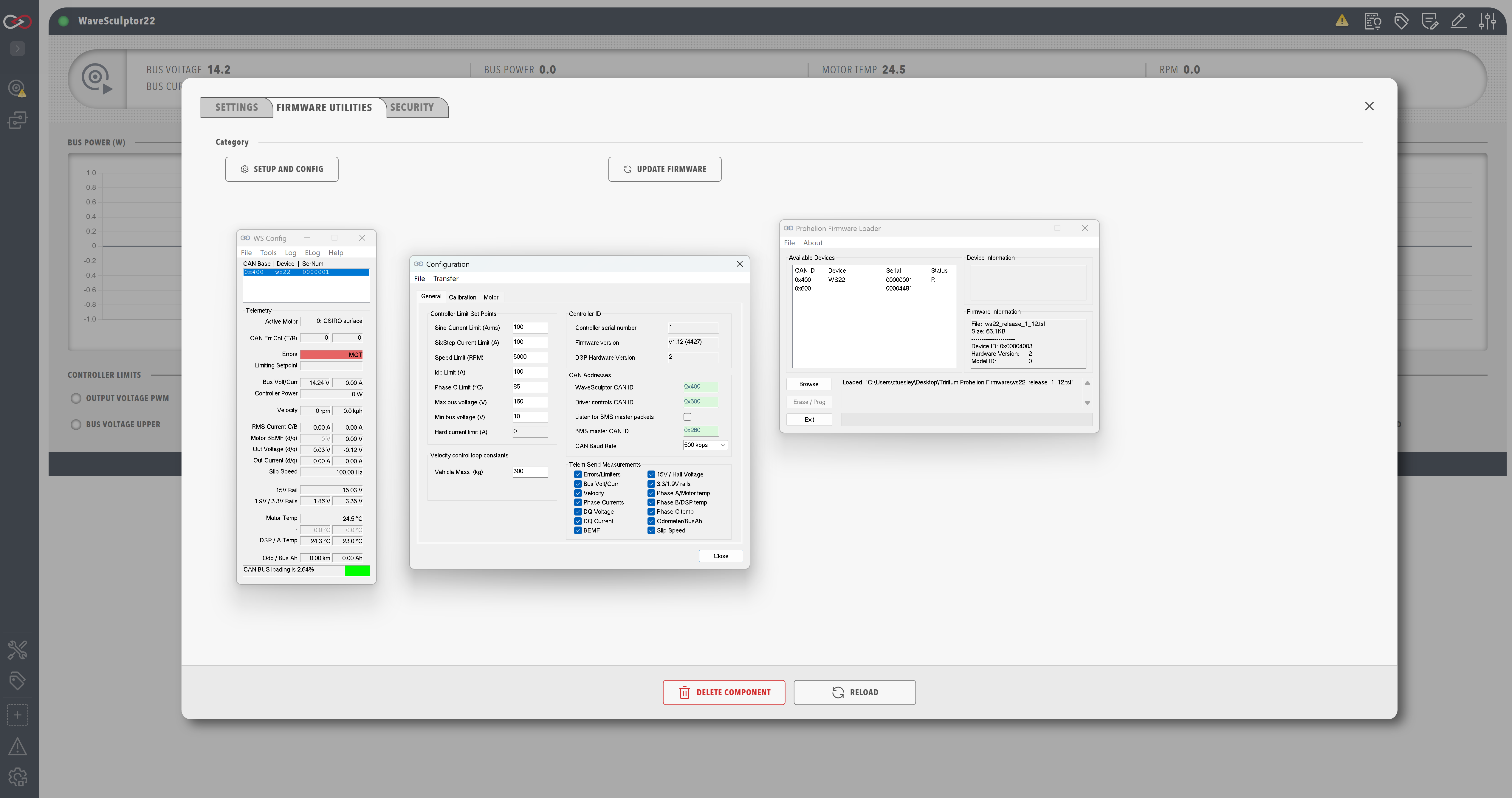
The configuration worked when all three steps complete and wsConfig opens.
The PhasorSense, ParamExtract, and ImExtract tools are covered in the configuration software documentation. The procedure for setting up a motor is covered there too.
Flash the WaveSculptor firmware
Flash the firmware once the configuration has been updated. It needs the same Windows desktop instance and the same CAN to Ethernet bridge or Virtual CAN Adapter as the configuration tool. A flash replaces the firmware on the WaveSculptor and cannot be undone from Profinity. The configuration stays on the WaveSculptor through a flash, and Profinity keeps no copy. Saving it to the PC first, as in step 3 of the configuration procedure, gives you a copy to restore.
- Select the Firmware Utilities tab in the settings.
- Select Update Firmware. Profinity sets the WaveSculptor active over UDP rather than TCP, so the update does not use the bridge's single TCP connection.
- Complete the update in the firmware loader that Profinity starts, because Profinity does not report the result of the flash itself. When the loader finishes, check that the WaveSculptor dashboard shows data.
Troubleshooting
| What you see | Cause | What to do |
|---|---|---|
| wsConfig does not open. | The sequence stopped before the third step. | See the Profinity log, which records that the operation did not run successfully. |
| The sequence stops at Check Suitable Available Network. | No suitable network is available. | Check that the bridge and the PC are on the same local network. |
| The sequence stops at Set Active. | The profile has no Tritium or Prohelion CAN bridge, or Virtual CAN Bus Adapter, that Profinity can reach over TCP. A Virtual CAN Bus Adapter also needs another CAN adapter in the profile. | Add the missing adapter to the profile, and check that it is reachable from this computer. |
| The dashboard shows no data after the firmware loader finishes. | Profinity receives no CAN traffic from the WaveSculptor within Milliseconds valid, so the connection is treated as lost. | Use the checks on WaveSculptor motor controller. |