Service accounts
Create a service account so that an integration or a Model Context Protocol (MCP) client signs in with an API token instead of a password. A service account is a user record for automation rather than a person, and its token stays valid until an administrator generates a new one or disables the account. Changing the account's roles keeps the same token.
You need the Security administration permission and the Profinity Server licensed feature, which Users & Groups uses. MCP access also needs the Profinity AI licensed feature, which the Server and Enterprise editions include. Refer to Licensing.
Treat the token like a password: store it in a secrets manager, and give the account only the permissions its integration needs.
Create a service account
- Select ADMIN in the side menu, then Users & Groups.
- Select + Add user, or select the row of an existing automation user.
- Turn on Service account.
- Under Assigned roles, choose the roles the account needs, as described in Choose the permissions.
- Select ADD USER for a new account, or SAVE for an existing one. The account appears in the user list.
- Select the account's row, then select the User Actions tab.
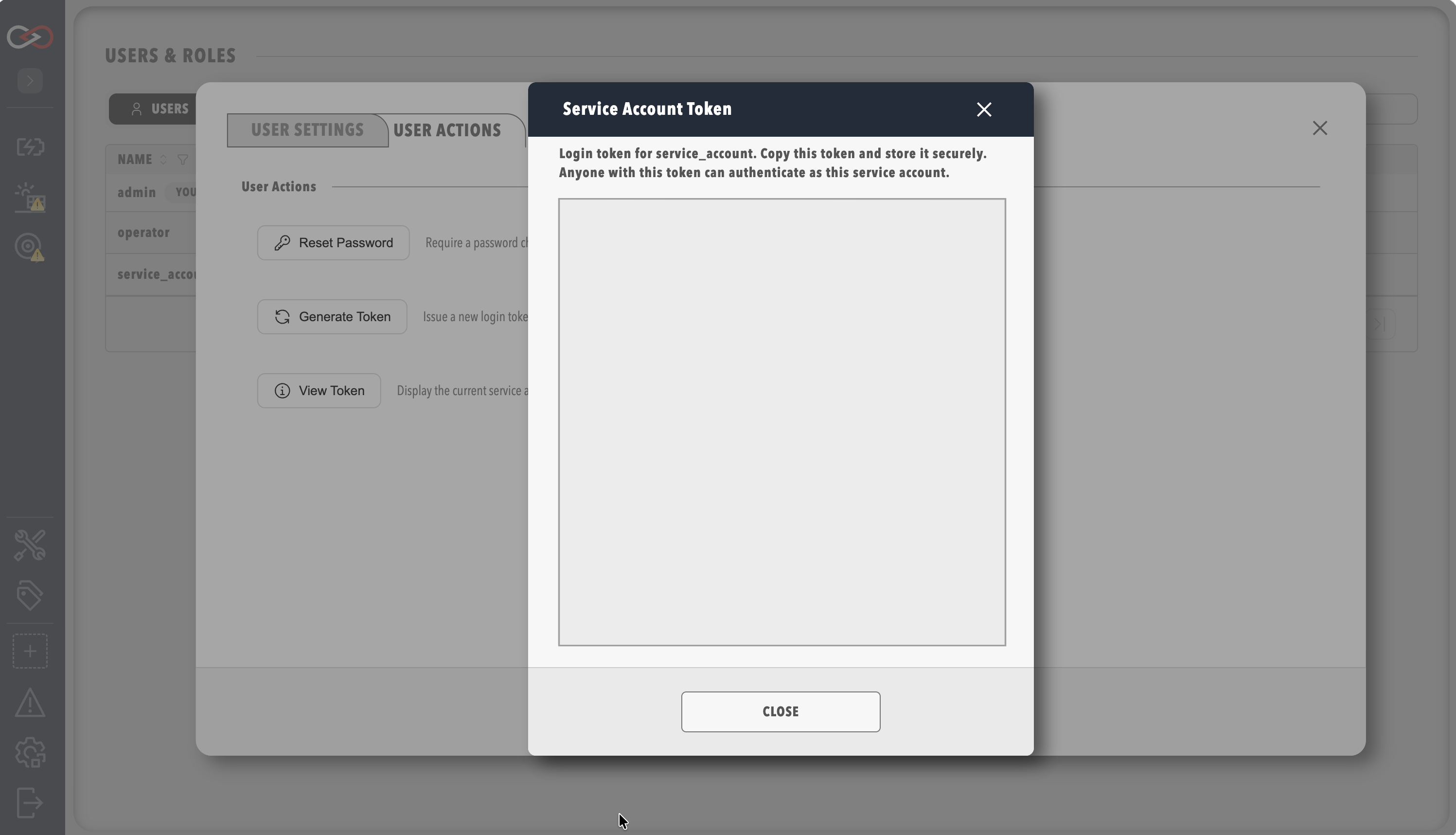
- Select Generate Token, then confirm. The Service account token dialog shows the token in the Token box.
- Select Copy, which reads Copied for a moment, and store the token in a secrets manager.
- Select Close.
To check the token, send it to Profinity from the computer that runs the integration, replacing <token> with the token:
The response has status 200 and holds the account's details, with isServiceAccount set to true.
For an instance on another computer, use its address, as described in Profinity Web.
On an account that already has a token, View Token shows the current token again.
Replace a token
Generating a token stops the old one at once
Generate Token issues a new token, and every integration that uses the old one fails until you give it the new one. Copy the current token with View Token first if you need it, and update each integration straight after you generate the new token.
To replace a token, select Generate Token on the account's User Actions tab, then update each integration with the new token. The account keeps its roles and its access.
Choose the permissions
A service account takes roles in the same way as a person's account.
| Use | Permissions |
|---|---|
| Read-only monitoring | A role that holds view permissions only, as suggested in Create a role |
| Tag and query automation | View tags, and any other view permission the integration reads |
| MCP client | MCP integration, View tags, and View alerts. The Profinity AI permission includes MCP integration, and the default Administrators role holds both. |
Restricted components and collections apply to a service account in the same way as to any user, as described in Component and collection security.
Use the token
Send the token as a bearer token on every /api/v2 request:
Replace <token> with the token from Generate Token or View Token.
For an MCP client, refer to Prepare Profinity for an MCP client.
Run an AI Technician
An AI Technician runs as the user named in its Run as setting, and a service account is the usual choice, because its roles can be limited to reading. Give the account a role with MCP integration, View tags, View alerts, and View tag rules, and with no permission that changes anything. The technician then sees only the components and collections that the account can see.
Each round signs in with its own session, so the account's token is not used, and Generate Token has no effect on the technician. The session lasts for the technician's Round timeout (seconds) plus two minutes from the start of the round, and then expires.
Revoke access
To stop the account signing in, turn off Is the user currently enabled for the account in Users & Groups, and select SAVE.
Profinity then refuses every request with its token, and an AI Technician that runs as the account stops, recording a blocked finding on each round.
Troubleshooting
| What you see | Cause | What to do |
|---|---|---|
| "Service account token is no longer valid. Please log in again or request a new token from an administrator." on requests that worked before | Someone selected Generate Token on the account, so the old token stopped working. | Select View Token on the account's User Actions tab, copy the current token, and update the integration with it. |
| "User account is disabled. Please contact an administrator." | The account is disabled. | Turn on Is the user currently enabled for the account in Users & Groups, and select SAVE. |
The AI Technician's Outcome findings tag reads blocked after every round |
The account named in Run as is disabled. | Enable the account in Users & Groups. |
To manage the other accounts on the instance, refer to Managing users.