Profinity Web
The Web tab of System Configuration sets the addresses, ports, and certificates of the main Profinity web server, which serves the web interface and the API over HTTP and HTTPS. Saving a change on any System Configuration tab restarts Profinity, as described in System Configuration.
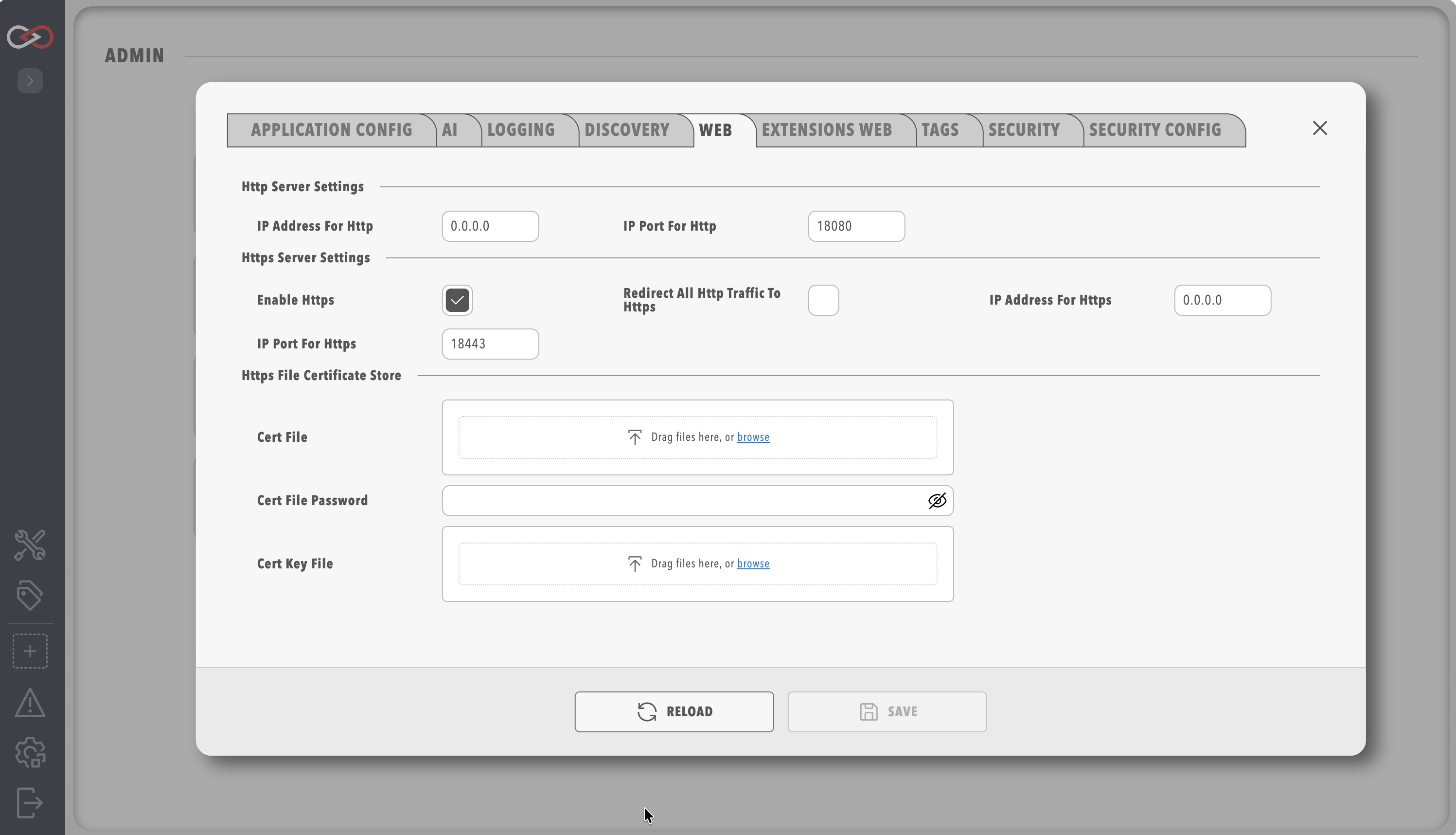
Addresses and ports
| Parameter | Type | Default | Description |
|---|---|---|---|
| IP address for HTTP | IP address | 0.0.0.0, which is every address of the computer |
The Internet Protocol (IP) address that the HTTP server listens on, such as 127.0.0.1 for this computer only, or one address of the computer. Shown only with a Server licence. |
| IP port for HTTP | Whole number | 18080 |
The port for HTTP. A port below 1024 needs administrator rights on the host. |
| Enable HTTPS | On or off | On | Runs the HTTPS server. |
| IP address for HTTPS | IP address | 0.0.0.0, which is every address of the computer |
The IP address that the HTTPS server listens on. Shown only with a Server licence. |
| IP port for HTTPS | Whole number | 18443 |
The port for HTTPS. |
| Redirect all HTTP traffic to HTTPS | On or off | Off | Sends every HTTP request to HTTPS. It can be turned on only while Enable HTTPS is on. |
Which address Profinity listens on depends on the installation and the licence:
- A desktop installation without a Server licence always listens on
127.0.0.1, so the web interface can be reached only from the same computer. Whenconfig.yamlholds another address, Profinity uses127.0.0.1and records the warning "Remote web access requires a Server license" in the log. - An archive installation on Linux or macOS, and a Docker installation, listen on the address in
config.yamlwith or without a Server licence. - A desktop installation with a Server licence, and a Windows installation running the console build, listen on the address in
config.yaml.
The full rule is in the Remote web access needs a Server licence note on Licensing.
HTTPS certificates
The Web tab and the Extensions web tab both have these options, and each tab keeps its own values for its own server.
| Parameter | Type | Default | Description |
|---|---|---|---|
| Windows cert store | Text | Empty | On Windows, the name of the certificate store that holds the HTTPS certificate, such as My, which is the Personal store. Profinity uses the store only when Windows cert store location is also set. |
| Windows cert store location | Choice | None | The location of the store: Current user for certificates of the account that runs Profinity, or Local machine for certificates of the whole computer. With None, Profinity does not use the Windows store, and uses Cert file instead, or the generated certificate when Cert file is empty. |
| Windows cert store subject | Text | Empty | The subject name of the certificate in the store, exactly as the certificate shows it. |
| Cert file | File upload | Empty | A certificate file for HTTPS, normally in .pfx or .p12 format, in place of the Windows store. |
| Cert file password | Secret | Empty | The password that protects Cert file. |
| Cert key file | File upload | Empty | The private key file, .pem or .key, for a certificate in Privacy-Enhanced Mail (PEM) format. When it is empty, Profinity looks for privkey.pem in the same folder as the certificate. |
To find the store and subject name of a certificate on Windows, open the certificate in Windows Certificate Manager (certmgr.msc) and read its Subject field. The manager's navigation tree shows the store that holds it.
When Windows cert store and Cert file are empty, Profinity creates its own certificate the first time HTTPS starts.
The file is profinity_generated.pfx in the certificates folder of the artefacts directory, and it has no password.
Profinity also creates the file when Cert file is missing, cannot be read, or has the wrong password, so a profinity_generated.pfx next to your own file means that Profinity did not use it.
To export and trust the generated certificate, or to create a new one, refer to Trust the HTTPS certificate.
Troubleshooting
| What you see | Cause | What to do |
|---|---|---|
| Profinity cannot be reached from another computer, on a desktop installation | The installation has no Server licence, so it listens on 127.0.0.1 only. |
Check the licence on the License page, as described in Applying a licence. |
| Profinity cannot be reached from another computer, with a Server licence | The address is 127.0.0.1, or an address that the other computer cannot reach. |
Set IP address for HTTP and IP address for HTTPS to 0.0.0.0 or to an address of the host that the other computer can reach. |
| Profinity cannot be reached from another computer, and the address is right | The host firewall blocks the ports. | Allow IP port for HTTP and IP port for HTTPS through the host firewall. Refer to Security for host firewall guidance. |
| Profinity does not start its web server after a port change | Another program already uses the port. | Enter a free port on this tab. |
profinity_generated.pfx appears although Cert file is set |
Profinity could not use Cert file. | Check Cert file and Cert file password. |