CAN bus adapters
An adapter connects Profinity to a Controller Area Network (CAN) bus. Profinity supports the adapters in the following table.
| Adapter | Connection |
|---|---|
| Prohelion and Tritium CAN to Ethernet bridges, listed as Tritium Can to Ethernet Bridge | Ethernet, over UDP or TCP |
| Prohelion Virtual CAN to Ethernet Bridge, covered on the Prohelion Virtual CAN Bus Adapter page | Ethernet, relaying to another adapter |
| SocketCANd, using the socketcand daemon | Ethernet, over TCP |
| Peak Systems CAN Adapter, Peak Systems CANFD Adapter | USB |
| Ewert Energy CANdapter | USB (COM port) |
| Native SocketCAN | The local operating system, on Docker and Linux installs only |
Native SocketCAN is available only on Linux: when Profinity runs in Docker or on a Linux host, including a Linux archive install. SocketCAN is a Linux kernel feature. A Peak adapter that you plug into a Linux host also appears there as a SocketCAN interface. On Linux, use the SocketCAN adapter, or the SocketCANd adapter from another machine, instead of the Peak adapter.
The Ewert CANdapter connects through its serial port on every platform.
Install the Peak driver before starting Profinity, because the Peak CAN to USB Adapter needs it. Use the supplied Peak tools to confirm the adapter works, then add the adapter with Auto Discovery as normal.
Add an adapter with Auto Discovery or manually. The parameters that manual configuration asks for are in CAN bus adapter settings.
Adapter auto discovery
Auto Discovery finds the supported CAN bus adapters that are visible to Profinity. If an adapter is visible on the network but is not yet in the current Profile, a Discovered category appears on the Available Components screen, which opens from ADD COMPONENT. The category lists every adapter that Profinity can currently see. An adapter that is missing from the list is not visible to Profinity, or is not discoverable. Profinity removes an adapter from the list when it has not been seen for 10 seconds. A Peak adapter is discovered on Windows only, so add it manually on other systems, using manual configuration.
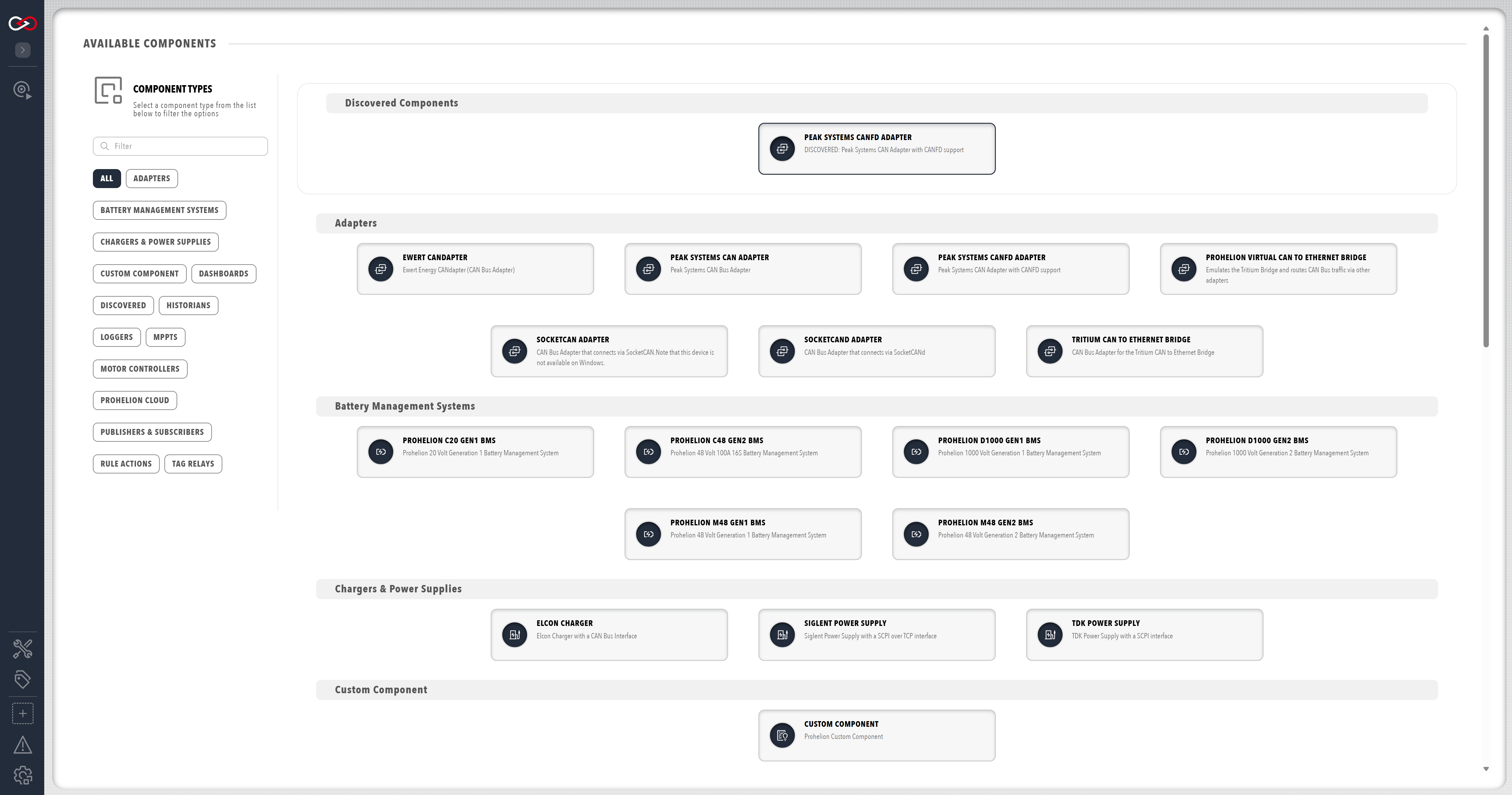
If a CAN to Ethernet bridge does not appear in the Discovered category, refer to If a CAN to Ethernet bridge is not found. For the adapter status colours and the bit rate that every CAN device must share, refer to CAN bus adapter troubleshooting.
For the steps to connect a CAN bus, refer to How to connect to CAN bus.