Installing Profinity on macOS and Linux
Available Profinity Releases
Profinity is currently available on Windows machines as a standard desktop application, for selected Unix Platforms (including macOS and Linux) and as a Docker container for Docker enabled environments and Cloud setups.
Zip Installation
Profinity is available as a zip installation file for Unix and macOS platforms. This approach does not require an installer, but it does require the Microsoft ASP.NET Core 9.0 runtime.
To use this installation approach, first download and install an ASP.NET Core 9 (or above) runtime. Note that we are currently only testing against .NET 9 releases, so if you do use a more recent version you may have issues. The ASP.NET Core runtime is the version of .NET that is required.
Once installed, download the latest Profinity release .zip file from the Prohelion GitHub releases page and unzip the file into the folder that you wish to run Profinity from.
Starting and Stopping Profinity
To start Profinity from a Zip installation, go to the folder where Profinity has been unzipped and simply run the command
dotnet Profinity.dll
The following or similar should then appear.
Prohelion Profinity - v2.2.1.0
Profinity (c) 2026 - Prohelion Pty Ltd.
------------------------------------------
Press Ctrl-C to shut the application down.

INFO: Starting Prohelion - Profinity
INFO: Default Quartz.NET properties loaded from embedded resource file
INFO: Initialized Scheduler Signaller of type: Quartz.Core.SchedulerSignalerImpl
INFO: Quartz Scheduler created
INFO: RAMJobStore initialized.
INFO: Quartz Scheduler 3.13.1.0 - 'DefaultQuartzScheduler' with instanceId 'NON_CLUSTERED' initialized
INFO: Using thread pool 'Quartz.Simpl.DefaultThreadPool', size: 10
INFO: Using job store 'Quartz.Simpl.RAMJobStore', supports persistence: False, clustered: False
INFO: Scheduler DefaultQuartzScheduler_$_NON_CLUSTERED started.
INFO: Profinity Profile : Default 11
INFO: Profinity Services Starting
INFO: Now listening on: http://127.0.0.1:18080
With Profinity running, open the URL defined in the Config.yaml file (i.e., http://profinity:18080) to access the Profinity web client.
Connecting to the Profinity web client will direct you to the Profinity login page.
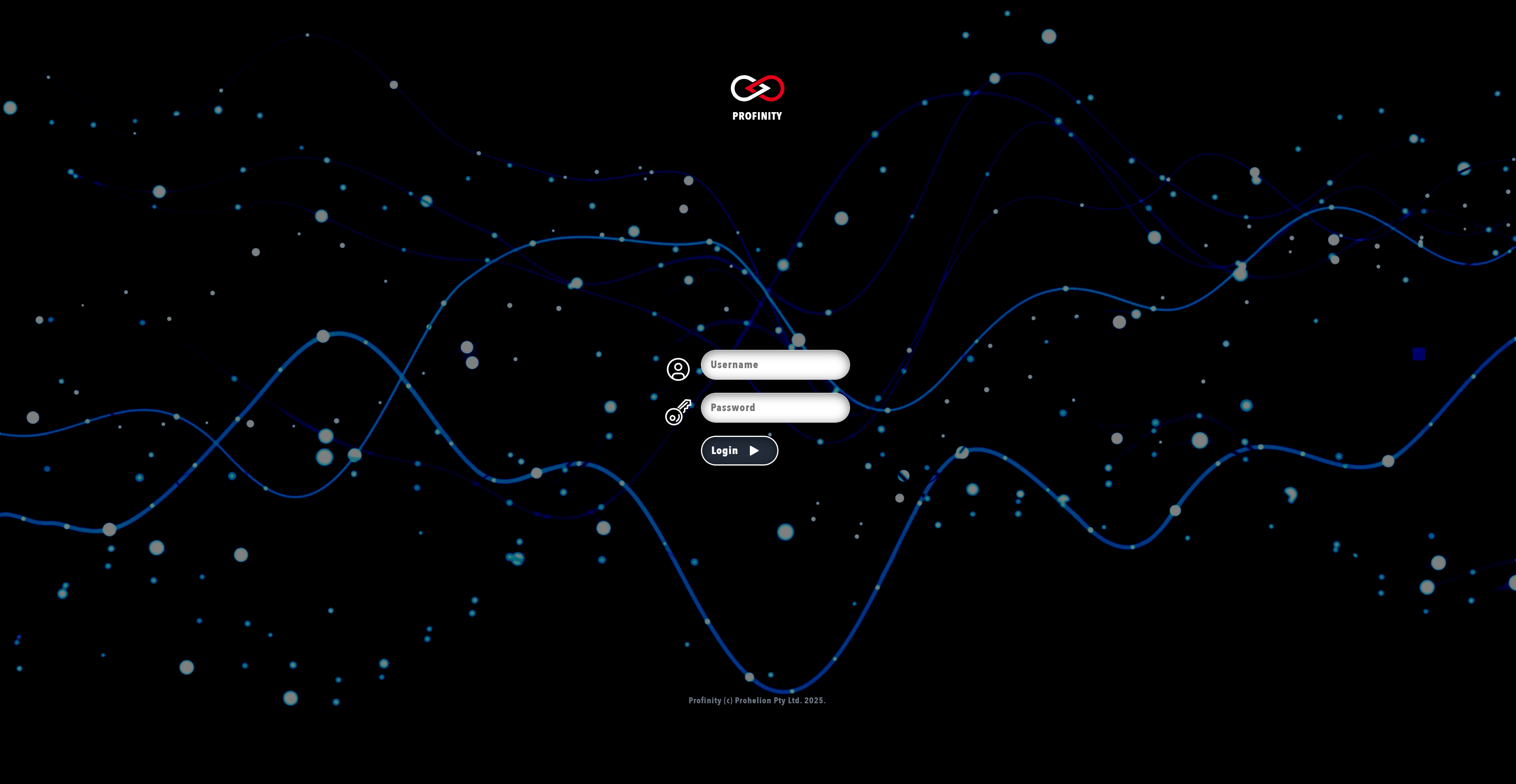
A fresh install of Profinity will only have the administrator user active. To log in, use the following login details.
Username: admin
Password: password
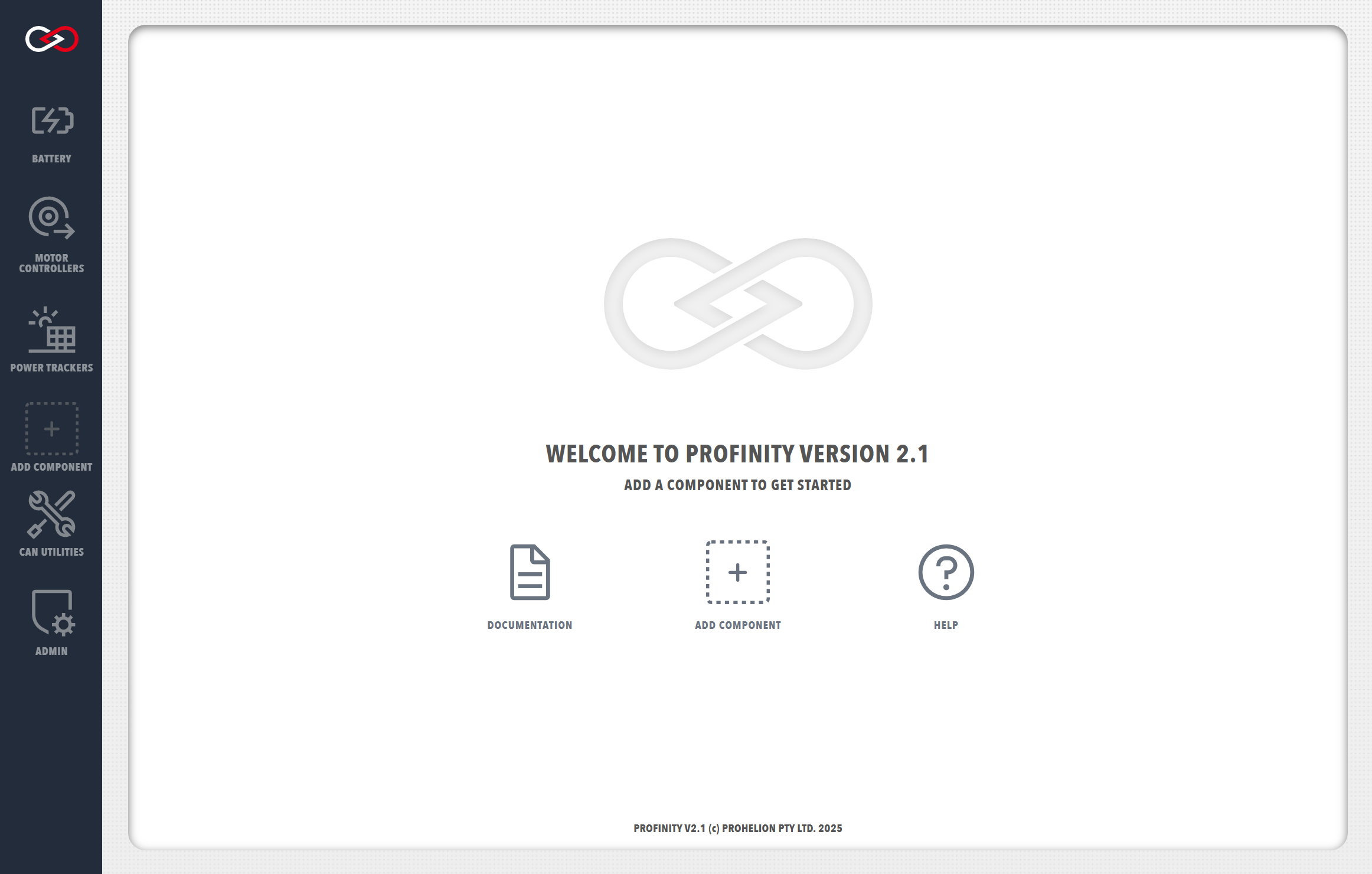
After logging in, you will arrive at the Profinity homepage.
To stop Profinity, go to the terminal window running Profinity and press Ctrl-C