Installing Profinity On Docker
Available Profinity Releases
Profinity is currently available on Windows machines as a standard desktop application, for selected Unix Platforms (including macOS and Linux) and as a Docker container for Docker enabled environments and Cloud setups.
Table of Contents
Installation using Docker
Profinity can be deployed onto most devices capable of running Docker, including macOS and Linux machines as well as several single-board computers such as Raspberry Pi, BeagleBone Black, etc.
Prerequisites
The following items are required to be able to install Profinity:
- Docker installed on the target device
- A device capable of running ASP .Net 9, with Docker support from Microsoft
- Docker Compose installed on the target device (included with Docker Desktop, available as plugin on Linux machines)
- A suitable CAN adaptor for the target device
Simple Setup
On the target device, create a new empty directory and a file titled docker-compose.yml in the new directory. The contents of the docker-compose.yml file should be
services:
  profinity:
      image: prohelion/profinity:latest
      restart: always
      #On linux hosts you can run in host mode to enable autodiscovery
      #network_mode: host
      ports:
        - 18080:18080
        - 18443:18443
        - 5000:5000
        - 4876:4876
For more information about Docker Compose, see the official Docker documentation.
Starting and Stopping Profinity
The Profinity Docker container is started and stopped using commands from the Docker Compose toolset. First, navigate to the directory containing the docker-compose.yml file.
Basic Commands
Start Profinity:
Start in background (detached mode):
Stop Profinity (keeps containers):
This stops the running containers but keeps them. You can restart them later withdocker compose start.
Stop and remove Profinity (removes containers):
This stops the containers and removes them. You'll need to rundocker compose up again to recreate and start them.
View logs:
For more information about Docker Compose commands, see the official Docker Compose reference.
Accessing Profinity
Once started, open the URL defined in your configuration to access the Profinity web client. The default URL is http://localhost:18080 on the local machine or http://[Your IP Address]:18080 if accessed remotely.
Connecting to the Profinity web client will direct you to the Profinity login page.
A fresh install of Profinity will only have the administrator user active. To log in, use the following login details.
Username: admin
Password: password
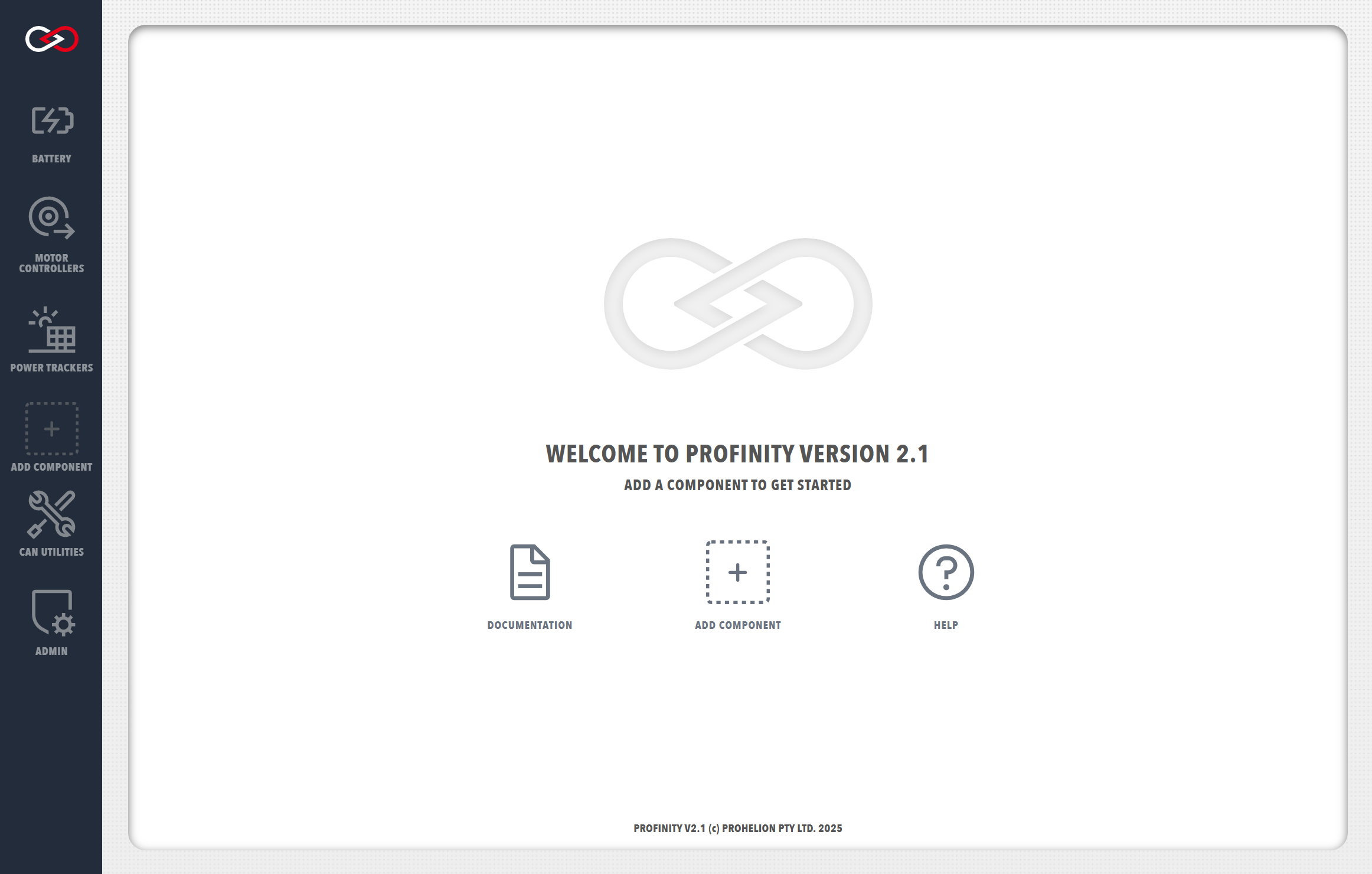
After logging in, you will arrive at the Profinity homepage.
To stop Profinity temporarily (keeping containers), use docker compose stop. To stop and remove containers, use docker compose down.
Complex Setup for Production Deployments
It is not necessary to use environment variables to configure Profinity. However, for full production environments and deployments that involve many Profinity instances you will likely find that Environment Variables are the most simple way to configure the product.
Using Environment Variables for Configuration
Profinity supports environment variable substitution in configuration and profile files, making it easy to create flexible Docker deployments. For detailed information about environment variables, including default values and syntax, see the Environment Variables documentation.
Docker Compose with Environment Variables
You can configure Profinity using environment variables in your docker-compose.yml file. Docker Compose supports environment variable substitution in compose files, allowing you to use variables for port mapping and service configuration.
services:
  profinity:
    image: prohelion/profinity:latest
    restart: always
    ports:
      - "${HTTP_PORT:-18080}:18080"
      - "${HTTPS_PORT:-18443}:18443"
      - "${API_PORT:-5000}:5000"
      - "${UDP_PORT:-4876}:4876"
    environment:
      # Profinity Configuration
      - CONFIG_NAME=${CONFIG_NAME:-Production Configuration}
      - HTTP_ADDRESS=${HTTP_ADDRESS:-0.0.0.0}
      - HTTP_PORT=${HTTP_PORT:-18080}
      - LOG_LEVEL=${LOG_LEVEL:-Info}
      - ENABLE_SCRIPTING=${ENABLE_SCRIPTING:-true}

      # Profile Configuration
      - PROFILE_NAME=${PROFILE_NAME:-Docker Profile}
      - ADAPTER_IP=${ADAPTER_IP:-192.168.1.100}
      - ADAPTER_PORT=${ADAPTER_PORT:-8080}
    volumes:
      - ./profiles:/root/Prohelion/Profinity/Profiles
      - ./config:/root/Prohelion/Profinity/Config
For more information about Docker Compose environment variables, see the official Docker documentation.
Docker Volumes
The volumes section mounts local directories into the container, allowing Profinity to persist configuration and profile data. Profinity stores data in /root/Prohelion/Profinity/ by default (when running as root user). For more information about Docker volumes, see the official Docker documentation.
Validating Profile Paths
To verify where Profinity is storing profiles and config files, you can exec into the running container:
This will show the actual directory structure used by Profinity inside the container.Environment File (.env)
Docker Compose automatically loads environment variables from a .env file in the same directory as your docker-compose.yml. This is the recommended way to manage environment-specific configuration.
Create a .env file in the same directory as your docker-compose.yml:
# Profinity Configuration
CONFIG_NAME=Production Configuration
HTTP_ADDRESS=0.0.0.0
HTTP_PORT=18080
LOG_LEVEL=Info
ENABLE_SCRIPTING=true

# Profile Configuration
PROFILE_NAME=Docker Profile
ADAPTER_IP=192.168.1.100
ADAPTER_PORT=8080

# Network Configuration
HTTP_PORT=18080
HTTPS_PORT=18443
API_PORT=5000
UDP_PORT=4876
For more information about .env files in Docker Compose, see the official Docker documentation.
Using Environment Variables in Config and Profile Files
When using environment variables with Docker, you can reference them directly in your Profinity Config.yaml and Profile.yaml files. These files should be placed in the mounted volume directories that map to /root/Prohelion/Profinity/Config and /root/Prohelion/Profinity/Profiles inside the container. When Profinity starts in Docker, it will automatically substitute the environment variables in these files with the values from your .env file or Docker Compose environment section.
For complete examples and detailed information about using environment variables in Config.yaml and Profile.yaml files, including syntax, default values, and variable naming rules, see the Environment Variables documentation.
Using Environment Files with Docker Compose
If you're using multiple .env files for different environments:
# Start with specific environment file
docker compose --env-file .env.production up

# Start with development environment
docker compose --env-file .env.development up

# Use specific compose file with environment file
docker compose -f docker-compose.prod.yml --env-file .env.production up
For more information about Docker Compose environment files, see the official Docker documentation.
Deployment Strategies
You can create different Docker Compose files for different environments. This approach allows you to use the same base configuration while customizing settings for development, staging, and production.
Development Environment
# docker-compose.dev.yml
services:
  profinity:
    image: prohelion/profinity:latest
    environment:
      - CONFIG_NAME=Development Configuration
      - LOG_LEVEL=Debug
      - ENABLE_SCRIPTING=true
      - PROFILE_NAME=Development Profile
      - ADAPTER_IP=127.0.0.1
    volumes:
      - ./dev-profiles:/root/Prohelion/Profinity/Profiles
      - ./dev-config:/root/Prohelion/Profinity/Config
Production Environment
# docker-compose.prod.yml
services:
  profinity:
    image: prohelion/profinity:latest
    restart: always
    environment:
      - CONFIG_NAME=Production Configuration
      - LOG_LEVEL=Info
      - ENABLE_SCRIPTING=false
      - PROFILE_NAME=Production Profile
      - ADAPTER_IP=${PRODUCTION_ADAPTER_IP}
    volumes:
      - ./prod-profiles:/root/Prohelion/Profinity/Profiles
      - ./prod-config:/root/Prohelion/Profinity/Config
      - ./logs:/root/Prohelion/Profinity/Logs
For more information about Docker Compose file overrides, see the official Docker documentation.
Directly Accessing Devices
Docker deliberately does not expose all devices through to the containers that run the applications. In some cases you may wish to expose additional devices to Docker so that you can access things like SocketCAN Natively or discover components that use UDP for broadcasting. See the official Docker documentation for how to expose these devices to your Docker container.